NeuroLup Response Data Reference

Activity Response Data

Introduction

An activity is an assessment composed of one or more response units, i.e., the building blocks a participant completes. A response unit is either an exercise (a cognitive task such as DSST or Finger Tapping) or a questionnaire (form). This unified model replaces the earlier separate result formats for Assessments and Forms; those sections of this documentation remain available for previously recorded data but will be deprecated once this model is live.

When a participant completes an activity, the system generates an activity response: a JSON object with two top-level parts:

  • activity_metadata: Who, what, when, and on which device

  • response_units: The recorded data for each exercise and questionnaire in the activity

Exercise response data is versioned per exercise: each exercise unit declares a schema_version, and one activity result may contain different exercises at different schema versions. See Exercise Response Units.

Example Activity Result

{
  "activity_metadata": {
    "participant_id": "participant@example.com",
    "mode": "program",
    "program_name": "Test All Exercises",
    "activity_name": "DSST",
    "occurrence_number": 2,
"admin": "admin@example.com", "created_at": "2026-06-22T14:44:12.354000", "updated_at": "2026-06-22T14:44:12.354000", "device_info": { "manufacturer": "Apple", "model_name": "iPhone 14 Pro", "system_name": "iOS", "system_version": "26.5", "type": "iPhone", "app_info": { "id": "com.relup.dev", "language": "en-US", "version": "26.4.0" } } }, "response_units": { "iBvg06QuAN": { "type": "exercise", "offlineMode": false, "startedAt": "2026-06-22T14:40:03.000Z", "completedAt": "2026-06-22T14:42:41.000Z", "data": { "schema_version": 1, "exercise_id": "exercise06", "exercise_version": 2, "exercise_metadata": { "...": "see the exercise's documentation" }, "exercise_result": [1, 0, 1, 1], "exercise_response": { "events": ["..."] } } }, "k2VqPzXw9L": { "type": "form", "offlineMode": false, "startedAt": "2026-06-22T14:43:10.000Z", "completedAt": "2026-06-22T14:44:05.000Z", "data": [ { "index": 0, "fieldType": "section", "questionsIdx": [1, 2] }, { "index": 1, "fieldType": "question", "questionType": "singleSelectMCQ", "answer": "Yes", "isOtherAnswer": false }, { "index": 2, "fieldType": "question", "questionType": "number", "answer": 7 } ] } } }

Activity Metadata

Contextual information about the completed activity.

Field Type Description
participant_id string Identifies the participant who completed the activity.
mode string How the activity was administered, e.g. program.
program_name string Name of the program the activity belongs to.
activity_name string Name of the activity as configured in the program.
occurrence_number number Indicates the position in the sequence of occurrences in the activity schedule.
admin string Email address identifying the admin
created_at date (ISO 8601) When the response record was created.
updated_at date (ISO 8601) When the response record was last updated.
device_info object The device the activity was completed on. See Device Info.


Device Info

All top-level fields are optional and recorded on a best-efforts basis.

Field Type Description
manufacturer string [Optional] Device manufacturer, e.g. Apple.
model_name string [Optional] Device model, e.g. iPhone 14 Pro.
system_name string [Optional] Operating system, e.g. iOS.
system_version string [Optional] OS version, e.g. 26.5.
type string [Optional] Device type, e.g. iPhone.
app_info object [Optional] NeuroLup app information. See App Info.


App Info

Field Type Description
id string Bundle/application identifier of the NeuroLup app.
language string Language the app ran in (IETF tag, e.g. en-US).
version string App version that recorded the result.


Response Units

response_units is a map (not an array). Each key is a unit ID identifying what was completed, and each value describes one completed unit.

  • For exercise units, the key is the NeuroLup exercise ID (see the table in Exercise Response Units). Example: iBvg06QuAN is Exercise 6 (DSST).
  • For form units, the key is the ID of the published form the participant filled in.


Every unit carries the following fields:

Field Type Description
type string exercise or form. Determines the shape of data.
offlineMode boolean Whether the unit was completed while the device was offline and uploaded later.
startedAt date (ISO 8601) When the participant started the unit.
completedAt date (ISO 8601) When the participant completed the unit.
data object | array The recorded response. An object for exercises, an array of answered fields for forms.

Exercise Response Units

For units with type: "exercise", data is an object, documented using Exercises.

Form Response Units

For units with type: "form", data is an array of fields in display order. Each form field is a section header or a question. Object representation of a form field:

Field Type Description
index number Position of the field in the form.
fieldType string Denotes the field type: section or question.
questionsIdx array Available if field_type: section. Lists index positions for questions belonging to the section.
questionType string Available if field_type: question. One of the types noted in Form Question Responses.
answer union of types mentioned in Form Question Responses Available if field_type: question. The participant’s answer. See Form Question Responses for details.
isOtherAnswer boolean Available if field_type: question and questionType is singleSelectMCQ or multipleSelectMCQ. This flag indicates whether the user selected to enter a free-text (other) answer.

Form Question Responses

Answer format by question type:

questionType Answer Field Type Description
singleSelectMCQ string Single-select multiple-choice question. The answer is the selected option’s text. When the participant chooses the free-text “Other” option, isOtherAnswer is true and the answer is the text they entered.
multipleSelectMCQ array <string> Multiple-select multiple-choice question. The answer lists every selected option’s text; a free-text “Other” entry is included when isOtherAnswer is true.
dropdown string Dropdown selection. The answer is the selected option’s text.
textShort string Short free-text answer (single line).
textLong string Long free-text answer (multi-line).
email string Email address entered by the participant.
number number Numeric answer.
date date (ISO 8601 date) Calendar date selected by the participant.
time string (HH:MM:SS) Time of day in 24-hour format, e.g. 13:35:53.
duration string (HH:MM:SS) Elapsed-time answer between 00:00:00 and 24:00:00.
dateRange object { "start": date, "end": date } A date range with ISO 8601 start and end dates.

Exercises

The exercise-specific subsections provide an overview of each exercise and explain the response data gathered, accompanied by an illustrative object that represents the exercise result in battery results.

It is important to emphasize that the primary goal of this document is to provide a comprehensive understanding of the data associated with NeuroLup battery results. As a result, this document focuses on the technical aspects, including rules of the exercises and the response data collected for the exercises.

With NeuroLup 26.4.0, response data collection is revamped for the following initial batch of exercises:

ID Exercise
exercise06 DSST (Digit Symbol Substitution Test)
exercise08 Picture Description
exercise09 Unstructured Voice Tasks (Verbal Fluency)
exercise12 Reaction Time
exercise15 Go/No-Go
exercise16 Picture Recall

Previously, each exercise response contained three fields, exercise_id, exercise_metadata and exercise_result, and the data captured was limited. The new schema introduced with data revamp updates exercise_metadata details and adds a new field, exercise_response, which contains a structured, event-based record of what the participant actually did.

Note: For the revamped exercises, the system continues to record the exercise_result data. However, the goal with data revamp is to replace it with exercise_response, which records data in detail. exercise_result is marked for deprecation and will be removed at some point in the future.

Top-level structure

Every exercise response unit payload now has the following top-level fields.

Field Description
schema_version 0 for the original (pre-26.4.0) schema, 1 for the new schema, incremental values for future schema updates.
exercise_version The version of the exercise itself.
exercise_id The exercise identifier (e.g. "exercise06").
exercise_metadata Provides context for the participant response, including display dimensions, stimuli, controls, timing, etc.
exercise_response New. The participant’s response, recorded as a timestamped list of events.
exercise_result (Deprecated) Unchanged from schema version 0.

exercise_metadata

Provides context for the participant response. Which sub-fields are present depends on the exercise (see the exercise-specific pages), but the shapes below are uniform wherever they appear.


device_display (always present)

The reference frame for every coordinate in the payload (taps, stimulus bounds, control bounds, zoom areas). Recorded at the exercise level rather than the assessment level, because a participant can switch devices between exercises.

"device_display": { "width": 150, "height": 100 }


stimuli

A map keyed by stimulus_id. Each entry describes one stimulus; the exercise-specific attributes differ (see the exercise-specific pages for details). A stimulus may carry:

  • url: Location of the stimulus asset (placeholder for now).
  • coord_bounds: On-screen bounds as { top_left: [x, y], bottom_right: [x, y] }.
  • Plus exercise-specific fields such as target_digit, category, is_go, or is_practice.


controls

A map keyed by control_id describing the UI components a participant can use to respond (e.g. the digit buttons in DSST, the grid cell in Go/No-Go). A control may carry:

  • coord_bounds: { top_left, bottom_right }.
  • grid_position: { row, col }, 1-indexed, where a control sits in a grid.


time_limit

A uniform interface for time-bounded exercises: { min_ms?, max_ms? }. A fixed-duration exercise sets min_ms == max_ms; a flexible one sets a range.

"time_limit": { "min_ms": 20000, "max_ms": 300000 }


trial

Trial configuration for relevant exercises. Common fields:

  • count: Number of trials.
  • timeout_ms: Per-trial response window.
  • random_delay_range_ms: [min, max] delay before each stimulus appears.

Plus exercise-specific fields such as early_tap_limit, go_count, no_go_count.


exercise_response

Currently contains a single field, events: an ordered, timestamped list of every significant moment in the exercise.

Every event carries:

Field Type Description
type string The event type (see the catalog below).
timestamp string ISO 8601 timestamp of when the event occurred.

Depending on the event type, an event may also carry:

Field Type Description
tag string A free-text label identifying what the event refers to, e.g. "[button]: Continue", "[screen]: instructions", or "early_tap".
coords array The [x, y] position of a tap, expressed in the device_display reference frame.
stimulus_id string The stimulus the event relates to — a key into exercise_metadata.stimuli.
control_id string The control the event relates to — a key into exercise_metadata.controls.
trial_index number The trial the event belongs to, for trial-based exercises.
set_index number Defined in the shared schema for future use; not currently emitted by the revamped exercises. A set will represent an optional grouping of trials.


Event catalog

Lifecycle

Lifecycle events carry no fields beyond the common ones (screen_displayed identifies the screen via tag).

Event Meaning
exercise_started / exercise_completed Start and end of the whole exercise.
screen_displayed A screen was shown (tag identifies it, e.g. instructions, response session, done).
demo_started / demo_completed Optional demo walkthrough.
practice_session_started / practice_session_completed Optional practice phase before the scored session.
response_session_started / response_session_completed The actual response session.
timer_started / timer_expired A single global countdown, for time-bounded exercises.


Interaction
Event Fields Meaning
tap coords; may carry tag, stimulus_id, control_id, trial_index A tap. Taps on non-buttons, or before a stimulus appears, are also recorded.
stimulus_displayed stimulus_id; trial_index for trial-based exercises A stimulus appeared on screen.
zoom method, action, zoom_level, stage, area, stimulus_id A zoom or pan gesture on a stimulus image. Field details below.
message_displayed tag An in-session prompt to the participant (the prompt text is in tag, e.g. “Please continue to describe more details.”).
alert_displayed / alert_closed tag A modal alert opened/closed (the alert title is in tag, e.g. “Abort Exercise?”, “Are you finished?”).

Each zoom event carries:

Field Type Description
method string How the gesture was made: "pinch" or "button".
action string "in", "out", or "pan".
zoom_level number The zoom level (0 to 400%) after the gesture.
stage string Progress of the gesture: "start", "in-progress", or "end".
area object The visible region: { center_point: [x, y], width, height }, in the device_display reference frame.
stimulus_id string The image the gesture was performed on.


response

Represents the core responses by participants for the tasks the exercise prompts them to complete. Its shape varies by exercise and is the main point of divergence:

  • Tap-based (DSST, Reaction Time, Go/No-Go): reaction_time_ms, timeout, and where relevant answered_digit / is_correct.
  • Audio-based (Picture Description, Verbal Fluency, Picture Recall): recording_time_ms, timeout, audio_url, and optional audio_input_source (best-effort, e.g. “iPhone Mic”).

See each exercise’s page for its exact fields.

Exercise 1: Scripted Speech with Stroop Effect

Overview

In this exercise, participants are required to read a short paragraph aloud. If there are colored words in the paragraph, participants should say the color, not the word. The Stroop effect is included primarily to divert attention away from articulation, aiding to unmask any speech difficulties otherwise attenuated with concentration.

The exercise process is outlined as follows:

  1. Instructions for the exercise are displayed. Participants can click the “Next” button to proceed. 

  2. An example is displayed to help participants understand the exercise. Participants can click the “Start Recording” button when they are ready.
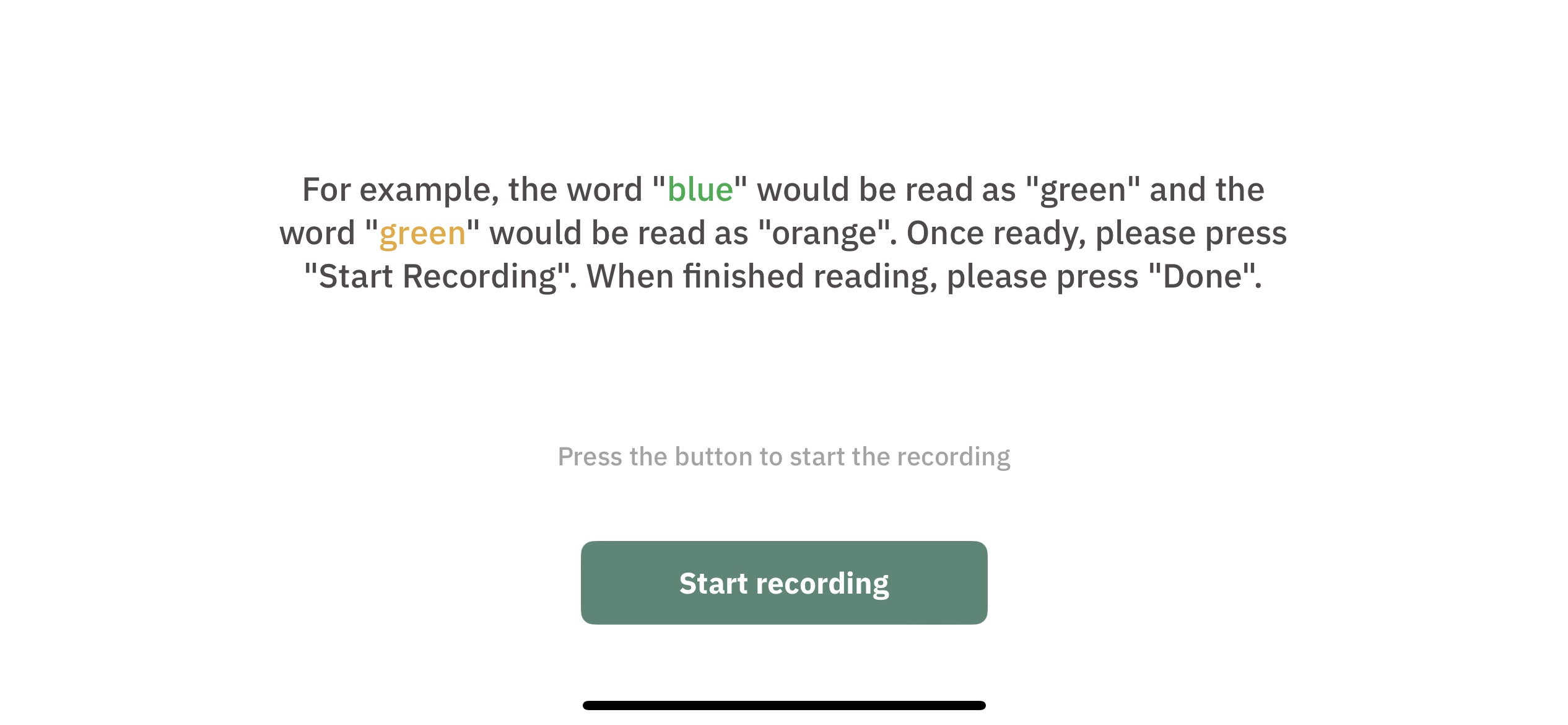
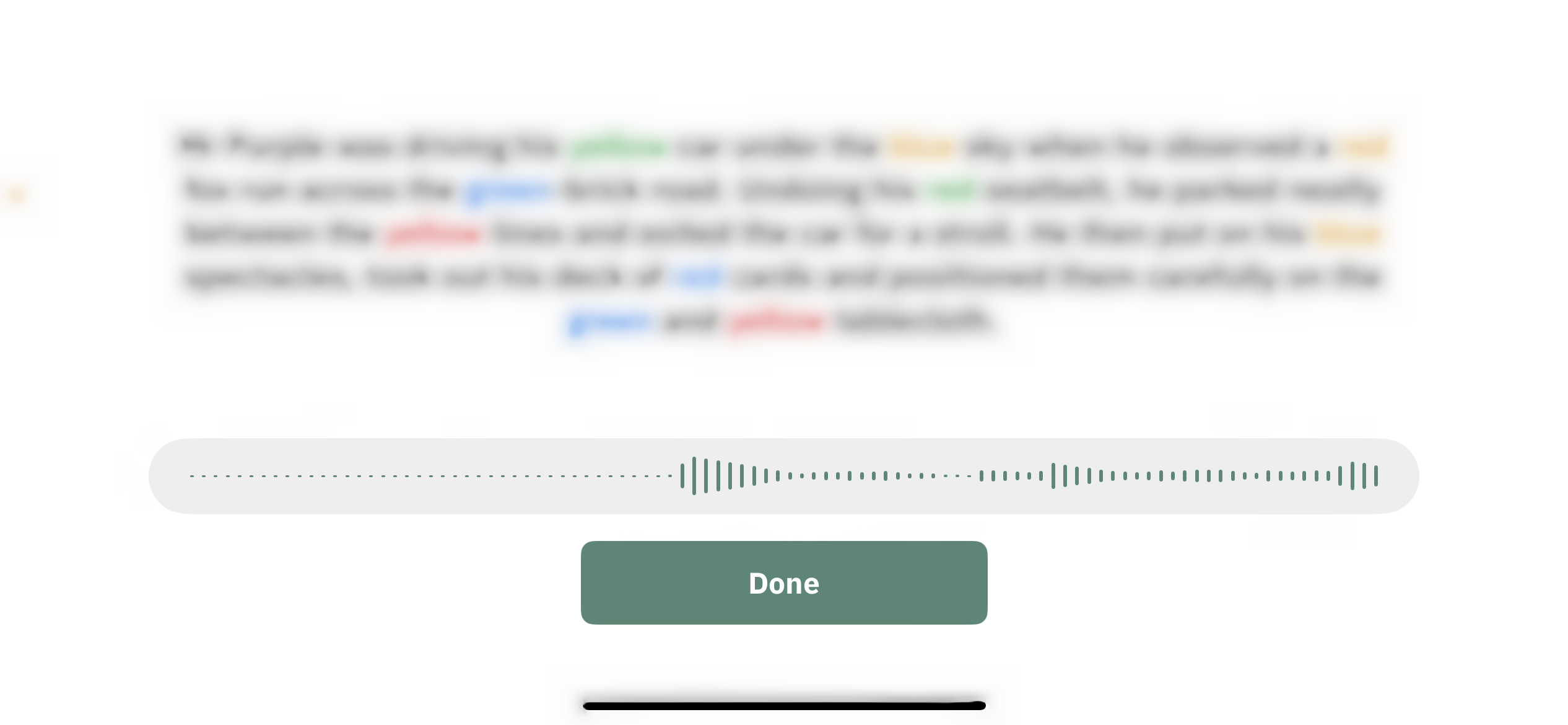
  3. The paragraph to read will appear. Participants can record a response and click “Done” when finished.
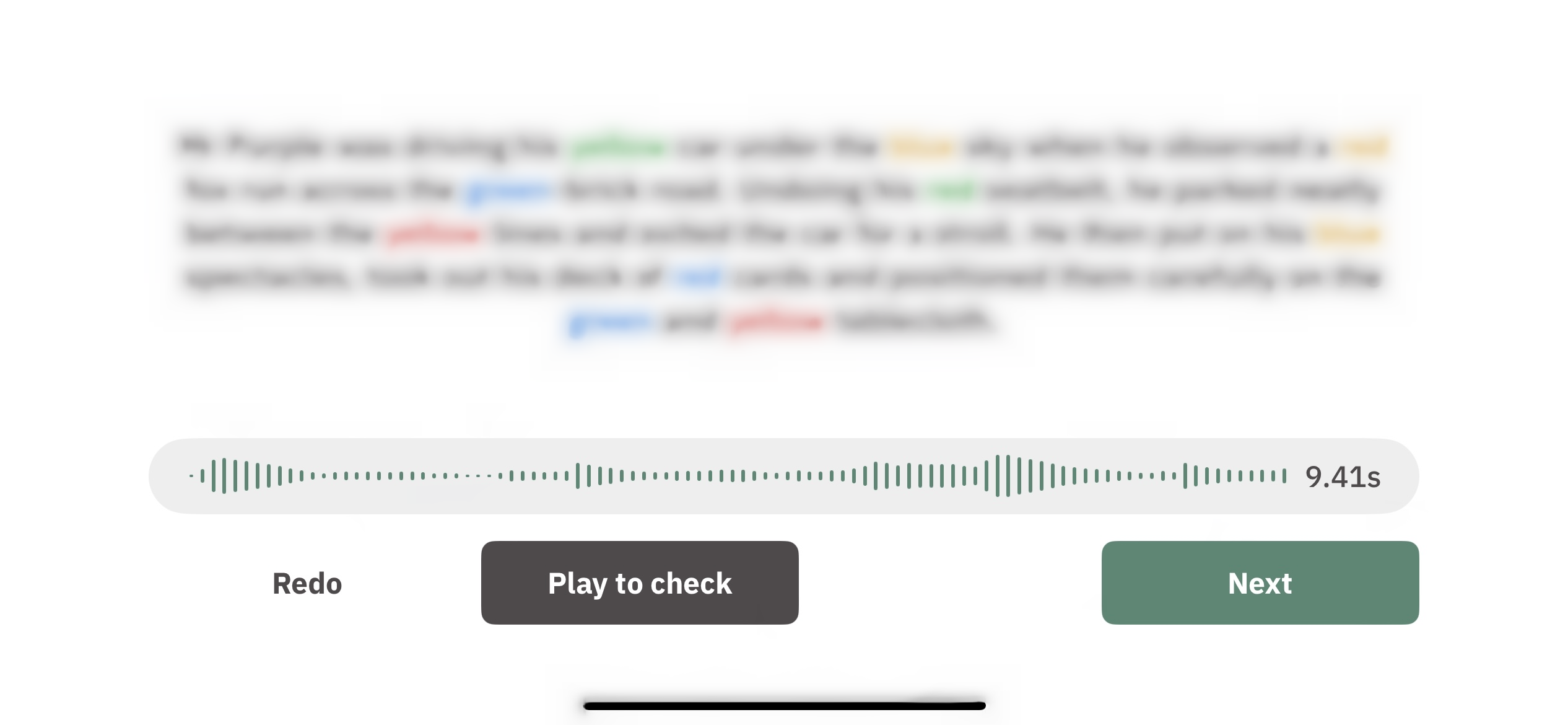
  4. Participants can choose to re-record their response (“Redo”), listen to what they have recorded (“Play to check”), or move on to the next activity (“Next”). 
 

Response Data

The speech response is recorded using a single 32-bit, mono, .wav audio file with 22050Hz sample rate.

Exercise Result

The following example shows the JSON object structure used for this exercise result:

{
  "exercise_id": "exercise01",
  "exercise_metadata": {
    "question_text": "Roses are red.",
    "expected_answer_text": "Roses are blue."
  },
  "exercise_result": {
    "file_path": "path/to/the/audio/file"
  }
}

Let’s try to understand the results recorded for this exercise using the fields of this JSON object.

exercise_id (string)

The default exercise_id value for exercise 1 is exercise01.

exercise_metadata (object)

The exercise metadata contains the following fields:

  • question_text (string): Paragraph text provided for the participant to read
  • expected_answer_text (string): Paragraph text expected in the participant response

Please note that the question text and the expected answer text will differ because participants are required to state the color of the word in the case of colored words. For example, if the paragraph presented for the participant to read is “Roses are red”, and the word “red” is colored blue, the expected participant response would be “Roses are blue”.

exercise_result (object)

This object contains the result using the following fields:

  • file_path (string): Path to the location of the audio file with speech response

Exercise 2: Say “Ah”

Overview

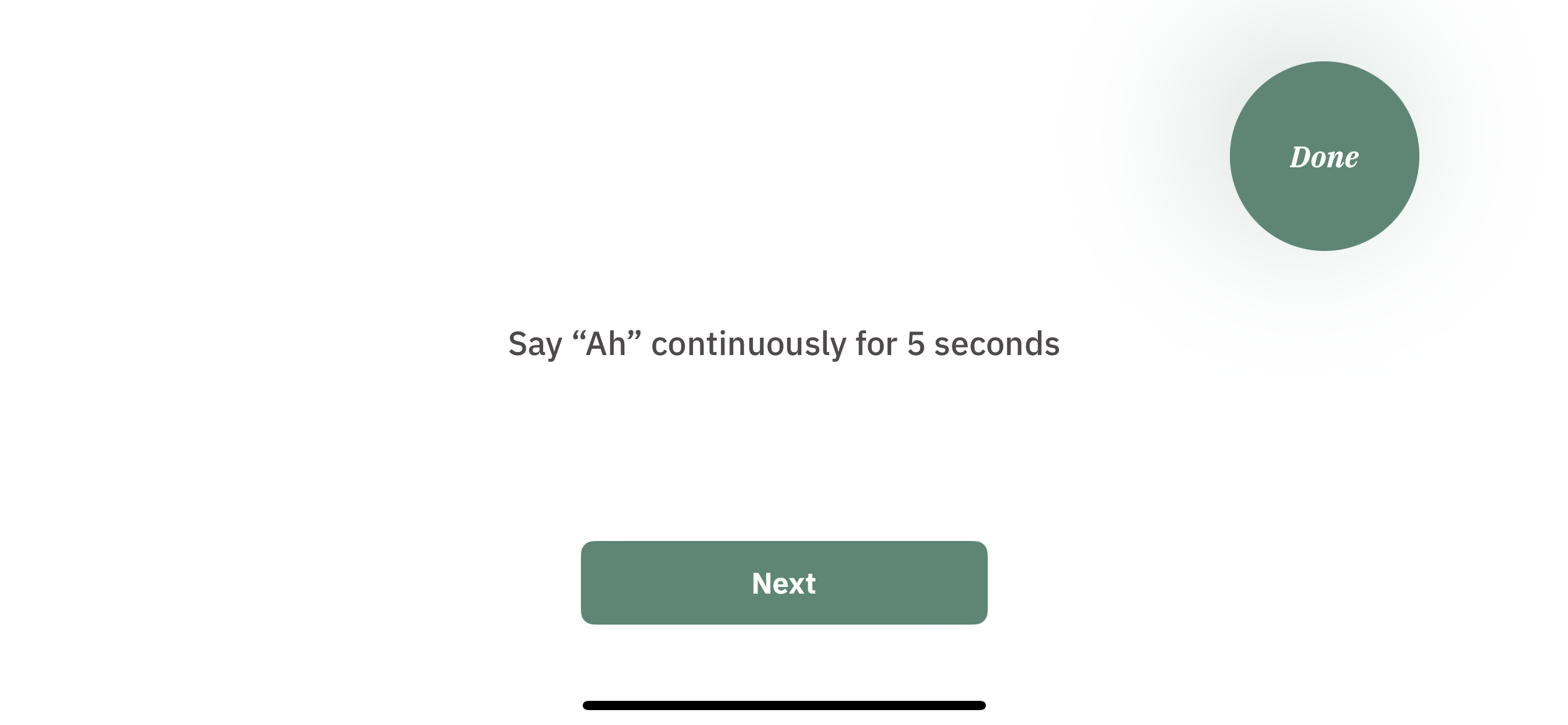
In this exercise, participants are required to vocalize the sound ‘Ah’ continuously for 5 seconds. Sustained intonation has been utilized as a language-agnostic indicator of movement disorders.

The exercise process is outlined as follows:

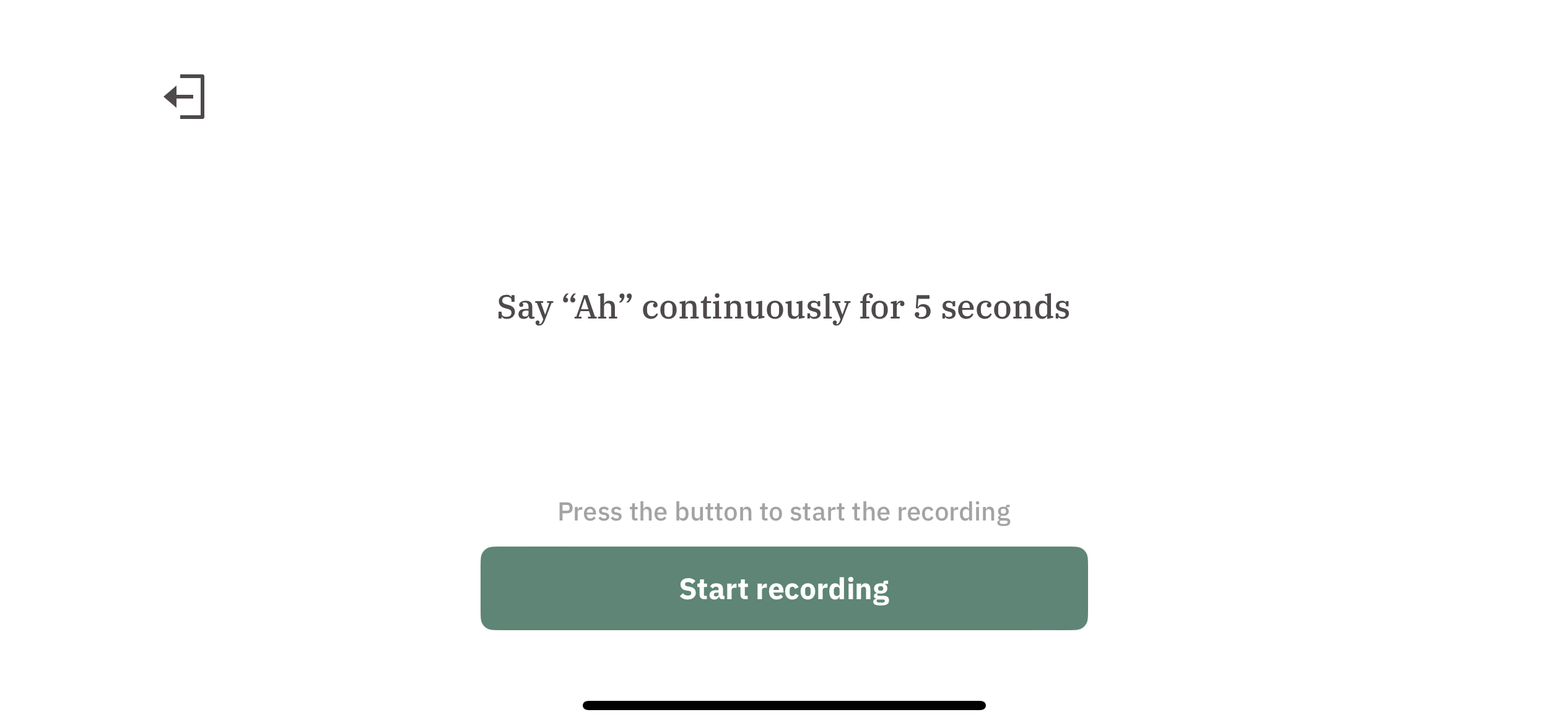
  1. Instructions for the exercise are displayed. Participants can click the “Start recording” button to record a response. 
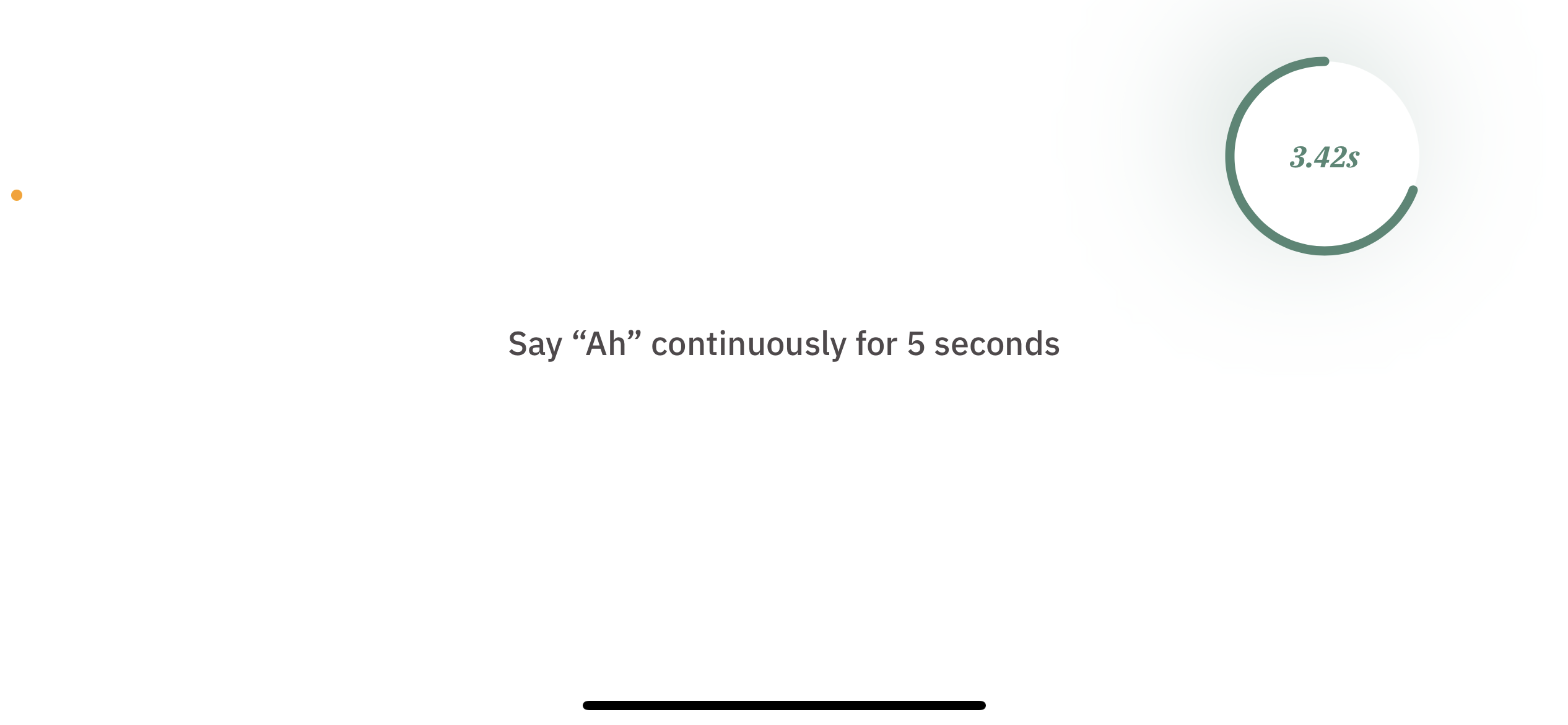
  2. Participants have 5 seconds to record a response. 
  3. Participants can click “Next” to move on to the next activity.
Response data

The speech response is recorded using a single 32-bit, mono, .wav audio file with 22050Hz sample rate.

Exercise Result

The following example shows the JSON object structure used for this exercise result:

{
  "exercise_id": "exercise02",
  "exercise_metadata": {},
  "exercise_result": {
    "file_path": "path/to/the/audio/file"
  }
}

Let’s try to understand the results recorded for this exercise using the fields of this JSON object.

exercise_id (string)

The default exercise_id value for exercise 2 is exercise02.

exercise_metadata (object)

Currently, there is no additional information required to process the recorded results for this exercise. Thus, an empty object is present here.

exercise_result (object)

This object contains the result using the following fields:

  • file_path (string): Path to the location of the audio file with speech response

Exercise 3: Grid Match

Overview

In this exercise, participants are presented with a 3×3 grid where images are placed in various cells. Their task is to replicate this image arrangement on the grid within a specified time frame. The exercise is divided into three distinct trials, each progressively more challenging. The table below outlines the number of questions, the number of images per question, and the time limit per question for each trial.

Trial Number of Questions Images per Question Time Limit per Question
1 5 1 10 seconds
2 10 3 30 seconds
3 10 5 60 seconds

This is a measure of visual working memory. There is evidence that APOE ε4 carriers perform better than non-carriers in certain visual working memory tasks. There is evidence that individuals with MCI (Mild Cognitive Impairment) have reduced hippocampal activation during high working memory load and increased hippocampal activation during low load in comparison to healthy controls. This effect may be captured as this exercise becomes more challenging in trials 2 and 3.

The exercise process is outlined as follows:

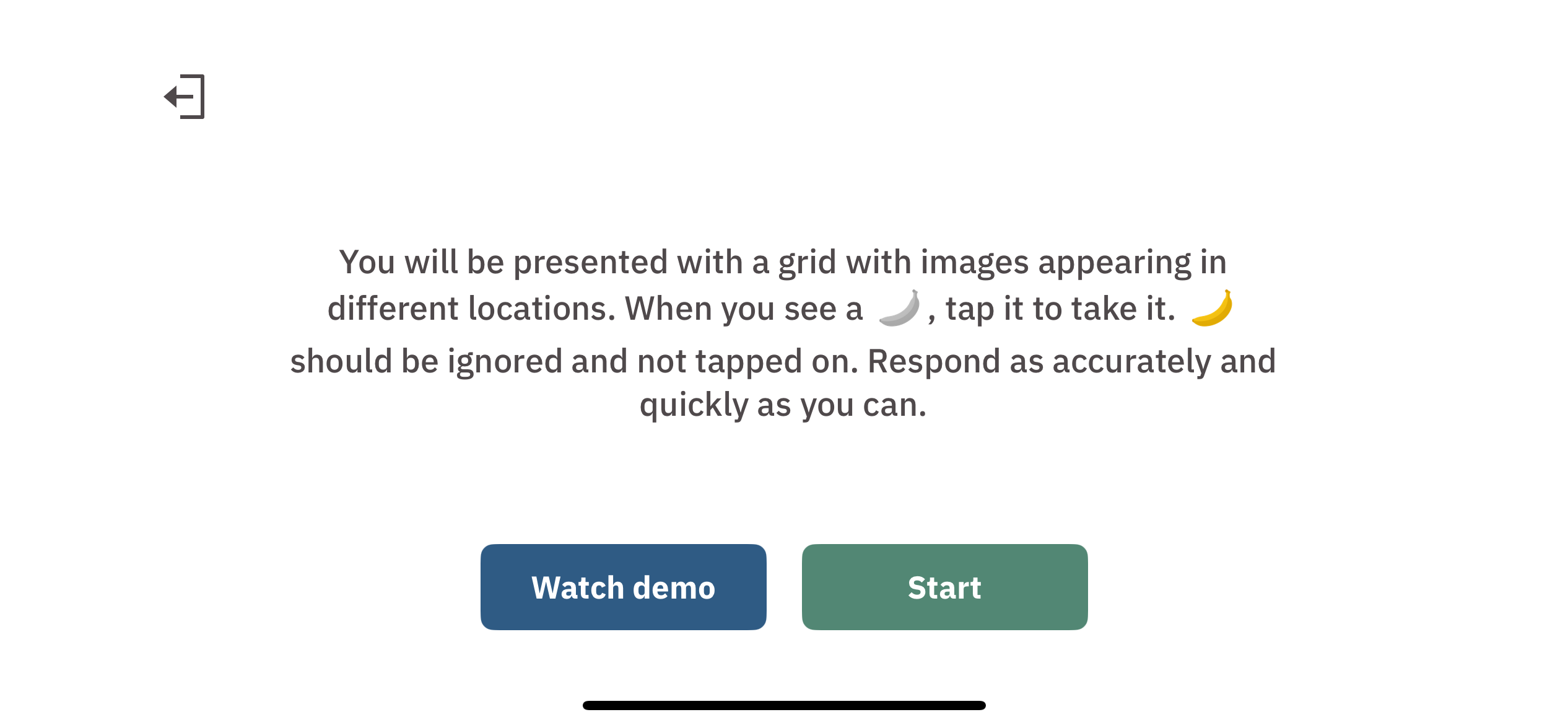
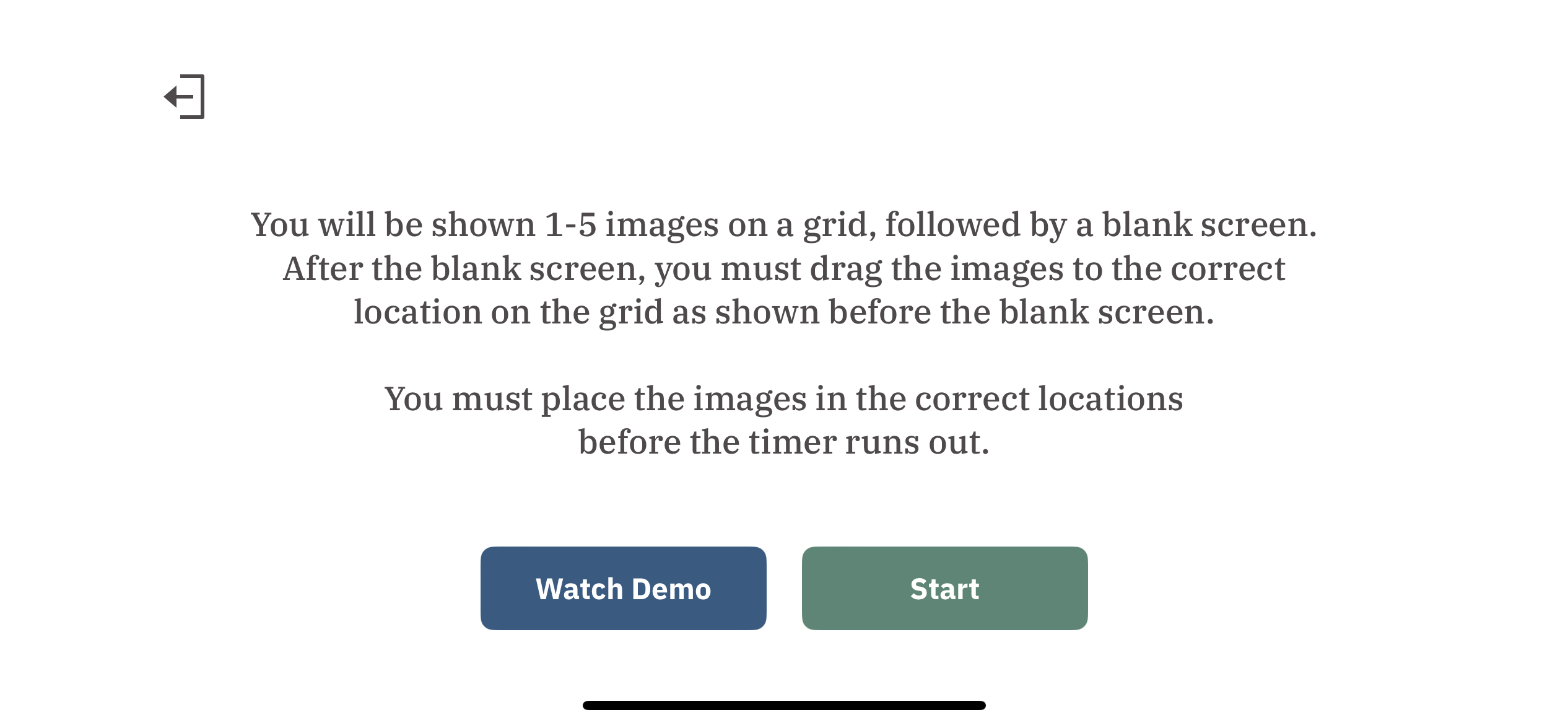
  1. Exercise instructions are displayed. Participants can watch a demo with the “Watch Demo” button or click the “Start” button to begin the exercise trials. 
  2. Trial 1 consists of 5 questions with a 10-second time limit to answer a question.
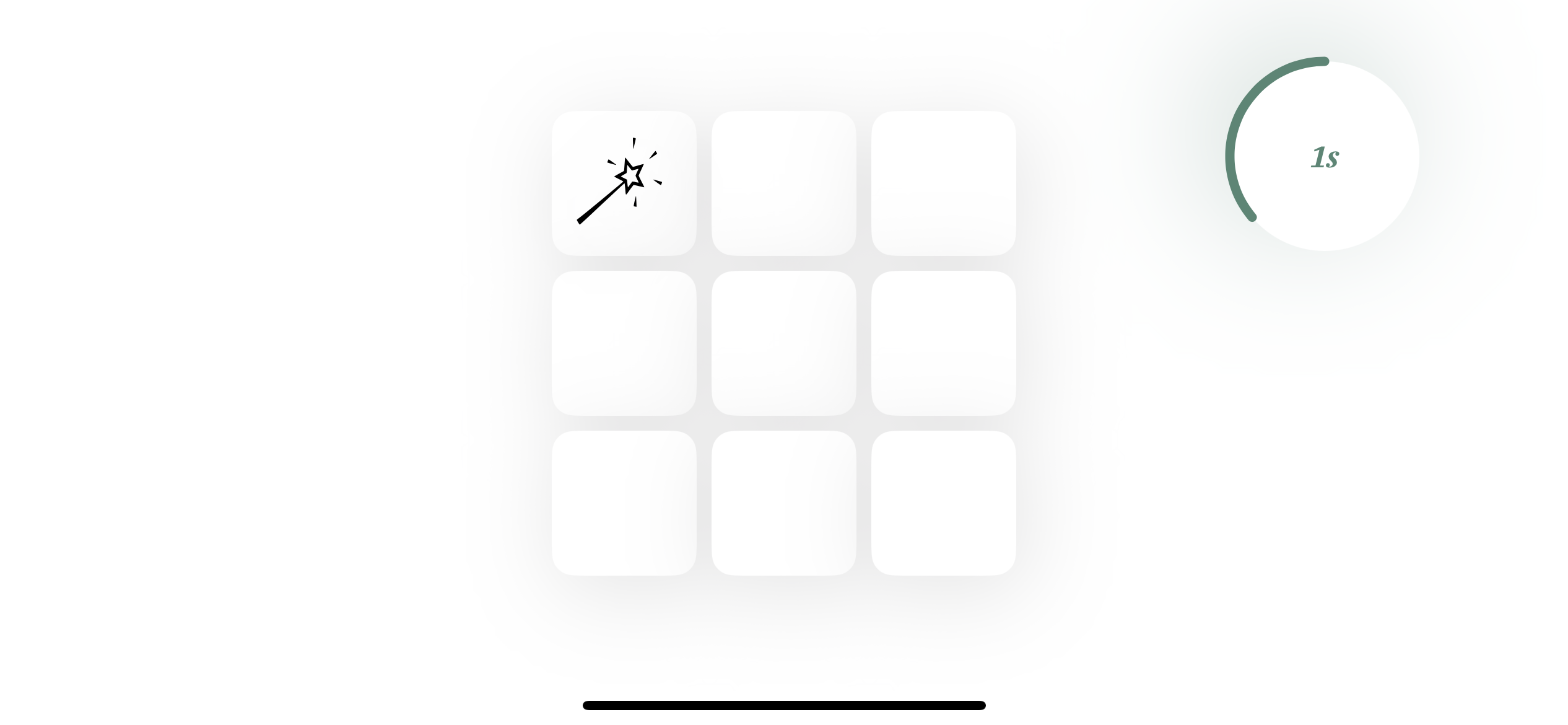
    • For each question, participants are presented with a 3×3 grid with a single image placed in a random cell. The display lasts for 3 seconds. An example is shown below: 
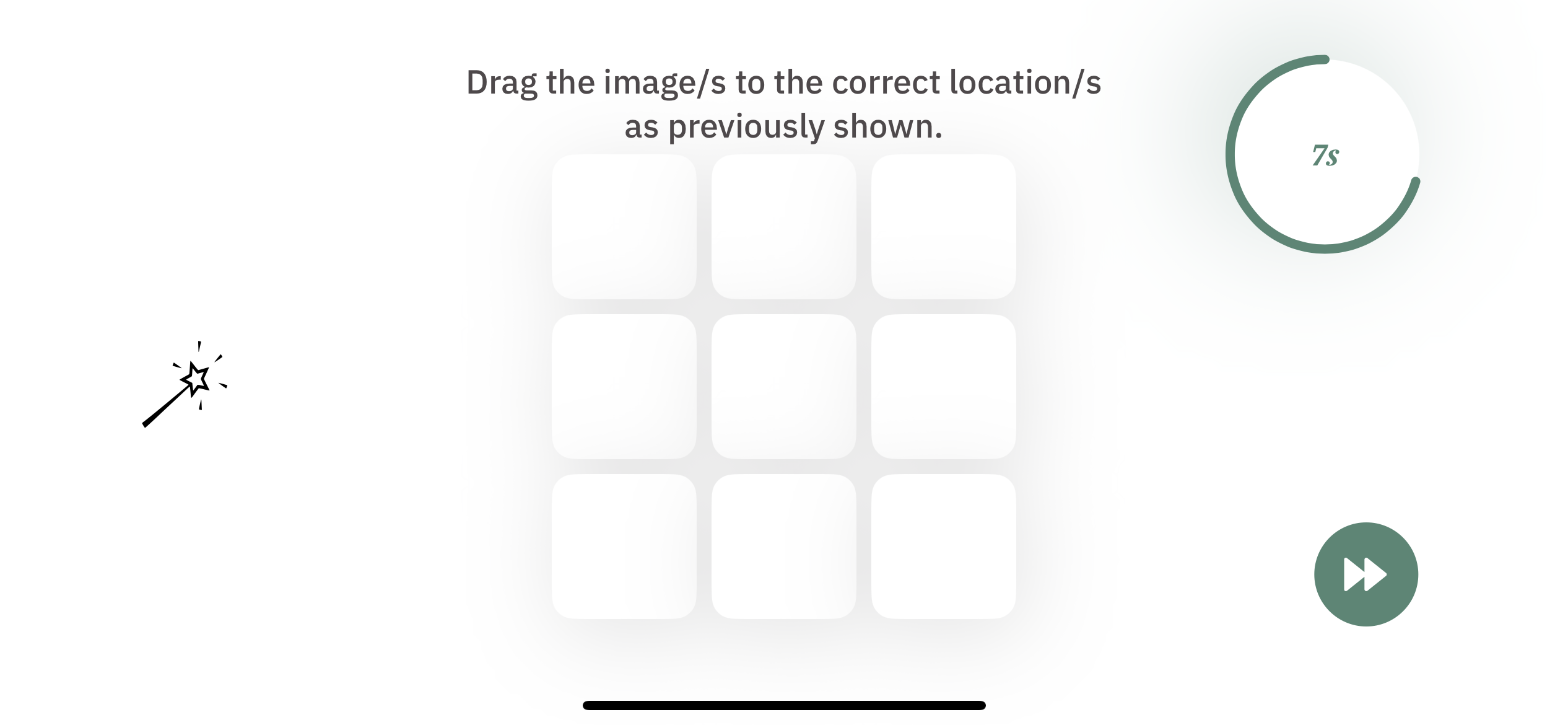
    • Participants are presented with an empty grid with the question image(s) on the left-hand side. The timer in the top right corner displays the time remaining to drag the image(s) to the correct location(s) on the grid. The button in the bottom right corner of the screen allows participants to proceed to the next question. 
  3. Trial 2 consists of 10 questions with a 30-second time limit to answer a question.
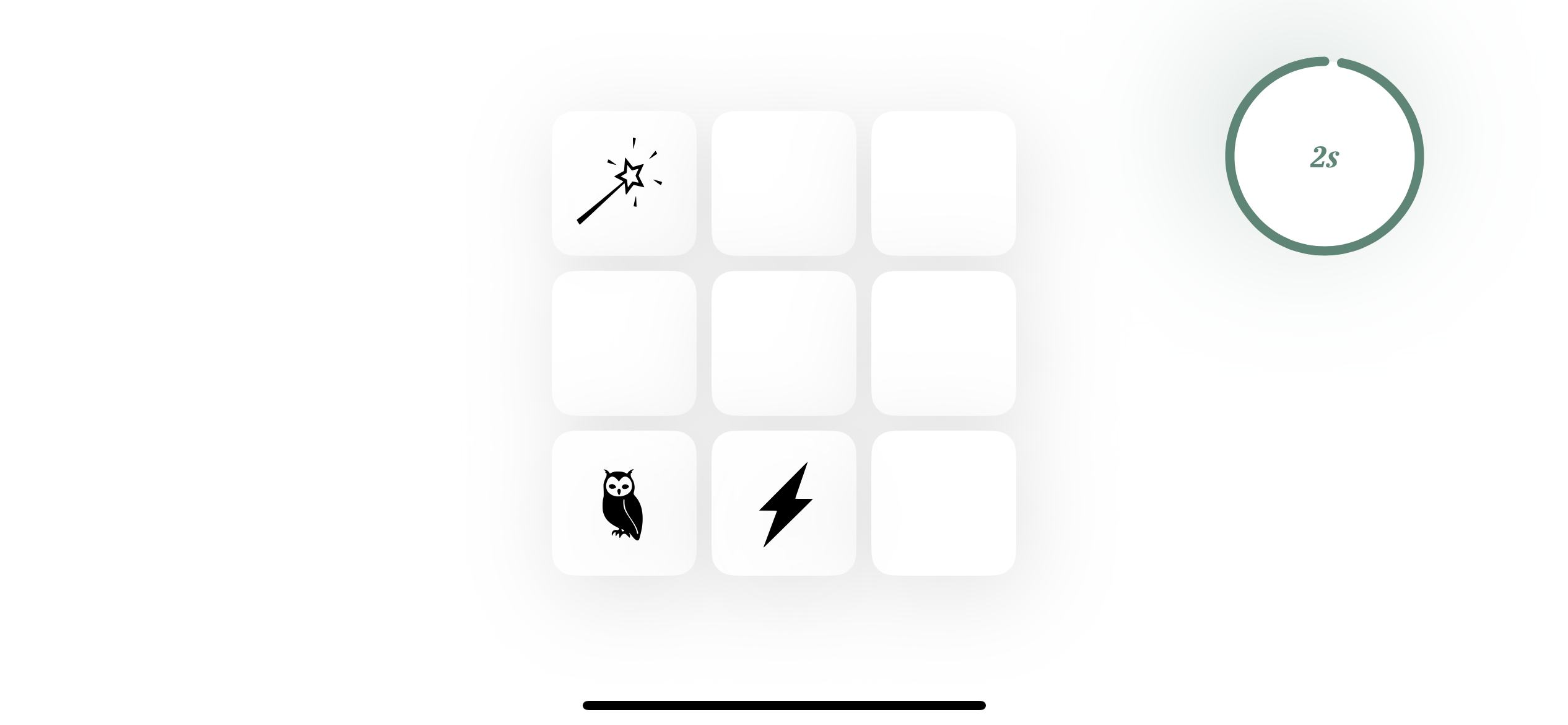
    • For each question, participants are presented with a 3×3 grid with 3 images placed in random cells. The display lasts for 3 seconds. An example is shown below: 
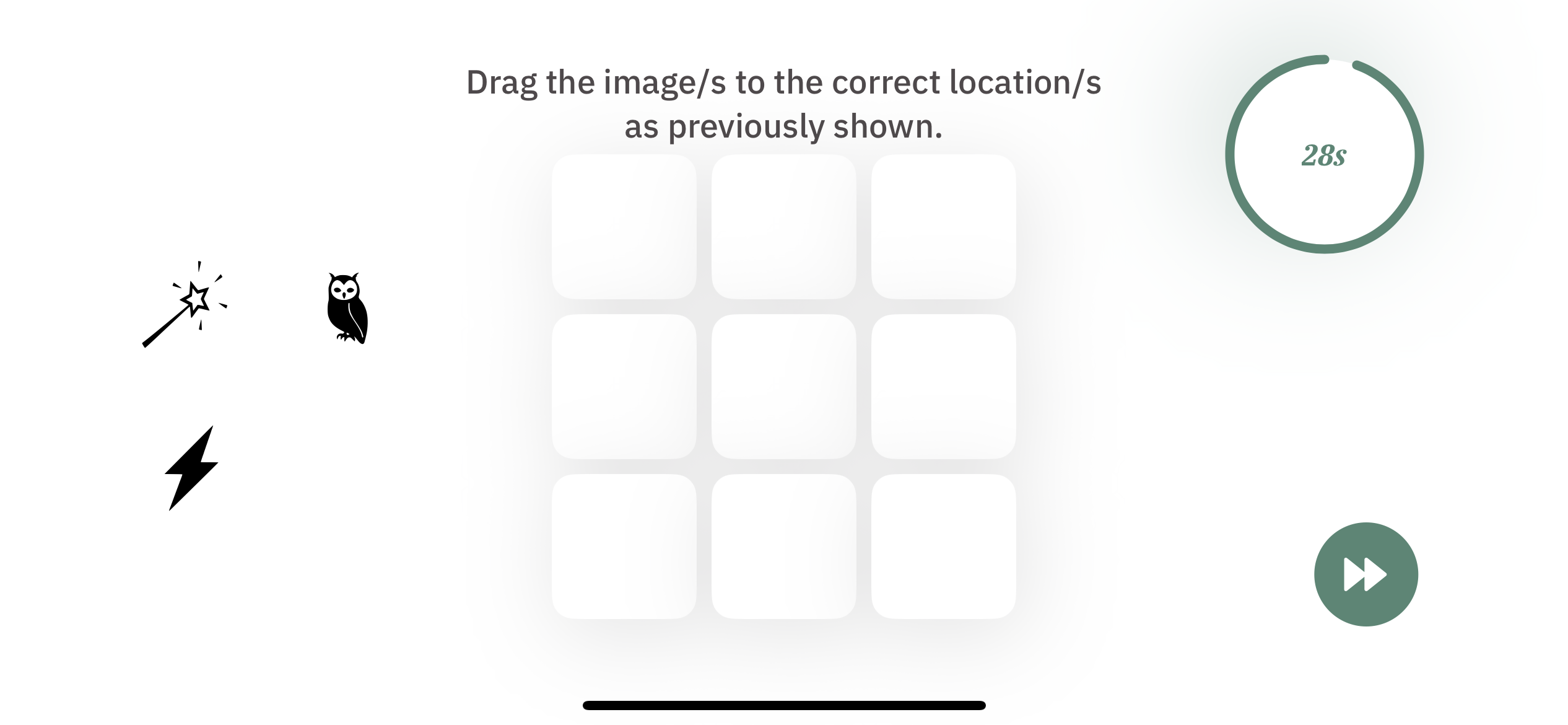
    • Participants are presented with an empty grid with the question image(s) on the left-hand side. The timer in the top right corner displays the time remaining to drag the image(s) to the correct location(s) on the grid. The button in the bottom right corner of the screen allows participants to proceed to the next question. 
  4. Trial 3 consists of 10 questions with a 60-second time limit to answer a question.
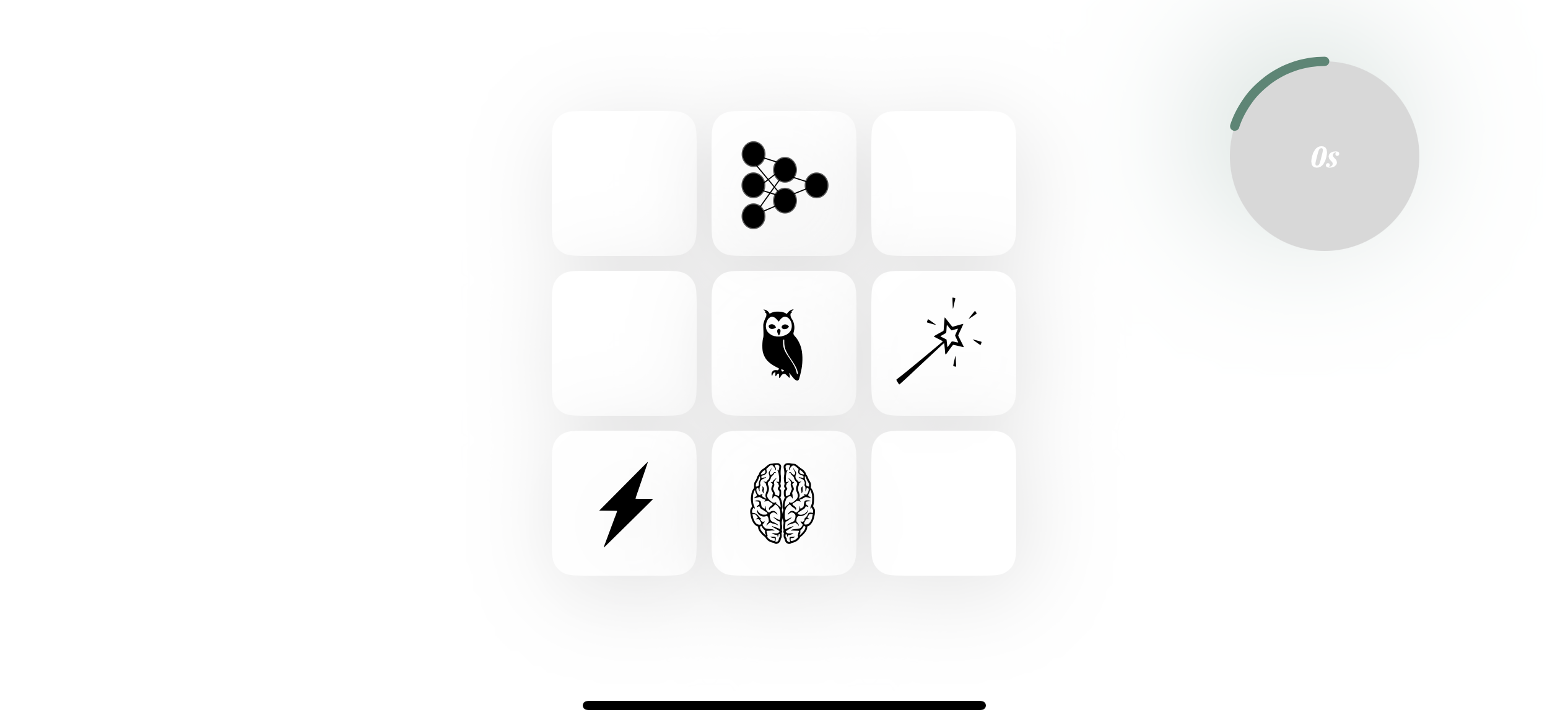
    • For each question, participants are presented with a 3×3 grid with 5 images placed in random cells. The display lasts for 3 seconds. An example is shown below: 
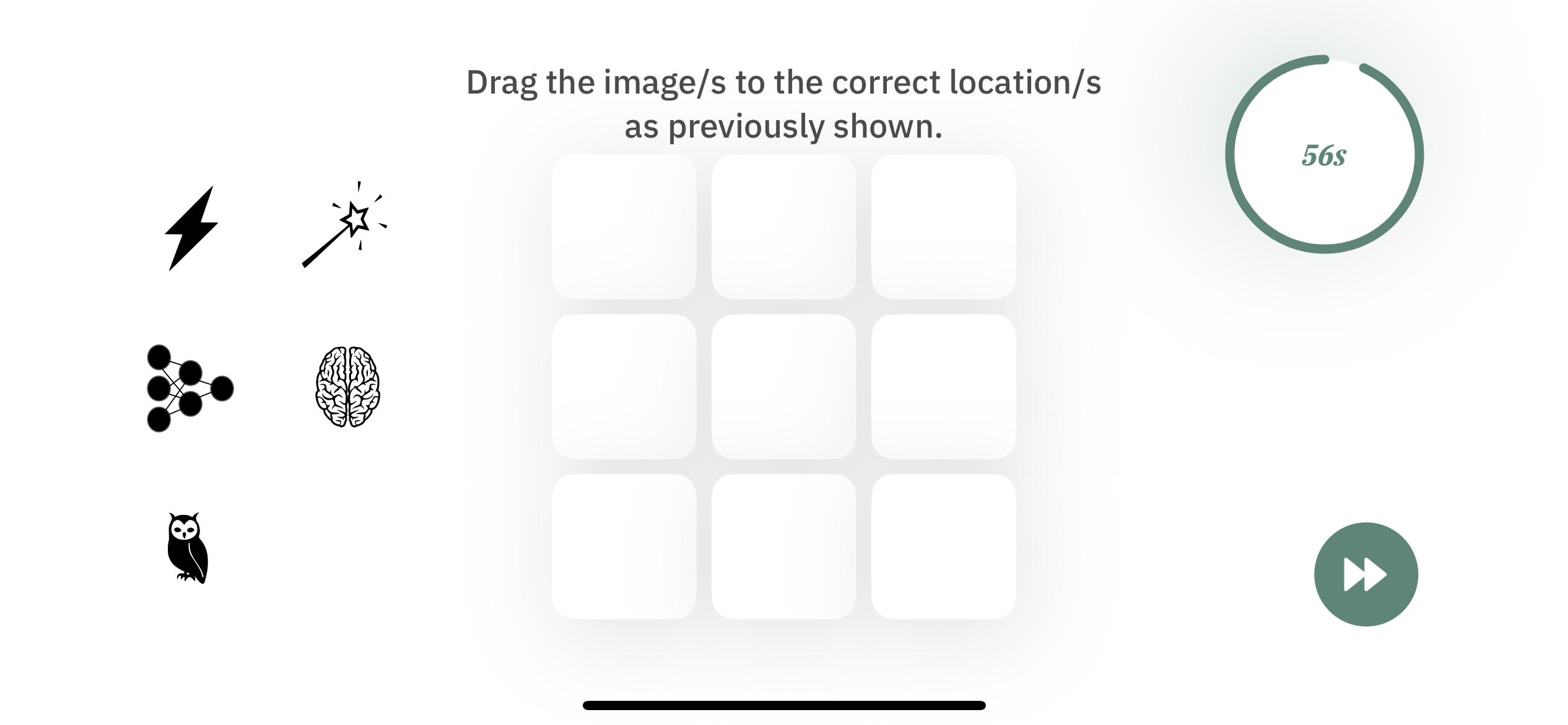
    • Participants are presented with an empty grid with the question image(s) on the left-hand side. The timer in the top right corner displays the time remaining to drag the image(s) to the correct location(s) on the grid. The button in the bottom right corner of the screen allows participants to proceed to the next question. 
  5. After completing all three trials, the following screen is displayed. Participants can click the “Next” button for the next activity. 

Response data

Across all three trials, for every question, the following information is collected per image:

  • Target grid position
    • Recorded position values are shown below
1 2 3
4 5 6
7 8 9
  • Answered grid position
    • If the image was skipped
      • Recorded grid position value = 0
    • If there was a timeout before an answer could be provided for the image
      • Recorded grid position value = -1
    • If an answer is provided for the image
      • Recorded position values are shown below
1 2 3
4 5 6
7 8 9

Exercise Result

The following example shows the JSON object structure used for this exercise result:

{
  "exercise_id": "exercise03",
  "exercise_metadata": {},
  "exercise_result": {
    "trial1": [
      {
        "answered_pos": [9],
        "target_pos": [9]
      },
      {
       "answered_pos": [3],
       "target_pos": [3]
      },
      {
       "answered_pos": [3],
       "target_pos": [3]
      },
      {
       "answered_pos": [-1],
       "target_pos": [4]
      },
      {
       "answered_pos": [0],
       "target_pos": [6]
      }
    ],
    "trial2": [
      {
       "answered_pos": [6, 7, -1],
       "target_pos": [6, 7, 8]
      },
      {
       "answered_pos": [1, 0, 0],
       "target_pos": [1, 2, 4]
      },
      {
       "answered_pos": [-1, -1, -1],
       "target_pos": [5, 7, 9]
      },
      {
       "answered_pos": [0, 0, 0],
       "target_pos": [1, 4, 5]
      },
      {
       "answered_pos": [2, 3, 5],
       "target_pos": [2, 3, 5]
      },
      {
       "answered_pos": [5, 6, 9],
       "target_pos": [5, 6, 9]
      },
      {
       "answered_pos": [1, 2, 0],
       "target_pos": [1, 2, 5]
      },
      {
       "answered_pos": [1, 2, 3],
       "target_pos": [9, 4, 2]
      },
      {
       "answered_pos": [4, 6, 8],
       "target_pos": [4, 6, 8]
      },
      {
       "answered_pos": [4, 5, 9],
       "target_pos": [4, 5, 9]
      } 
    ],
    "trial3": [
      {
        "answered_pos": [2, 4, 5, 6, 7],
        "target_pos": [2, 4, 5, 6, 7]
      },
      {
       "answered_pos": [2, 3, 6, 8, 9],
       "target_pos": [2, 3, 6, 8, 9]
      },
      {
       "answered_pos": [2, 5, 6, 8, 9],
       "target_pos": [9, 8, 6, 5, 1]
      },
      {
       "answered_pos": [1, 2, 4, 5, 9],
       "target_pos": [1, 2, 4, 5, 9]
      },
      {
       "answered_pos": [1, 6, 7, 8, 9],
       "target_pos": [1, 6, 7, 8, 9]
      },
      {
       "answered_pos": [2, 3, 4, 5, 6],
       "target_pos": [3, 2, 4, 5, 6]
      },
      {
       "answered_pos": [1, 2, 4, 7, 8],
       "target_pos": [1, 2, 4, 7, 8]
      },
      {
       "answered_pos": [2, 3, 4, 7, 8],
       "target_pos": [3, 2, 4, 7, 8]
      },
      {
       "answered_pos": [1, 2, 6, 7, 8],
       "target_pos": [1, 2, 6, 8, 7]
      },
      {
       "answered_pos": [2, 3, 6, 8, 9],
       "target_pos": [2, 3, 6, 8, 9]
      }
    ]
  }
}

Let’s try to understand the results recorded for this exercise using the fields of this JSON object.

exercise_id (string)

The default exercise_id value for exercise 3 is exercise03.

exercise_metadata (object)

Currently, there is no additional information required to process the recorded results for this exercise. Thus, an empty object is present here.

exercise_result (object)

This object contains the result using the following fields:

  • trial1 (list): List of objects containing the answers for trial 1 questions. Each object in the list has the following fields:
    • answered_pos (list): Image position(s) provided by the participants
    • target_pos (list): Target image position(s)
  • trial2 (list): List of objects containing the answers for trial 2 questions. Each object in the list has the following fields:
    • answered_pos (list): Image position(s) provided by the participants
    • target_pos (list): Target image position(s)
  • trial3 (list): List of objects containing the answers for trial 3 questions. Each object in the list has the following fields:
    • answered_pos (list): Image position(s) provided by the participants
    • target_pos (list): Target image position(s)

Exercise 4: Finger Tapping Test

Overview

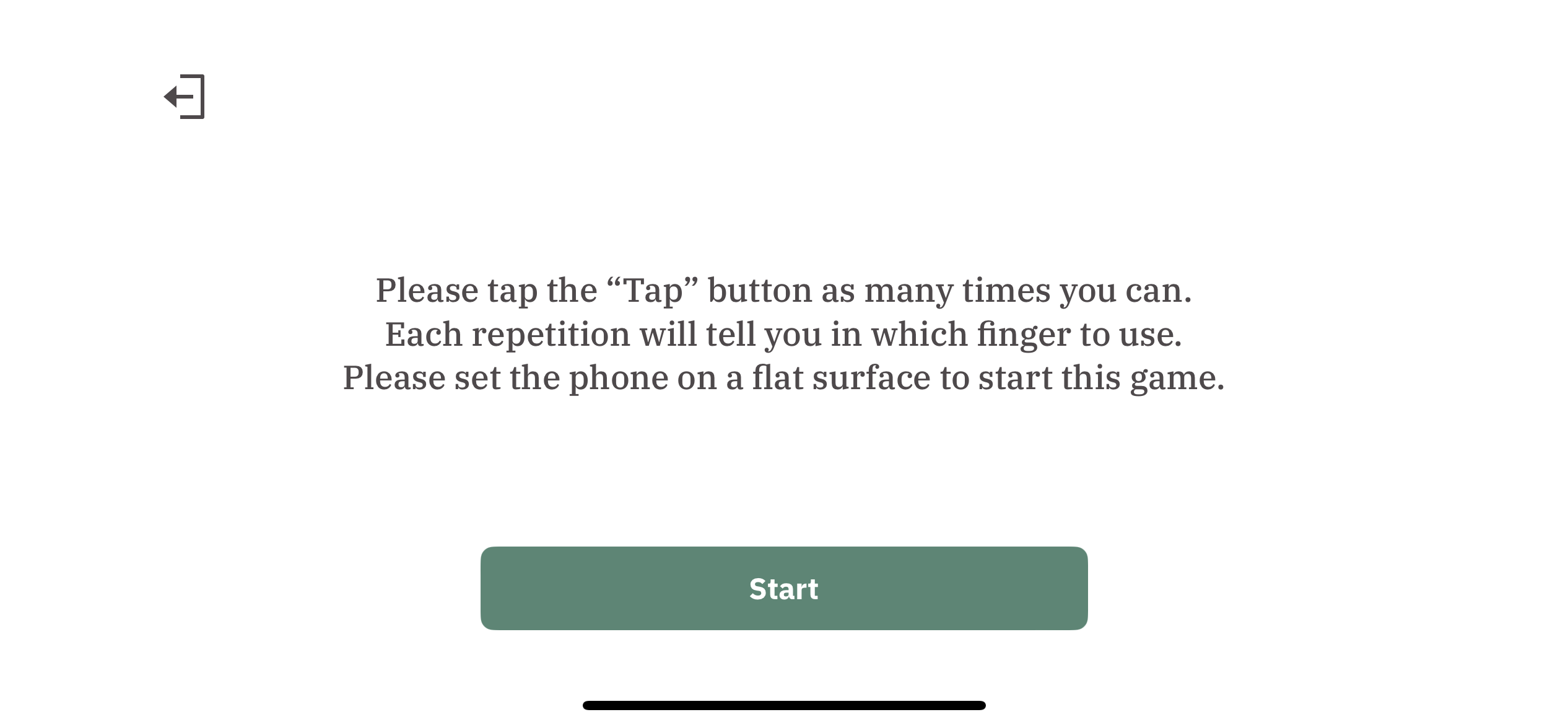
In this exercise, participants are expected to tap a button as many times as they can within a 10-second time interval using their right or left index finger. This is a measure of neuropsychomotor speed. Performance abnormalities in this exercises area associated with many diseases and disorders, such as MCI, pMCI (progressive Mild Cognitive Impairment) and AD (Alzheimer’s Disease).

The exercise process is outlined as follows:

  1. Exercise instructions are displayed. Participants can click the “Start” button to begin the exercise. 
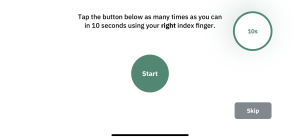
  2. In the first trial of the exercise, participants are expected to use their right index finger. If their right index finger is injured, missing or otherwise cannot be used, the participant has the option to skip the current trial with the grey “Skip” button. The following screen is displayed, where a 3 second countdown timer starts once the “Start” button is tapped. After the countdown ends, participants then have 10 seconds to tap the green button as many times as possible. 
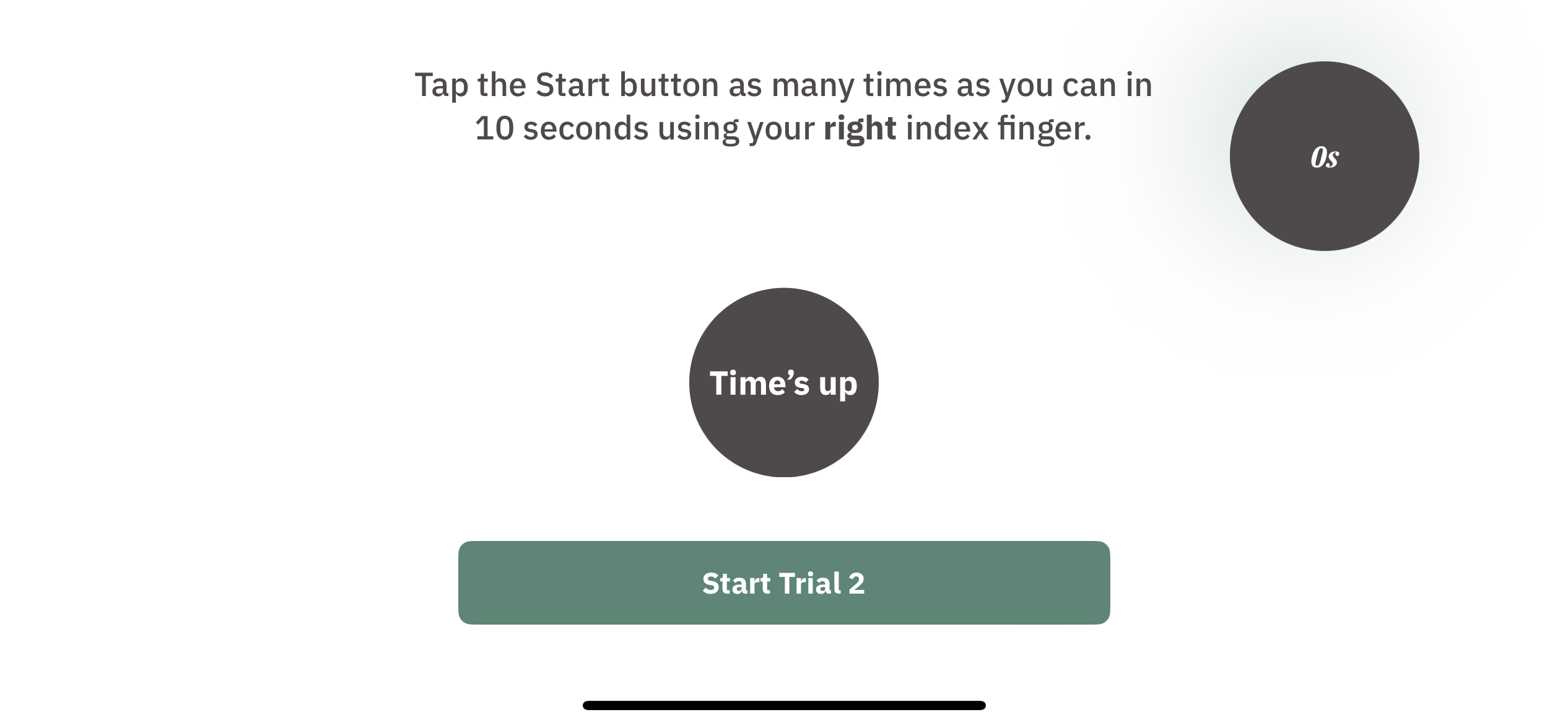
  3. After the 10-second interval, the next screen is displayed. Participants can click “Start Trial 2” for the next trial. 
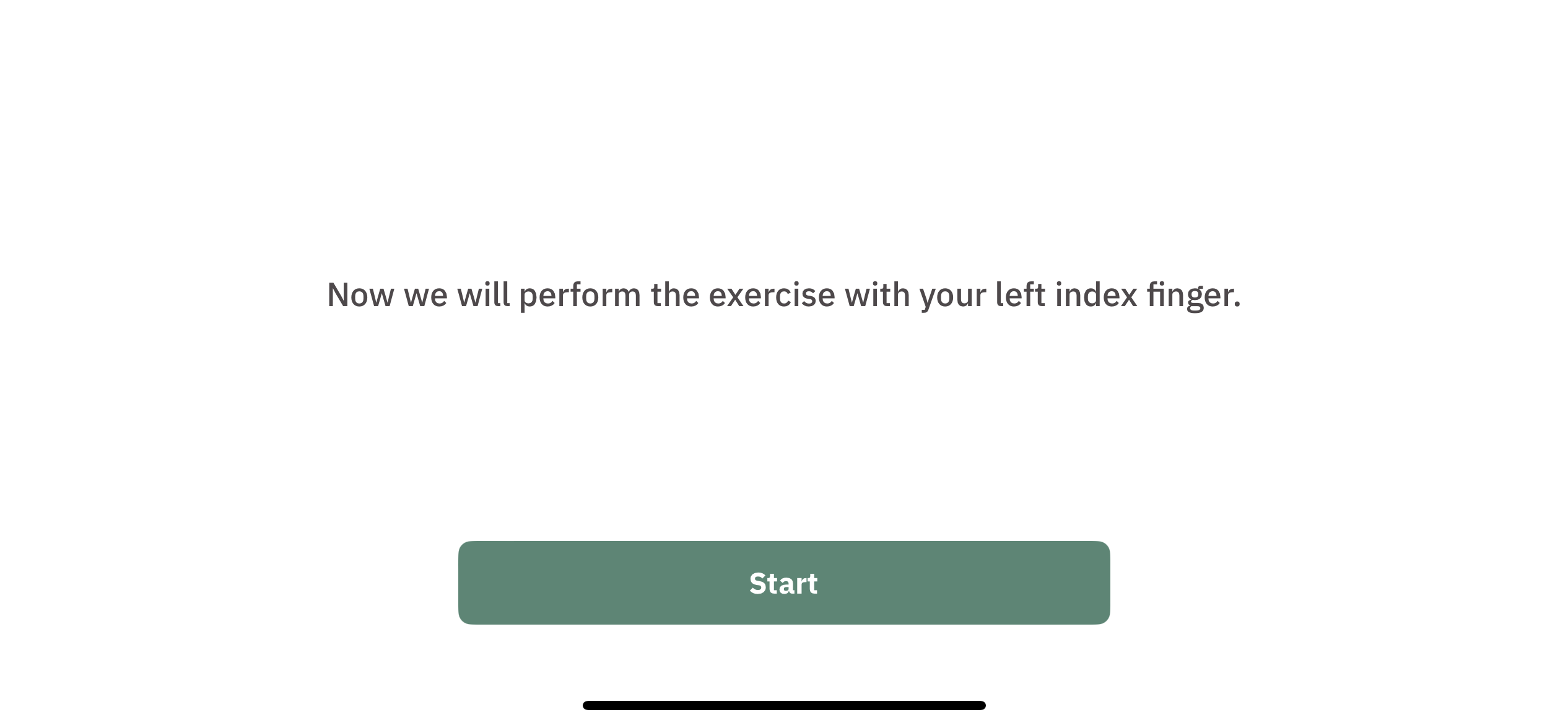
  4. Instructions for trial 2 are displayed. Participants can click the “Start” button to start the trial. 
  5. In the second trial of the exercise, participants are expected to use their left index finger. If their left index finger is injured, missing or otherwise cannot be used, the participant has the option to skip the current trial with the grey “Skip” button. The following screen is displayed, where a 3 second countdown timer starts once the “Start” button is tapped. After the countdown ends, participants then have 10 seconds to tap the green button as many times as possible. 
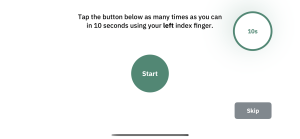
  6. After the 10-second interval, the next screen is displayed. Participants can click “Next” for the next activity. 
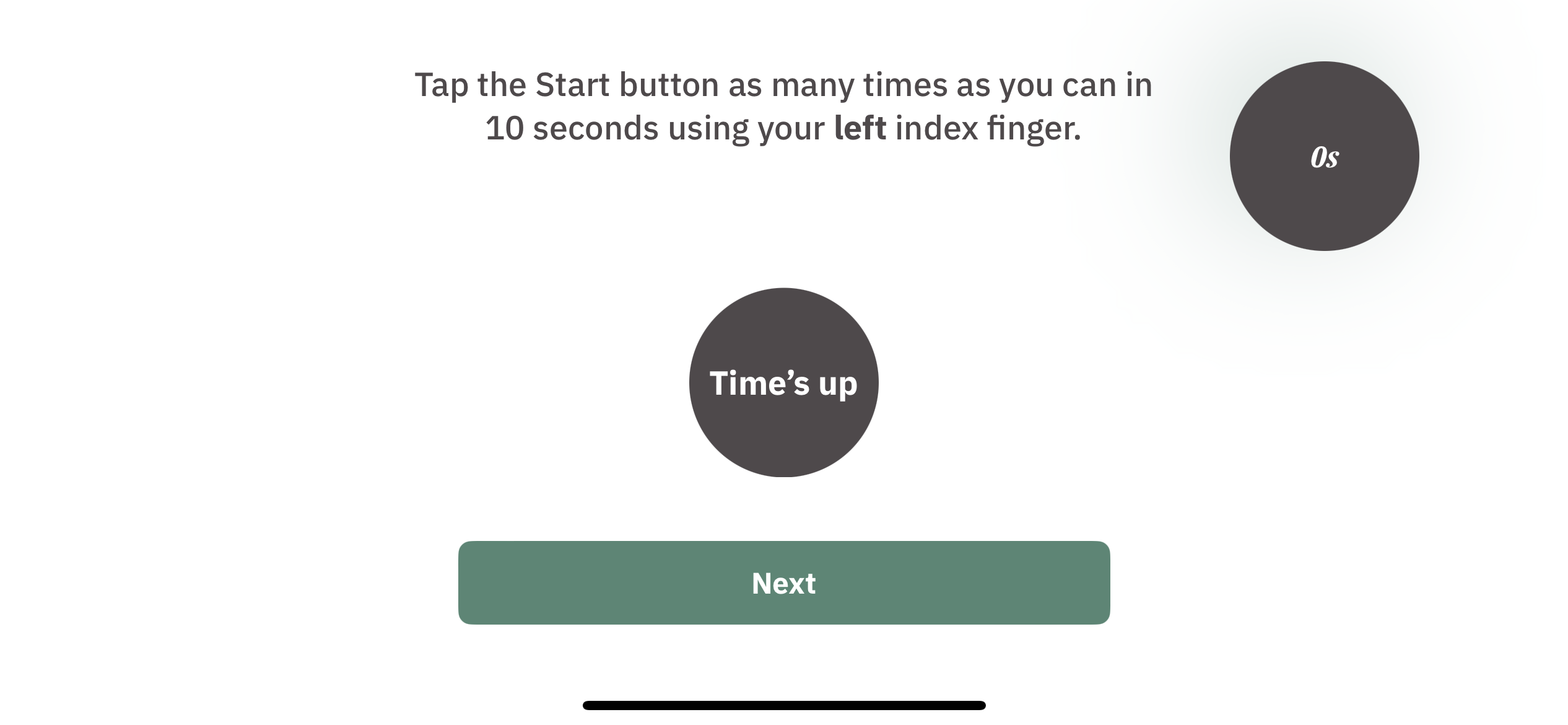
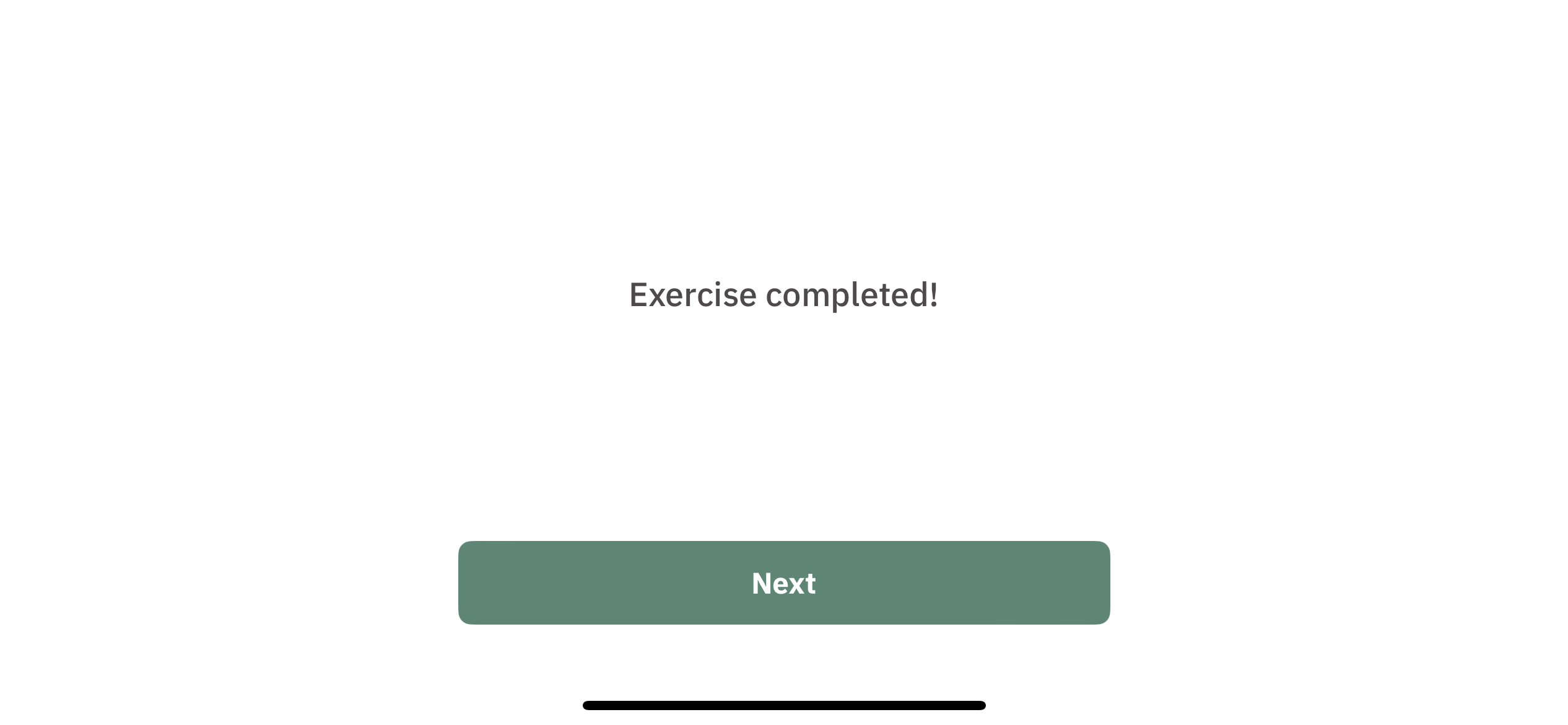
  7. The final screen indicates that the exercise is completed. Participants can click “Next” for the next activity. 
Response data

The response data for this exercise comprises records of finger taps for the right index finger and the left index finger, collected in 10-second intervals. Each finger tap is associated with a timestamp, measured in milliseconds and starting from 0.

Exercise Result

The following example shows the JSON object structure used for this exercise result:

{
  "exercise_id": "exercise04",
  "exercise_metadata": {
"incomplete_response_reasons":{
"exercise_result":{
"right_index_finger_taps":"Missing or injured right index finger"
}
}
}, "exercise_result": { "right_index_finger_taps": null, "left_index_finger_taps": [15, 35, 55, 75, 93, 115, 132, 152, 170, 188, 206, 222, 240, 259, 279, 299, 317, 337, 355, 377, 397, 417, 435, 457, 474, 494, 515, 532, 552, 570, 589, 609, 630, 650, 670, 690, 712, 732, 752, 774, 795, 814, 834, 854, 872, 894, 912, 930, 952, 972, 992] } }

Let’s try to understand the results recorded for this exercise using the fields of this JSON object.

exercise_id (string)

The default exercise_id value for exercise 4 is exercise04.

exercise_metadata (object)

This object will be empty if no trial was skipped. If either of the trials were skipped, then this object will be filled with a reason indicator for why that trial was skipped. 

  • incomplete_response_reasons (object): 
    • exercise_result(object):
      • right_index_finger_taps(String): Contains the reason for why this trial was skipped. The current only response is: “Missing or injured right index finger” 
      • left_index_finger_taps(String): Contains the reason for why this trial was skipped. The current only response is: “Missing or injured left index finger” 
exercise_result (object)

This object contains the result using the following fields:

  • right_index_finger_taps (list or null): Contains the timestamps for the right index finger taps or null if this trial was skipped
  • left_index_finger_taps (list or null): Contains the timestamps for the left index finger taps or null if this trial was skipped

Exercise 5: Tracing of a Line

Overview

In this exercise, participants are expected to trace a reference line on the screen using either their right or left hand in the specified direction. This is a simple measure to quantify motor control and stability.

The exercise is divided into two trials, as follows:


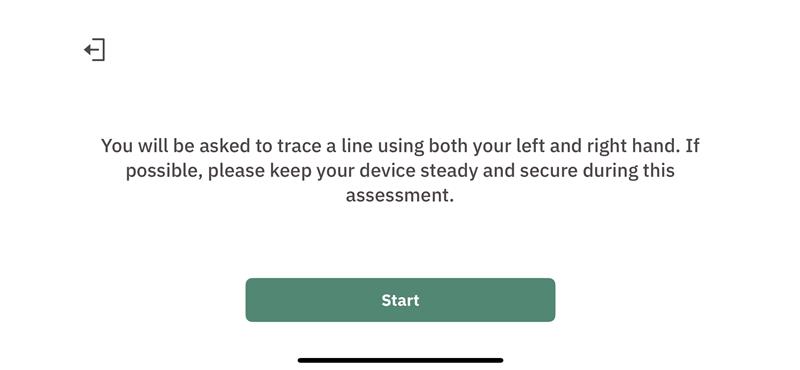
  1. Instructions for the exercise are displayed. Participants should keep their device steady and then click the “Start” button to begin the first trial. 
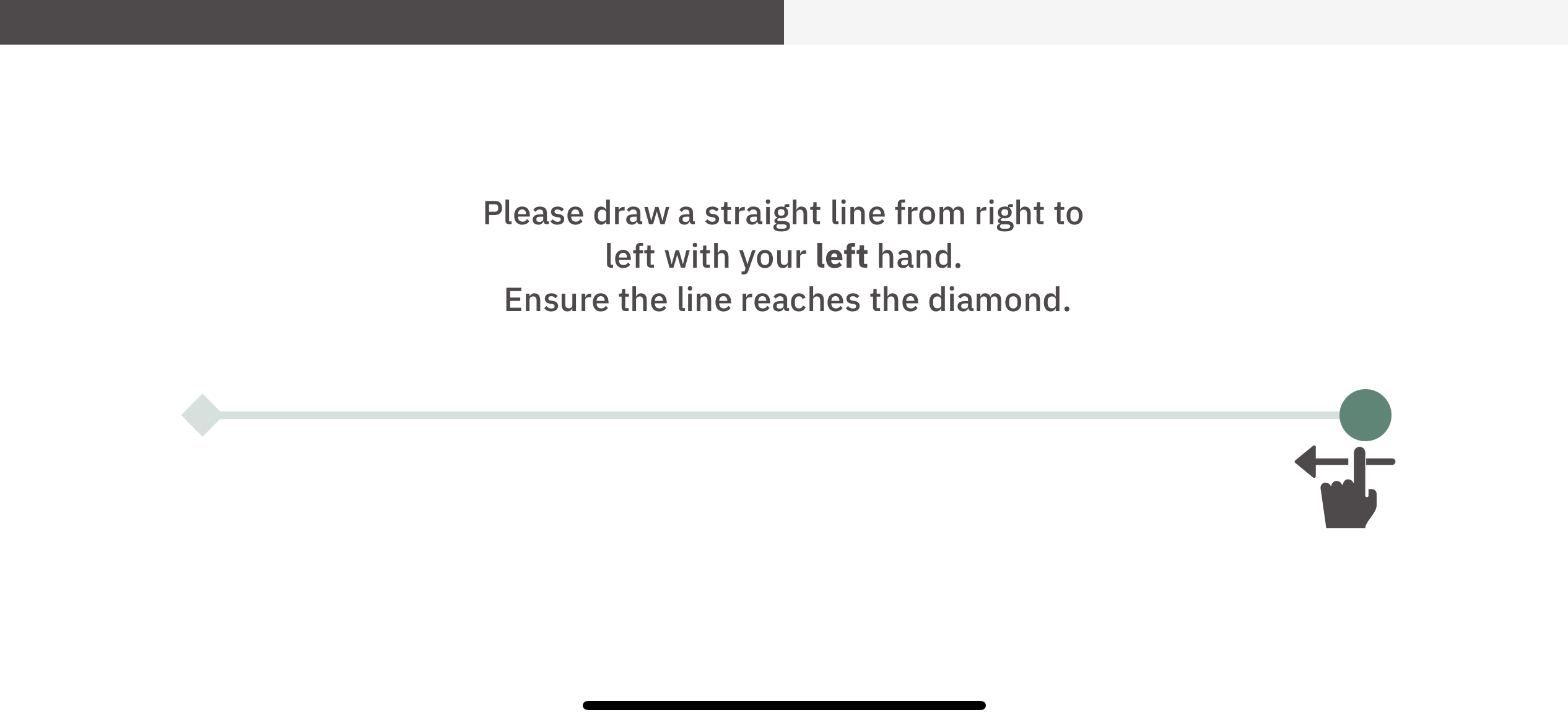
  2. Trial 1 (Using the left hand):
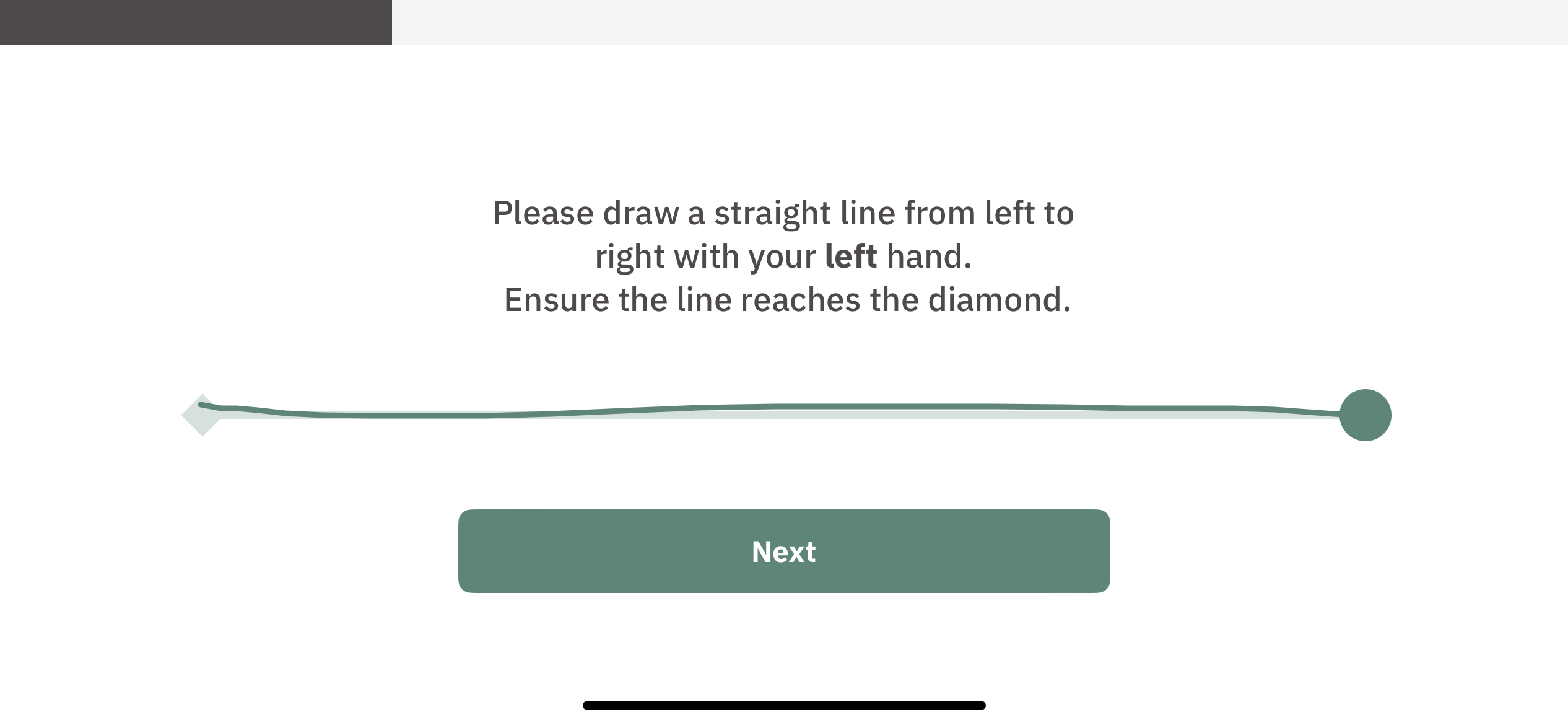
    • Participants are asked to trace a line from left to right. 
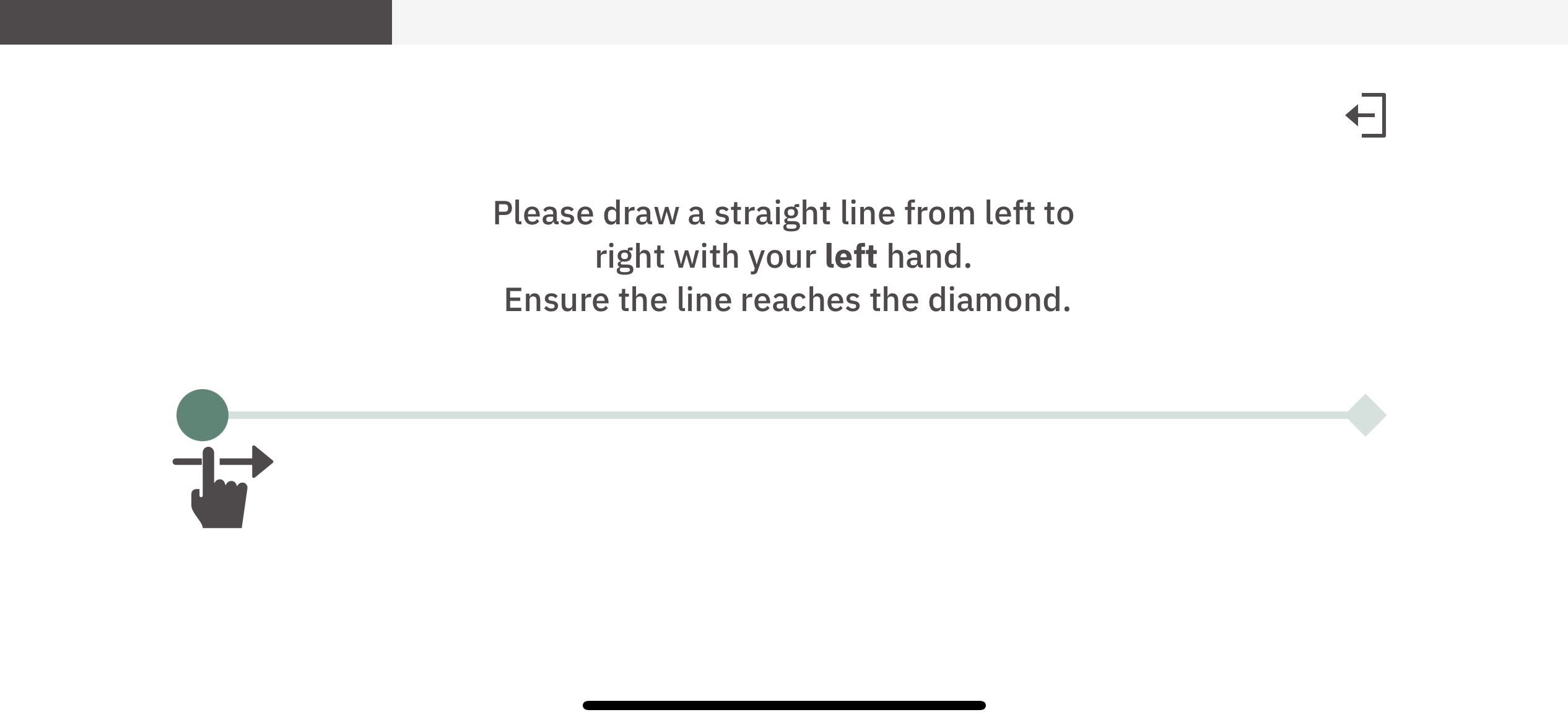
    • Once finished, participants can click “Next” to proceed. 
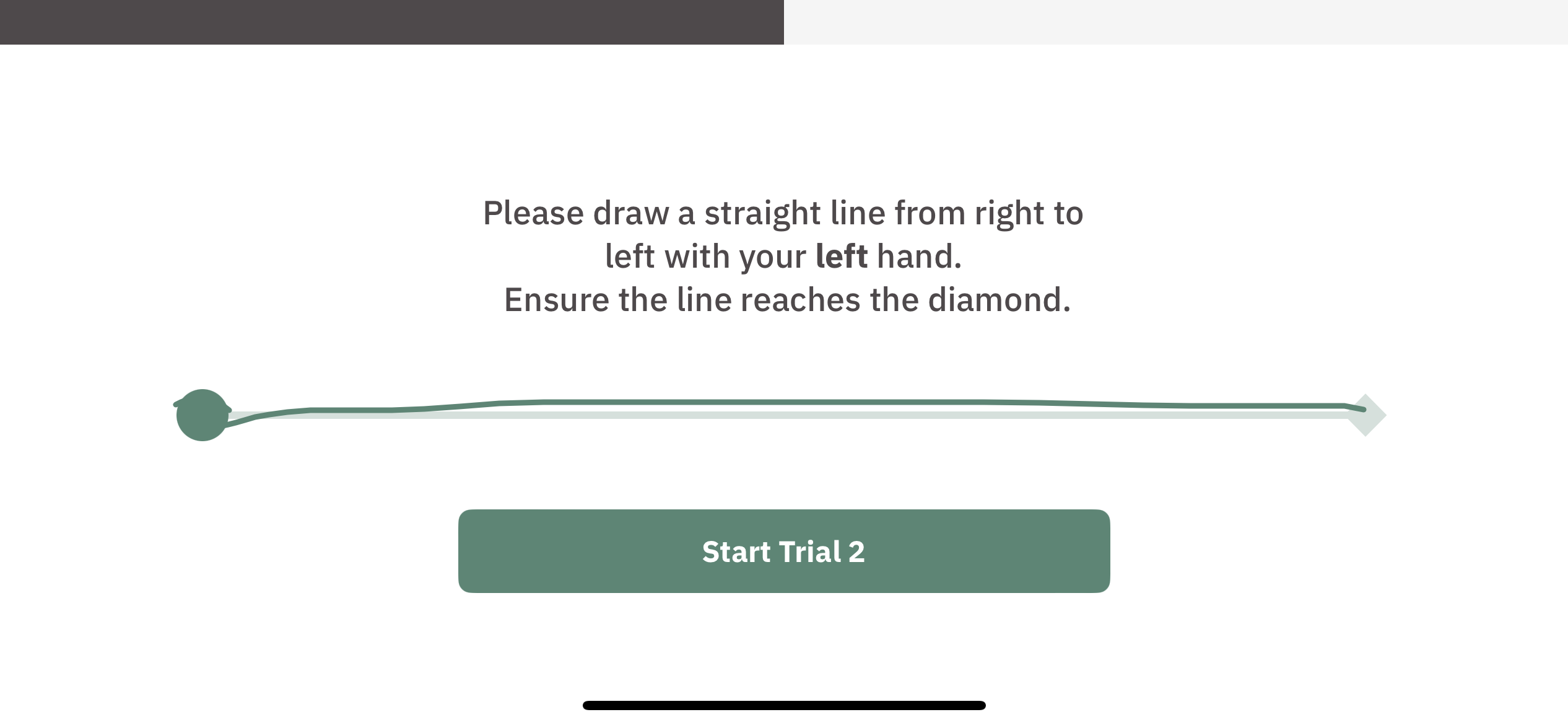
    • Participants are asked to trace a line from right to left. 
    • Once finished, participants can click “Start Trial 2” to begin the second trial. 
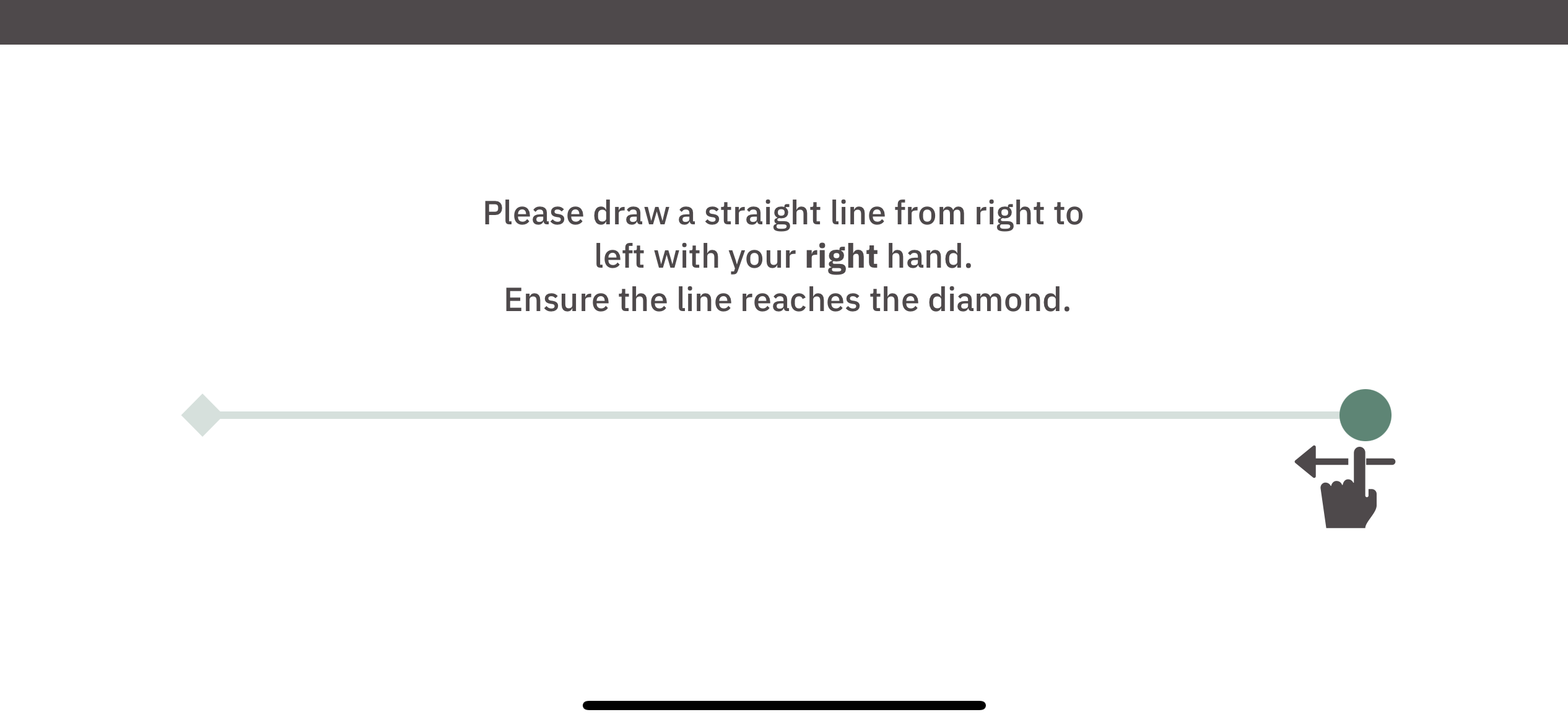
  3. Trial 2 (Using the right hand):
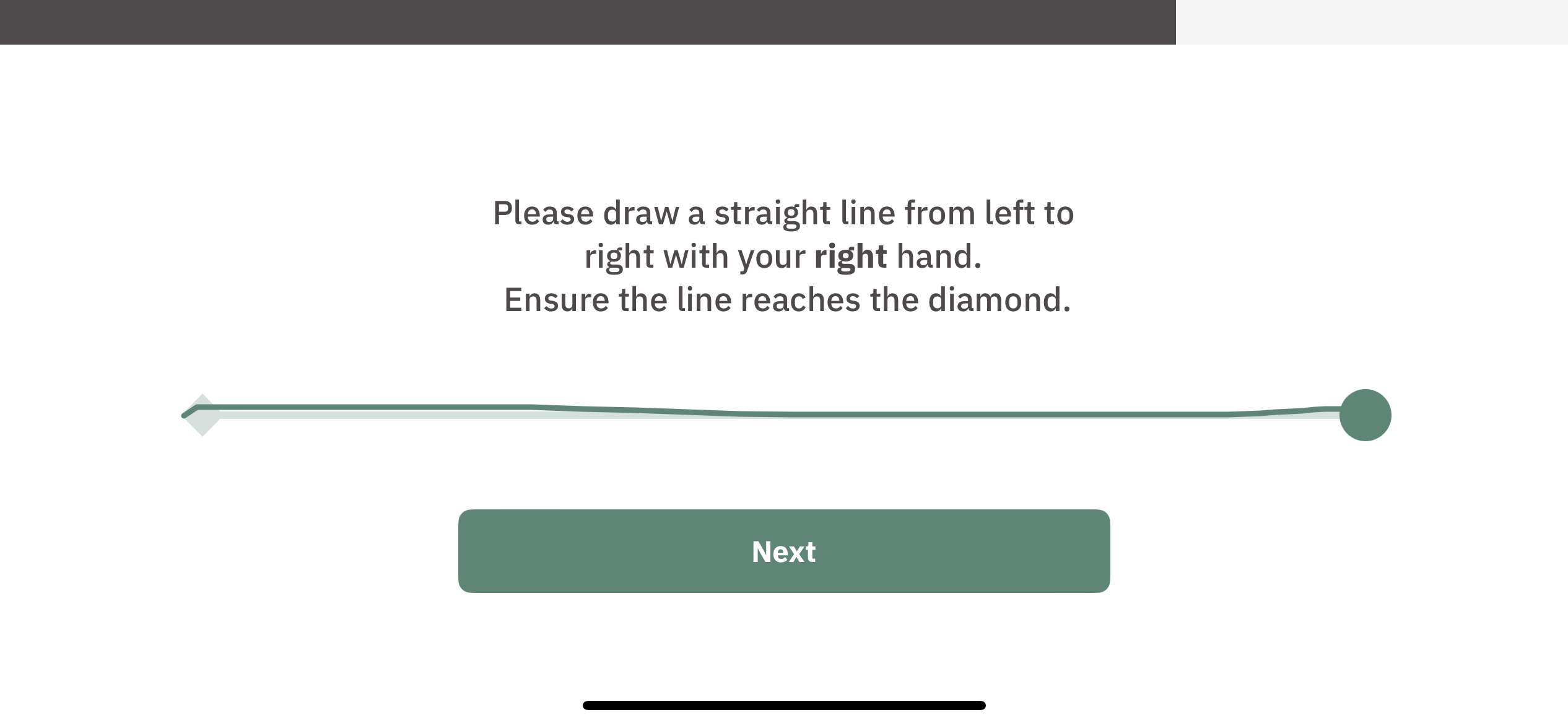
    • Participants are asked to trace a line from left to right. 
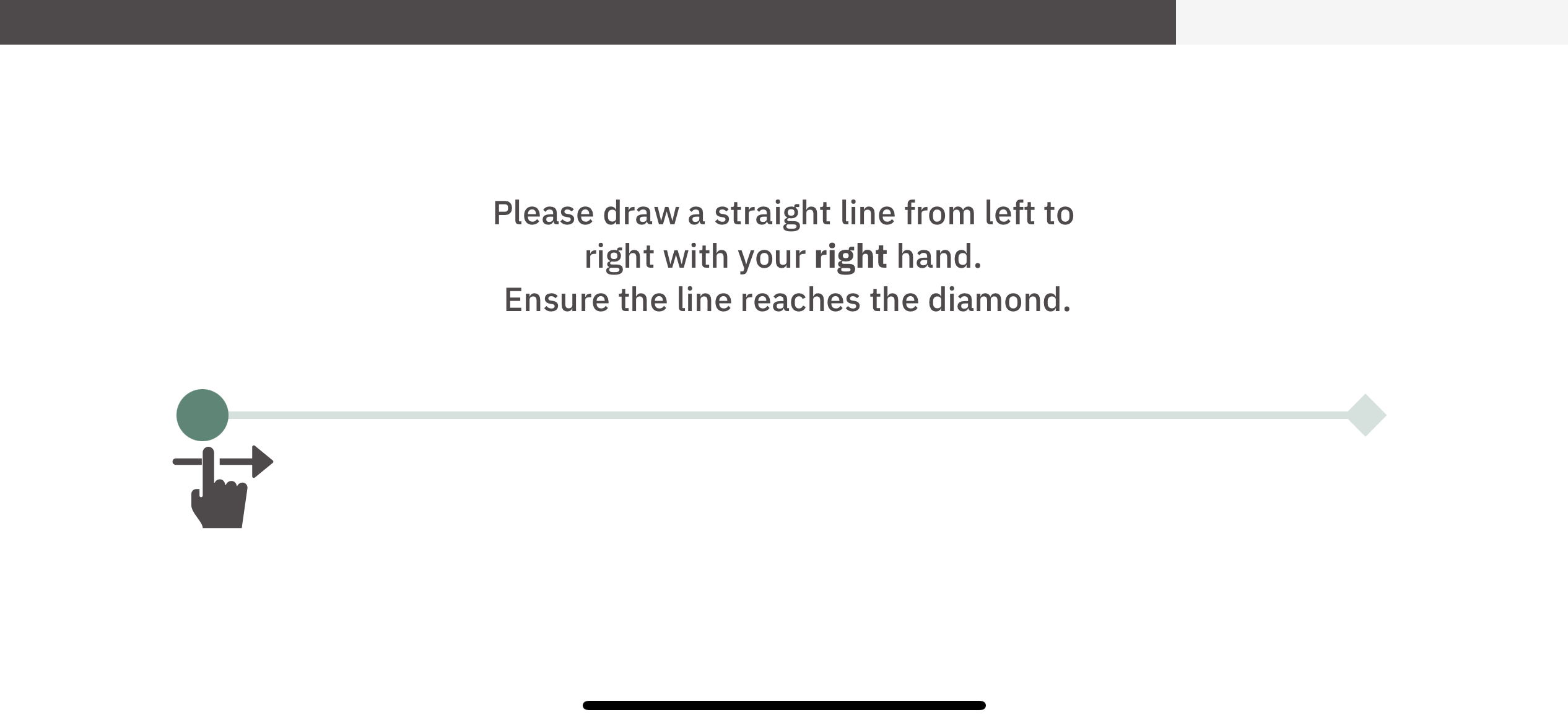
    • Once finished, participants can click “Next” to proceed. 
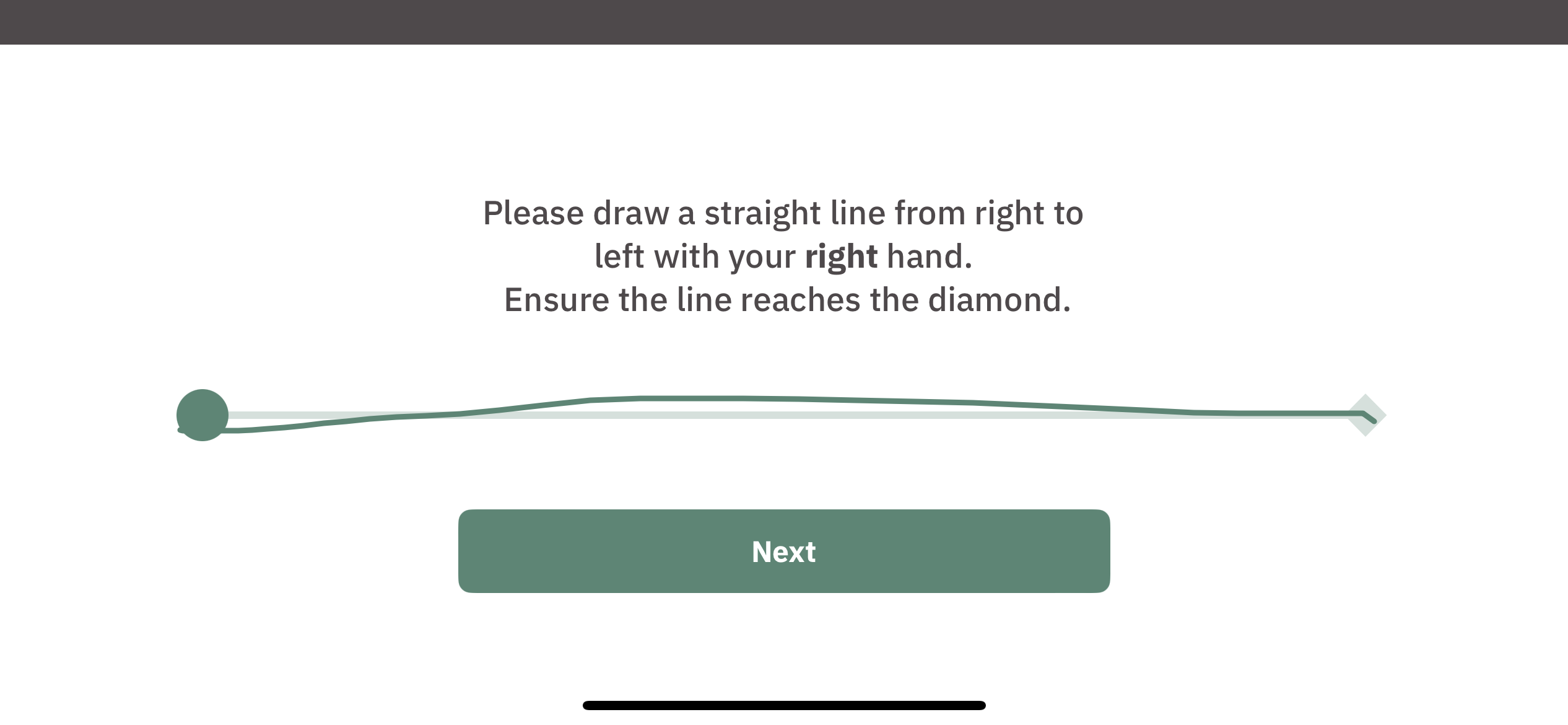
    • Participants are asked to trace a line from right to left.
    • Once finished, participants can click “Next” to move to the next activity. 
Response data

Response data for this exercise includes the following:

  • The device display size
    • Width and height
  • For the reference line:
    • (x, y) coordinates of the start and end point of the line
  • For the lines drawn by participants:
    • (x, y) coordinates of the points recorded for the lines


The unit of measurement used for the response data is Points (pt). It is an abstract unit of measurement. A device display with an 844 pt width and 390 pt height can be thought of as an 844×390 grid of Points. The (x, y) coordinates recorded for any point represent its location on the grid. The size of the device display may vary with devices.

Exercise Result

The following example shows the JSON object structure used for this exercise result:

{
  "exercise_id": "exercise05",
  "exercise_metadata": {
    "device_display": {
      "width": 844,
      "height": 390
    },
    "ref_line_coords": {
      "start": [97, 246],
      "end": [747, 246]
    }
  },
  "exercise_result": {
    "left2right_left_hand":[[115, 230], [125, 226], [130, 226], [136, 226], [146, 226], [158, 226], [173, 228], [189, 230], [207, 230], [226, 230], [245, 230], [264, 227], [282, 222], [301, 217], [319, 213], [336, 209], [350, 206], [361, 205], [370, 204], [377, 203], [384, 203], [390, 203], [396, 203], [401, 203], [407, 203], [413, 202], [419, 202], [426, 201], [434, 200], [443, 200], [453, 198], [462, 195], [473, 192], [483, 188], [493, 186], [502, 184], [510, 182], [518, 181], [526, 180], [535, 179], [544, 178], [553, 178], [562, 178], [570, 178], [579, 179], [587, 180], [594, 180], [601, 181], [608, 181], [613, 181], [618, 181], [623, 181], [627, 181], [632, 181], [638, 181], [643, 181], [649, 181], [655, 181], [662, 181], [668, 181], [674, 181], [680, 181], [687, 180], [693, 178], [698, 176], [703, 174], [708, 172], [713, 171], [717, 170], [720, 169], [723, 168]],
    "right2left_left_hand":[[722, 230], [716, 244], [713, 252], [708, 261], [703, 270], [698, 277], [694, 284], [691, 288], [688, 289], [686, 289], [684, 289], [680, 289], [677, 289], [672, 289], [666, 289], [658, 289], [648, 289], [638, 289], [627, 289], [615, 289], [604, 289], [592, 289], [580, 289], [567, 289], [554, 287], [539, 286], [524, 285], [508, 284], [493, 284], [477, 283], [463, 282], [449, 280], [436, 278], [424, 276], [413, 275], [403, 274], [393, 272], [385, 270], [378, 268], [371, 266], [364, 261], [358, 256], [351, 251], [345, 246], [338, 244], [332, 241], [325, 241], [317, 241], [308, 241], [301, 241], [295, 242], [291, 242], [289, 241], [287, 238], [285, 233], [283, 230], [279, 226], [273, 224], [266, 223], [258, 222], [250, 222], [242, 220], [233, 217], [225, 213], [220, 211], [208, 205], [200, 200], [192, 195], [184, 191], [175, 187], [167, 184], [157, 181], [147, 179], [138, 176], [129, 174], [120, 171], [113, 169], [106, 166], [101, 164], [98, 161], [97, 159]],
    "left2right_right_hand":[[113, 230], [126, 232], [139, 232], [155, 233], [175, 234], [198, 235], [222, 235], [246, 238], [270, 242], [291, 247], [311, 253], [331, 257], [351, 258], [370, 258], [389, 257], [407, 253], [424, 249], [440, 245], [455, 239], [470, 232], [487, 224], [503, 215], [519, 206], [535, 198], [549, 191], [563, 186], [575, 183], [586, 182], [598, 181], [608, 179], [619, 177], [629, 176], [639, 175], [648, 174], [657, 174], [666, 174], [674, 174], [682, 174], [690, 173], [698, 172], [705, 172], [711, 172], [718, 172], [724, 172]],
    "right2left_right_hand":[[736, 217], [726, 215], [721, 213], [715, 210], [705, 205], [693, 199], [681, 194], [669, 189], [656, 184], [642, 180], [628, 175], [615, 169], [602, 164], [590, 161], [578, 157], [568, 154], [559, 153], [550, 152], [540, 150], [528, 148], [510, 145], [490, 141], [469, 137], [448, 133], [429, 130], [412, 127], [397, 125], [384, 125], [371, 125], [361, 125], [352, 125], [343, 128], [336, 130], [328, 132], [321, 134], [313, 136], [306, 137], [299, 140], [291, 143], [283, 145], [276, 148], [268, 151], [259, 155], [250, 159], [240, 163], [231, 170], [222, 177], [213, 186], [204, 194], [195, 204], [186, 212], [177, 221], [168, 229], [160, 237], [152, 246], [144, 252], [137, 261], [130, 269], [123, 278], [117, 286], [111, 294], [105, 301], [100, 307], [95, 312]]
  }
}

Let’s try to understand the results recorded for this exercise using the fields of this JSON object.

exercise_id (string)

The default exercise_id value for exercise 5 is exercise05.

exercise_metadata (object)

The exercise metadata contains the following fields:

  • device_display (object): Information about the display size
    • width (int): Display width, measured in Points (pt)
    • height (int): Display height, measured in Points (pt)
  • ref_line_coords (object): (x, y) coordinates of the start and end point of the reference line
    • start (list): (x, y) coordinates of the starting point, measured in Points (pt)
    • end (list): (x, y) coordinates of the ending point, measured in Points (pt)
exercise_result (object)

This object contains the result using the following fields:

  • left2right_left_hand (list): List of (x, y) coordinates of the points recorded for the line drawn with the left hand from left to right. Each point measured in Points (pt).
  • right2left_left_hand (list): List of (x, y) coordinates of the points recorded for the line drawn with the left hand from right to left. Each point measured in Points (pt).
  • left2right_right_hand (list): List of (x, y) coordinates of the points recorded for the line drawn with the right hand from left to right. Each point measured in Points (pt).
  • right2left_right_hand (list): List of (x, y) coordinates of the points recorded for the line drawn with the right hand from right to left. Each point measured in Points (pt).

Exercise 6: DSST (Digit Symbol Substitution Test)

Overview

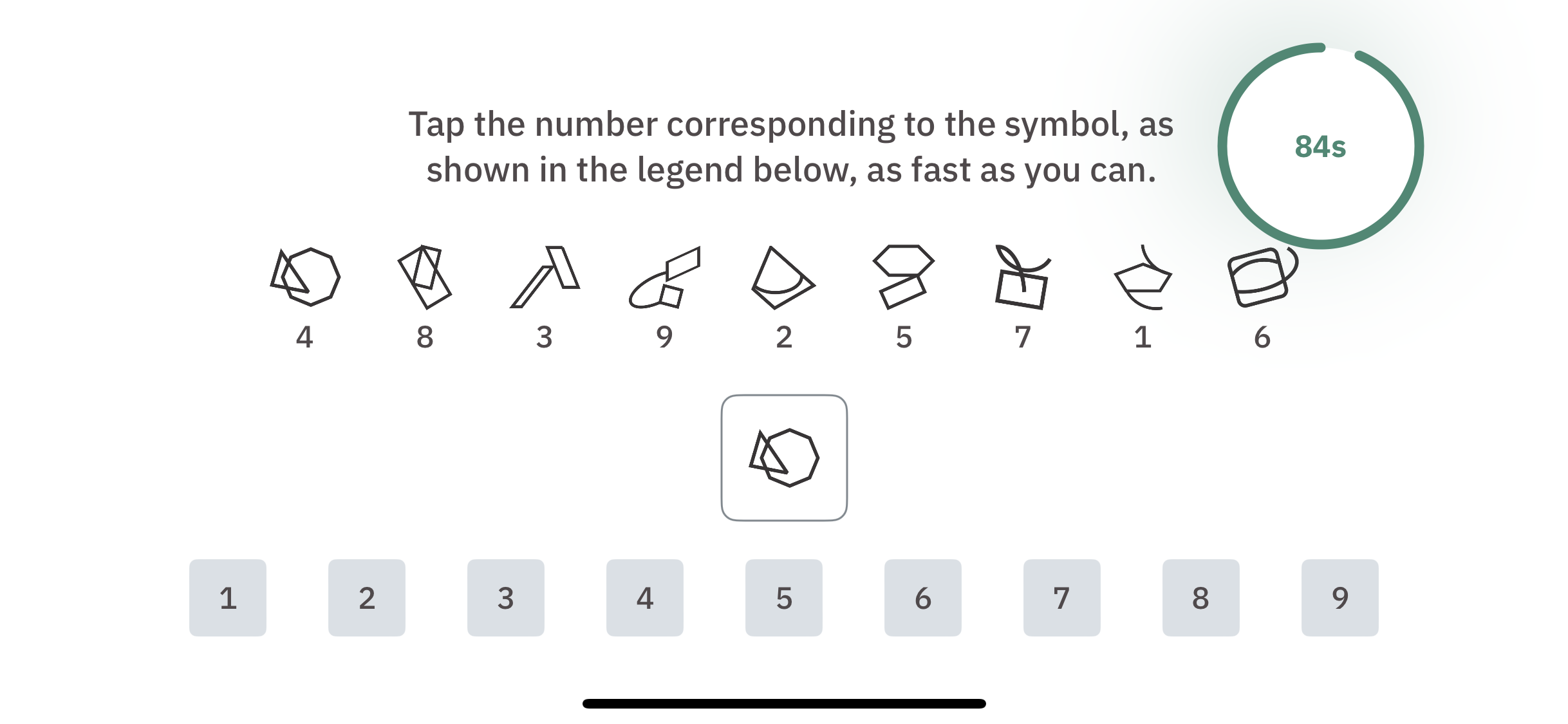
In this exercise, participants are shown a reference set of symbols on the screen with a random number associated with each image. For each question in the exercise, a random symbol from the set is displayed on the screen. Participants are presented with the available number options used for the reference set and are expected to select the number that corresponds to the symbol in the reference set. Participants have 90 seconds to complete this task for as many symbols as possible. Low scores on the DSST are associated with AD, Parkinson’s disease, stroke, disability and depression among other disordres.

The exercise process is outlined as follows:

  1. Exercise instructions are displayed. Participants can watch a demo with the “Watch Demo” button or click the “Start” button to begin the exercise. 
  2. During the exercise, the reference symbol set (legend) is displayed on the top half of the screen and the question symbols along with the numbers for answer options are displayed on the bottom half of the screen. Participants should tap the number corresponding to the symbol in the reference set (legend). The timer on in the top right corner shows the remaining time. 
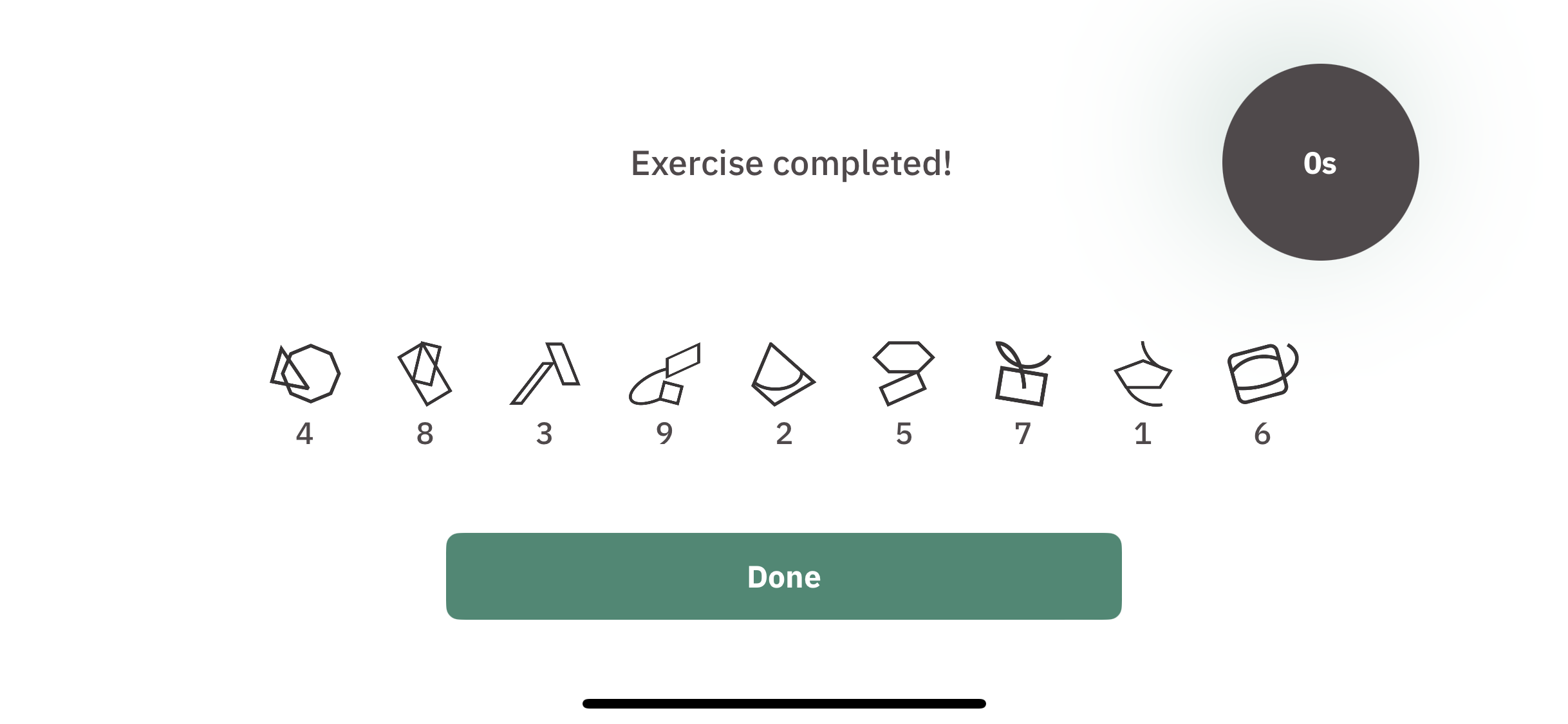
  3. The timer stops after 90 seconds and the following screen is displayed. Participants can click “Next” for the next activity. 

Response Data

Response data for this exercise includes the following:

  • Number of questions answered
  • Answer value for each question
    • Correct answer value = 1
    • Incorrect answer value = 0

Exercise Result

The following example shows the JSON object structure used for this exercise result:

{
  "exercise_id": "exercise06",
  "exercise_metadata": {},
  "exercise_result": [1, 1, 1, 1, 1, 1, 1, 1, 1, 1, 0, 1, 1, 1, 1, 1, 1, 1, 1, 1, 1, 1, 1, 1, 1, 1, 1, 1, 1, 1, 1, 1, 1, 1, 1, 1, 1, 1, 1, 1, 1, 1, 1, 1, 1, 1, 1, 1, 1, 1, 1, 1, 1]
}

Let’s try to understand the results recorded for this exercise using the fields of this JSON object.

exercise_id (string)

The default exercise_id value for exercise 6 is exercise06.

exercise_metadata (object)

Currently, there is no additional information required to process the recorded results for this exercise. Thus, an empty object is present here.

exercise_result (list)

Contains the answers to the exercise questions (values: 1 = correct answer, 0 = incorrect answer). The length of this list is equal to the number of questions answered.

Response Data

Payloads in this version utilize the shared response format, which documents top-level fields, metadata shapes, and the event catalog, including the deprecation of exercise_result. Exercise-specific details are documented below.


Top-level values

Field Type Description
schema_version number 1
exercise_version number Exercise version (changes with each configuration update from the admin portal).
exercise_id string "exercise06"
exercise_metadata object See below
exercise_response object The participant’s response, recorded as a timestamped list of events (details below).
exercise_result array (Deprecated) Same as schema version 0.


exercise_metadata

Field Type Description
device_display object Shared shape (see the shared response format).
time_limit object { "min_ms": 90000, "max_ms": 90000 }: A fixed 90-second task.
controls object The digit buttons, keyed by control_id "1""9". Each entry carries coord_bounds only.
stimuli object The symbols shown during the exercise, keyed by stimulus_id. Entry fields below.

stimuli
Field Type Description
target_digit number The correct number for this symbol.
control_id string The button representing the correct answer for this symbol.
url string (Optional) Location of the symbol asset.

Note: The support for this added to be future-compatible. It is optional at the moment and may be absent from the collected response data.


exercise_response

DSST emits the following event types (see the shared event catalog for their meanings): exercise_started / exercise_completed, screen_displayed, demo_started / demo_completed, response_session_started / response_session_completed, timer_started / timer_expired, alert_displayed / alert_closed, stimulus_displayed, tap, and response.

The exercise is trial-based: Each trial is a stimulus_displayed, the participant’s tap(s), and a response, sharing a trial_index. A trial still in progress when the timer expires produces no response event.

Each response event carries:

Field Type Description
answered_digit number The digit of the button the participant tapped.
is_correct boolean Whether answered_digit matches the stimulus’s target_digit.
reaction_time_ms number Time (milliseconds) from the symbol being displayed to the response.


exercise_result (deprecated)

Field Type Description
exercise_result array (Deprecated) Same as schema version 0.

Exercise 7: Procedural Stroop Test

Overview

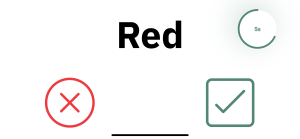
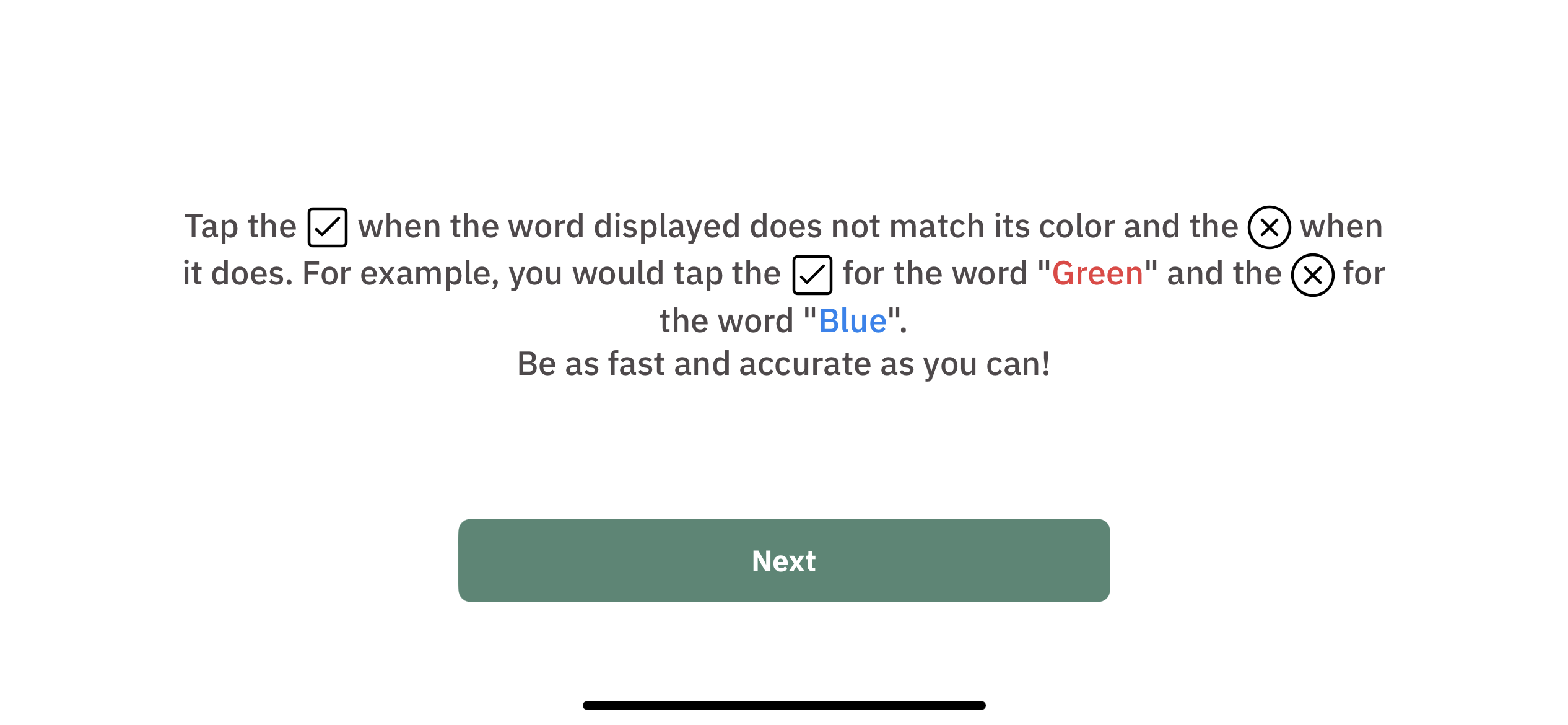
This exercise is divided into three trials. For each trial, participants are expected to tap a checkmark or a cross symbol based on the instructions displayed on the screen. Questions across all trials use words that represent color names (for example: red, green, blue). The words themselves are colored. However, the color of a word may or may not match the word itself. Evidence exists linking head trauma and AD to increased Stroop effect.

The following is a brief introduction of the instructions for the three trials:

  • Trial 1:
    • Contains 5 questions
    • For each question, participants should
      • Tap the checkmark as soon as a word appears
    • Participants have 6 seconds to answer a question
  • Trial 2:
    • Contains 20 questions
    • For each question, participants should
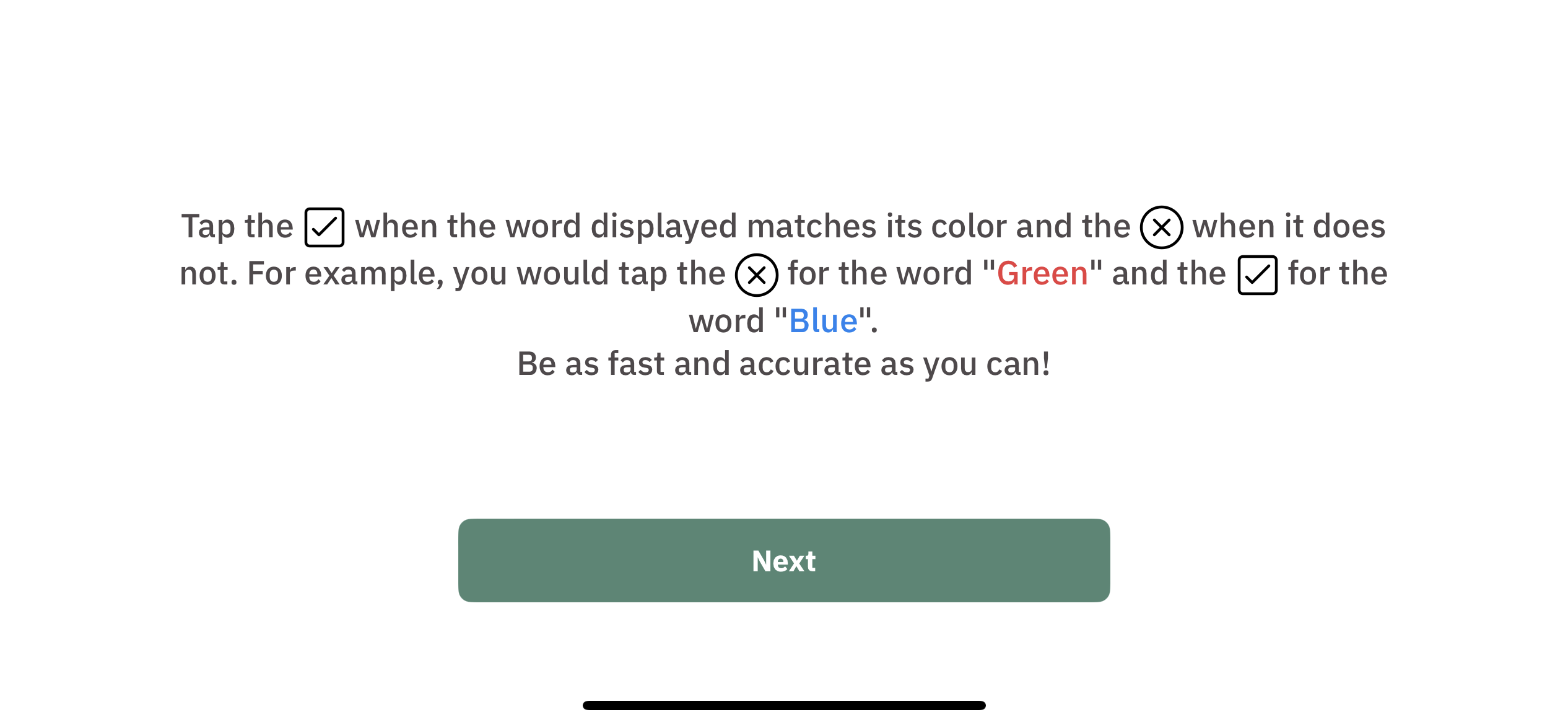
      • Tap the checkmark if the word displayed matches its color
      • Tap the cross if the word displayed does not match its color
    • Participants have 6 seconds to answer a question
  • Trial 3:
    • Contains 20 questions
    • For each question, participants should
      • Tap the checkmark if the word displayed does not match its color
      • Tap the cross if the word displayed matches its color
    • Participants have 6 seconds to answer a question

The exercise process is outlined as follows:

  1. Instructions for trial 1 are displayed. Participants can click “Start” to start the trial. 
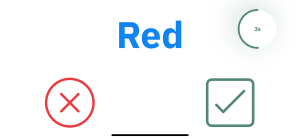
  2. Questions for trial 1 are displayed sequentially. The timer in the top right corner of the screen displays the remaining time for a question. 
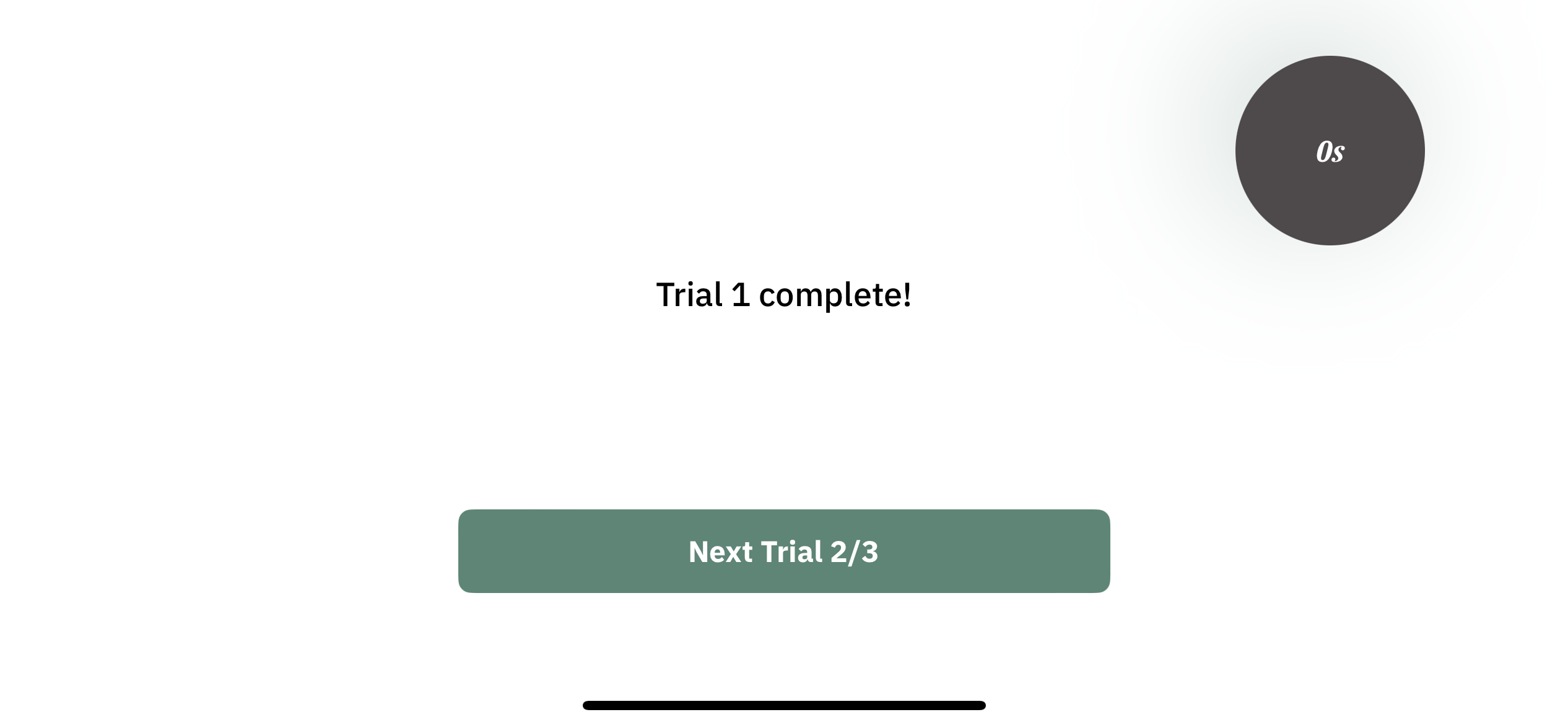
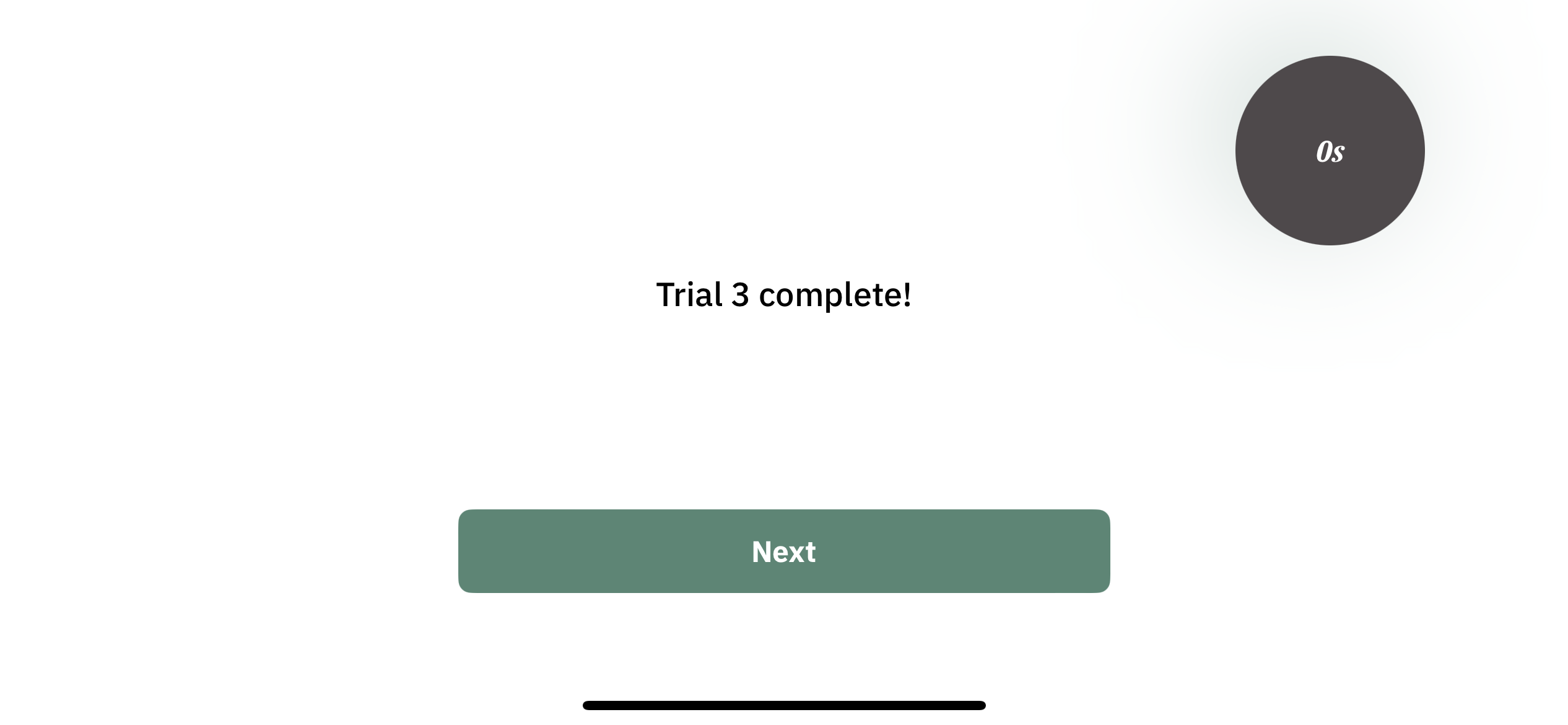
  3. After trial 1 is completed, participants can click “Next Trial 2/3” to go to the next trial. 
  4. Instructions for trial 2 are displayed. Participants can click “Next” to start the trial. 
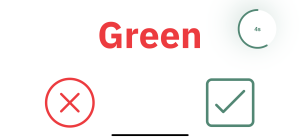
  5. Questions for trial 2 are displayed sequentially. The timer in the top right corner of the screen displays the remaining time for a question. 
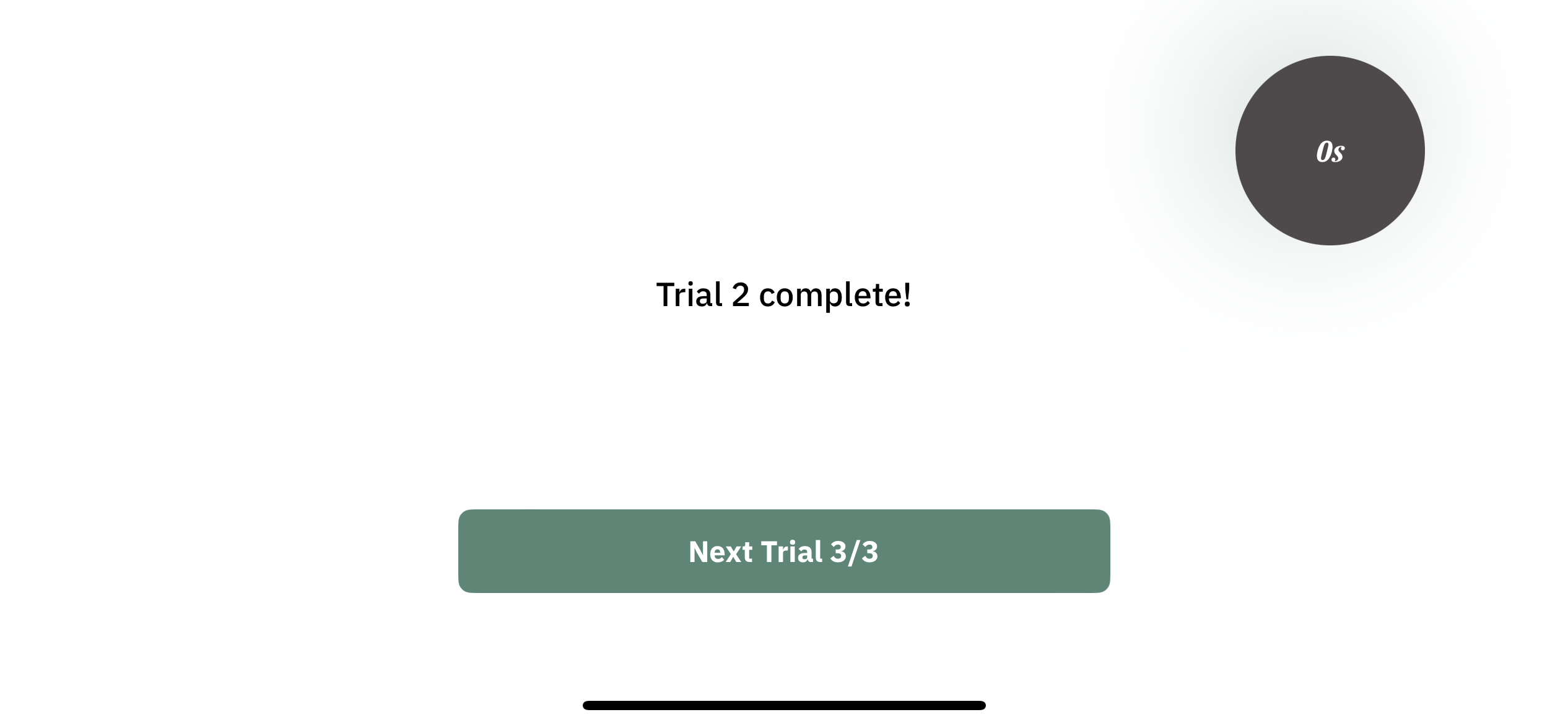
  6. After trial 2 is completed, participants can click “Next Trial 3/3” to go to the next trial. 
  7. Instructions for trial 3 are displayed. Participants can click “Next” to start the trial. 
  8. Questions for trial 3 are displayed sequentially. The timer in the top right corner of the screen displays the remaining time for a question. 
  9. After trial 3 is completed, participants can click “Next” to go to the next activity. 

Response data

Response data for this exercise includes the following:

  • For each question:
    • Answer
      • Correct answer value = 1
      • Incorrect answer value = 0
      • Answer value if there was a timeout before an answer could be provided = -1
    • Reaction time, measured in milliseconds and starting from 0

Exercise Result

The following example shows the JSON object structure used for this exercise result:

{
  "exercise_id": "exercise07",
  "exercise_metadata": {},
  "exercise_result": {
    "trial1": [
      {"answer": 1, "reaction_time":  2507},
      {"answer": 0, "reaction_time": 1423},
      {"answer": -1, "reaction_time": 6000},
      {"answer": 1, "reaction_time": 3567},
      {"answer": 1, "reaction_time": 1157}
    ],
    "trial2": [
      {"answer": 1, "reaction_time": 2507},
      {"answer": 1, "reaction_time": 1423},
      {"answer": 1, "reaction_time": 1281},
      {"answer": 1, "reaction_time": 3567},
      {"answer": 1, "reaction_time": 1157},
      {"answer": 1, "reaction_time": 2206},
      {"answer": 1, "reaction_time": 2442},
      {"answer": 1, "reaction_time": 4523},
      {"answer": 1, "reaction_time": 1328},
      {"answer": 1, "reaction_time": 862},
      {"answer": 1, "reaction_time": 1055},
      {"answer": 1, "reaction_time": 965},
      {"answer": 1, "reaction_time": 909},
      {"answer": 1, "reaction_time": 1414},
      {"answer": 1, "reaction_time": 1027},
      {"answer": 1, "reaction_time": 1221},
      {"answer": 1, "reaction_time": 1276},
      {"answer": 1, "reaction_time": 2478},
      {"answer": 1, "reaction_time": 1324},
      {"answer": 1, "reaction_time": 1242}
    ],
    "trial3": [
      {"answer": 1, "reaction_time": 1241},
      {"answer": 1, "reaction_time": 2840},
      {"answer": 1, "reaction_time": 1729},
      {"answer": 1, "reaction_time": 1226},
      {"answer": 1, "reaction_time": 945},
      {"answer": 1, "reaction_time": 1303},
      {"answer": 0, "reaction_time": 1042},
      {"answer": 1, "reaction_time": 941},
      {"answer": 1, "reaction_time": 1010},
      {"answer": 1, "reaction_time": 789},
      {"answer": 1, "reaction_time": 1417},
      {"answer": 1, "reaction_time": 1120},
      {"answer": 1, "reaction_time": 1379},
      {"answer": 1, "reaction_time": 1043},
      {"answer": 1, "reaction_time": 1613},
      {"answer": 1, "reaction_time": 2281},
      {"answer": 1, "reaction_time": 2224},
      {"answer": 1, "reaction_time": 5134},
      {"answer": 1, "reaction_time": 1281},
      {"answer": 1, "reaction_time": 1944}
    ]
  }
}

Let’s try to understand the results recorded for this exercise using the fields of this JSON object.

exercise_id (string)

The default exercise_id value for exercise 7 is exercise07.

exercise_metadata (object)

Currently, there is no additional information required to process the recorded results for this exercise. Thus, an empty object is present here.

exercise_result (object)

This object contains the result using the following fields:

  • trial1 (list): List containing answer objects for trial 1 with the following fields:
    • answer (int): Answer for a question (values: 1 = correct answer, 0 = incorrect answer, -1 = timeout)
    • reaction_time (int): Time taken to answer the question, measured in milliseconds and starting from 0
  • trial2 (list): List containing answer objects for trial 2 with the following fields:
    • answer (int): Answer for a question (values: 1 = correct answer, 0 = incorrect answer, -1 = timeout)
    • reaction_time (int): Time taken to answer the question, measured in milliseconds and starting from 0
  • trial3 (list): List containing answer objects for trial 3 with the following fields:
    • answer (int): Answer for a question (values: 1 = correct answer, 0 = incorrect answer, -1 = timeout)
    • reaction_time (int): Time taken to answer the question, measured in milliseconds and starting from 0

Exercise 8: Picture Description

Overview

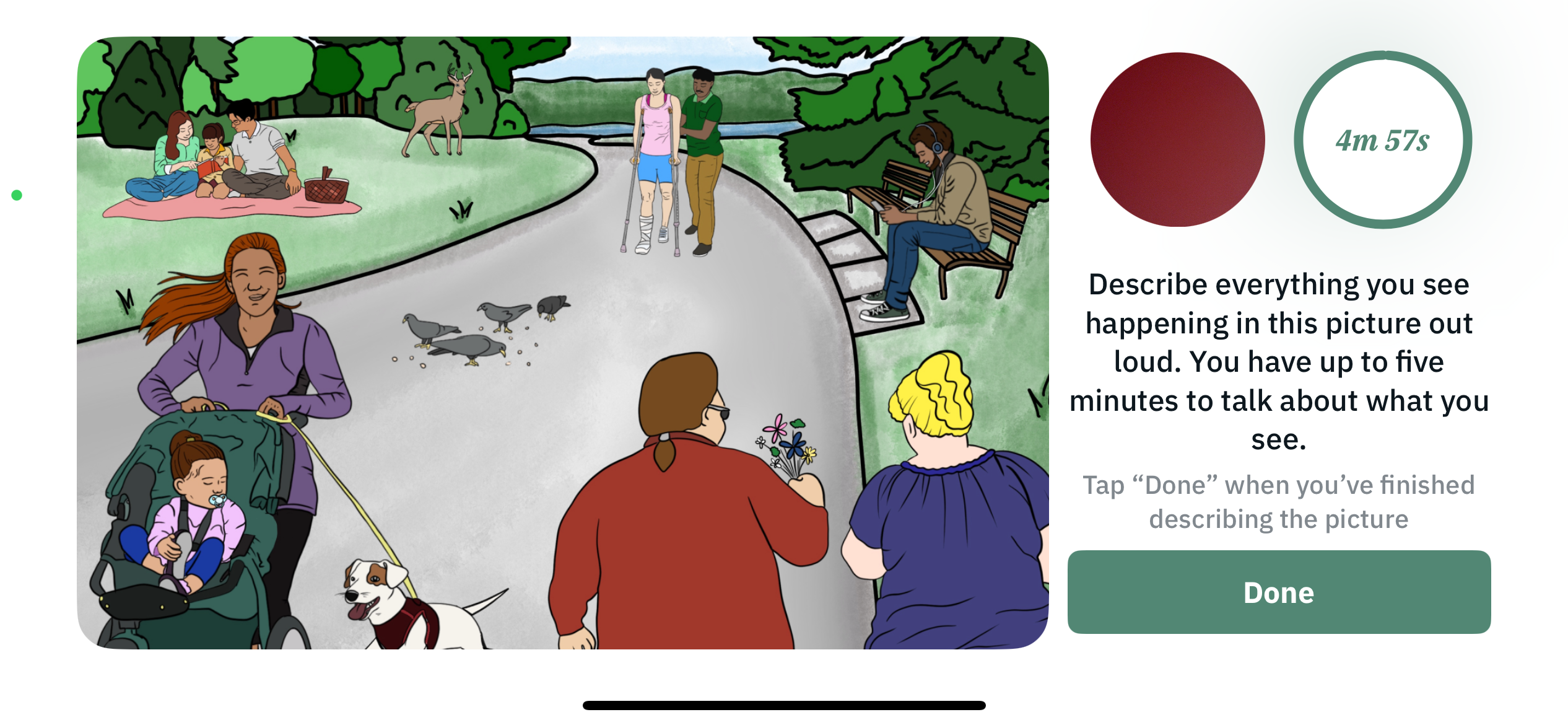
In this exercise, participants are presented with a picture and asked to describe what is happening in the picture in detail within a 5-minute time limit. The picture used will be a randomly selected one from a set of pictures determined by the program admin. Admins can also import their own custom images to be included within the pool of random images. Picture description tasks can be used to analyze both the acoustic and linguistic features of speech, providing insight into one’s cognitive health.

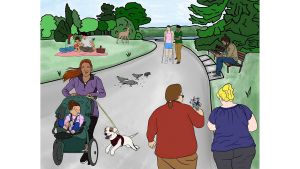
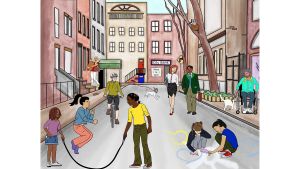
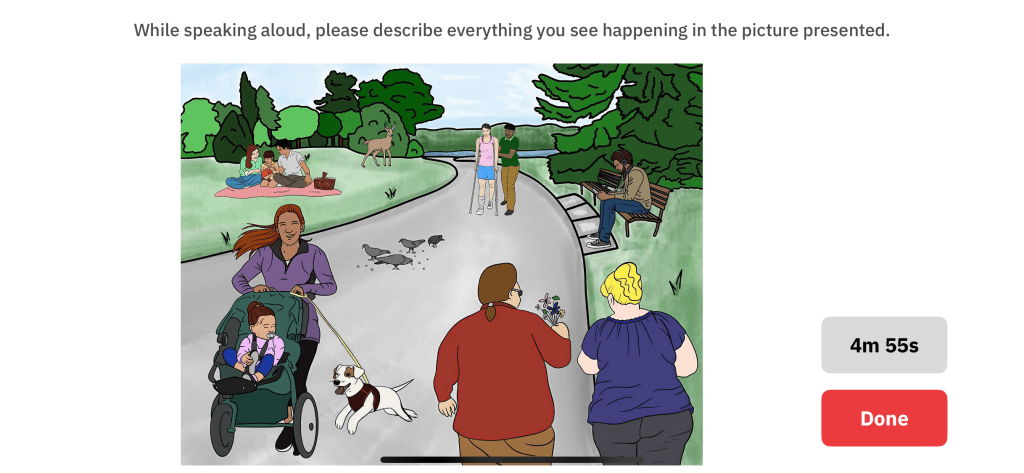
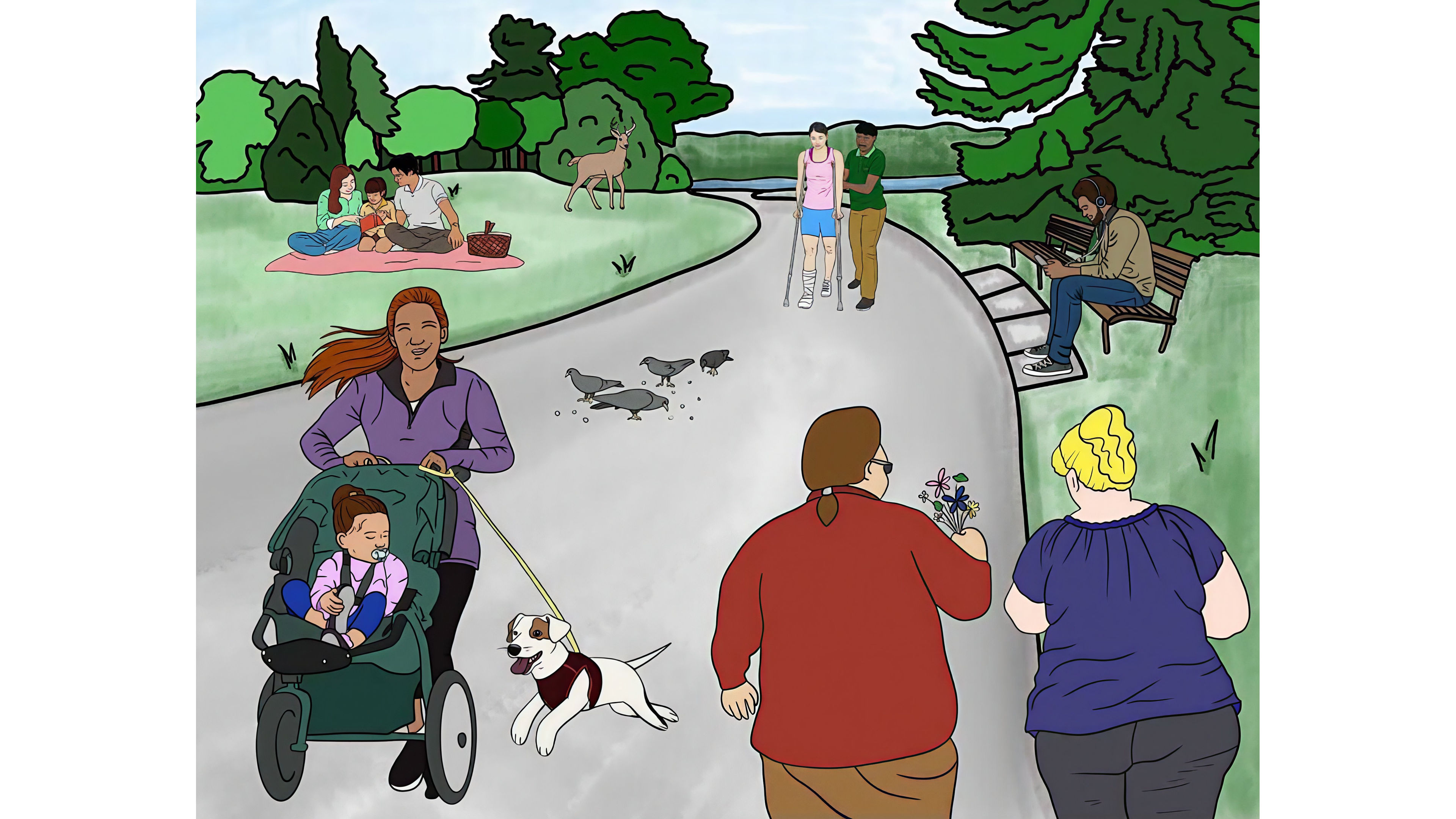
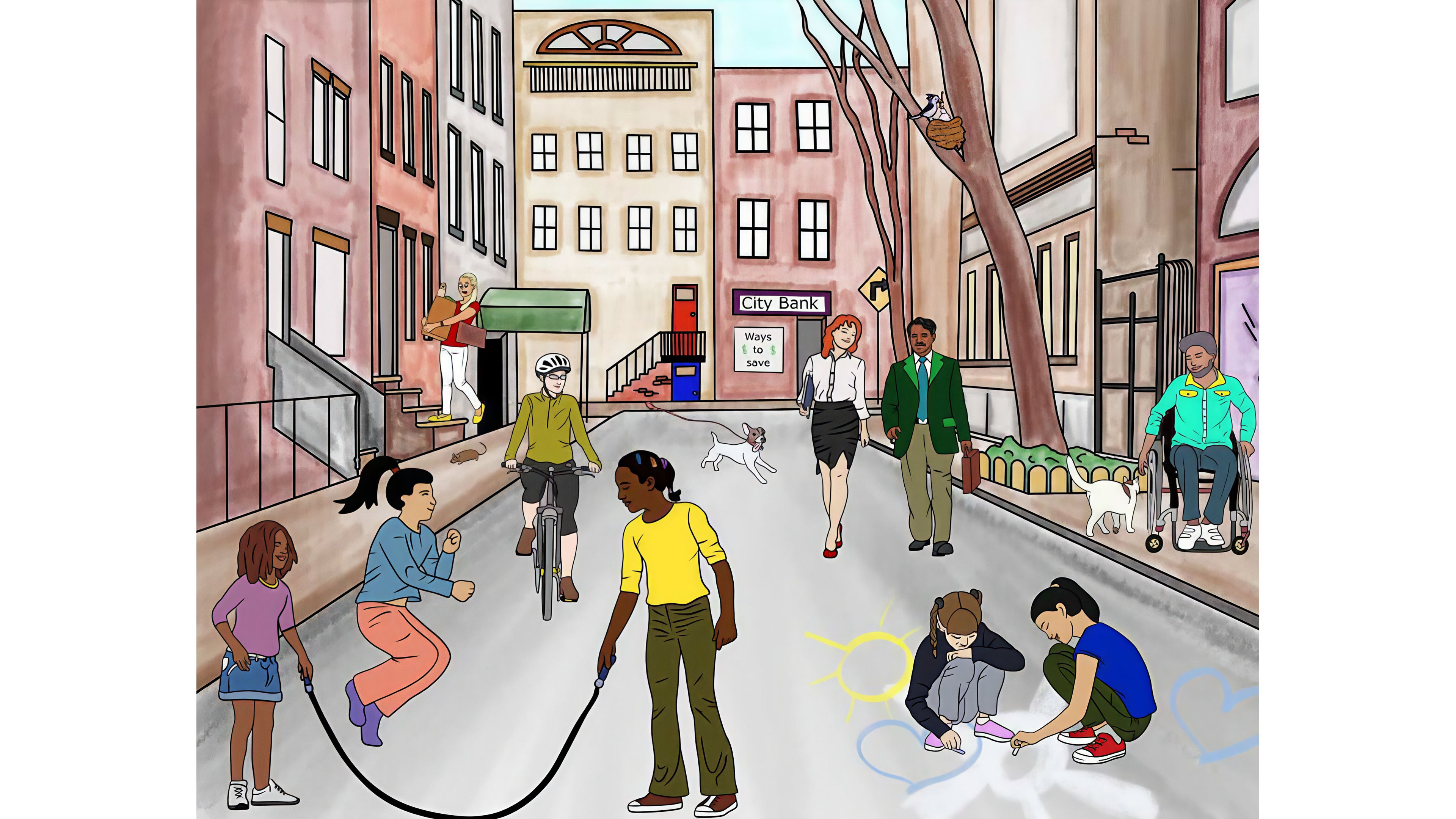
The following is a subset of images from the default image set:
1. Beach Scene:


2. Candy Theft:


3. Park Scene:


4. Urban Scene:

5. Farm Scene:

6. Candy Theft 2:

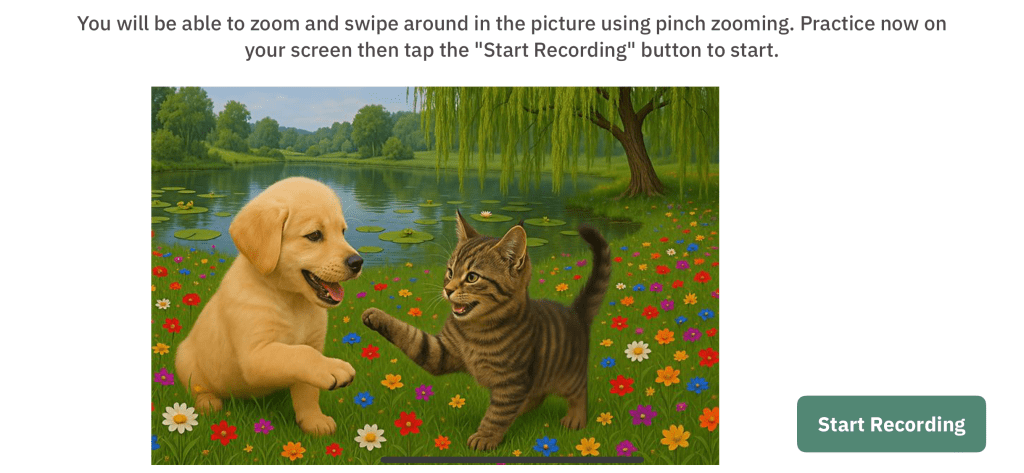
The example image used for testing the zooming feature is the following image:

The exercise process is outlined as follows:

  1. Exercise instructions are displayed. Participants can click “Next” to move on.
  2. Participants are first presented with an example image that they can use to practice zooming into the image. Participants can pinch the image with their fingers to zoom into the image up to 400% zoom into the image. Participants can click “Start recording” to start the exercise. 
  3. Participants are presented with a picture and asked to describe the picture out loud. The timer in the bottom right corner of the screen displays the remaining time. All zooming actions on the image are tracked. Participants can record their response here and click “Done” to proceed to the next activity.

Response data

The speech response is recorded using a single 32-bit, mono, .wav audio file with 22050Hz sample rate.

The zooming activity that the participant performed during the recording of the exercise is also recorded. This includes what kind of zooming action was performed, how much the image was zoomed to, where it was performed on the screen and the timestamp. 

Exercise Result

The following example shows the JSON object structure used for this exercise result:

{
  "exercise_id": "exercise08",
  "exercise_metadata": {
    "reference_picture_path": "path/to/the/reference/picture/file"
  },
  "exercise_result": {
    "file_path": "path/to/the/audio/file",
"zooming_activity":[{
"action":"in",
"method":"pinch",
"area":{
"width":1,
"height":1,
"center_point":[0.5, 0.5]
},
"zoom_level":"100",
"timestamp":"2025-12-12T00:00:00.000Z",
"event_type":"start"
}, {
"action":"in",
"method":"button",
"area":{
"width":0.8,
"height":0.8,
"center_point":[0.5, 0.5]
},
"zoom_level":"125",
"timestamp":"2025-12-12T00:00:00.000Z",
"event_type":"start"
}] } }

Let’s try to understand the results recorded for this exercise using the fields of this JSON object.

exercise_id (string)

The default exercise_id value for exercise 8 is exercise08.

exercise_metadata (object)

This object contains some additional information about the exercise results using the following fields:

  • reference_picture_path (string): Path to the picture used for the question
exercise_result (object)

This object contains the result using the following fields:

  • file_path (string): Path to the location of the audio file with speech response
  • zooming_activity (list): A list of objects tracking the participant’s zooming activity history. Each object represents the participant’s zooming activity at a particular moment using the following fields:
    • event_type (string): A string value from the following: [“start”, “in-progress”, “end”]
    • method (string): A string value from one of the following methods used: [“pinch”, “button”]
    • action (string): A string value from the following: [“in”, “out”, “pan”] (Note: “pan” indicates swiping activity)
    • zoom_level (float number): A number representing the zoom level in percentage after the zoom action is complete
    • timestamp (timestamp): Zoom action timestamp (ISO 8601)
    • area (list): This field represents the portion of the image currently visible to the participant.
      • width (float number): A number indicating the fraction of the picture width being displayed. Example: 0.5 means 50% of the picture width is visible.
      • height (float number): A number indicating the fraction of the picture height being displayed. Example: 0.5 means 50% of the picture height is visible.
      • center_point (list): (x, y) values representing which point of the picture is currently in the center point of the image pane/viewport. Example: (0.45, 0.50) means the picture point currently in the center of the image pane is located at 45% of the picture width and 50% of the height, starting from the bottom-left corner of the picture.

Response data

Payloads in this version utilize the shared response format, which documents top-level fields, metadata shapes, and the event catalog, including the deprecation of exercise_result. Exercise-specific details are documented below.


Top-level values

Field Type Description
schema_version number 1
exercise_version number Exercise version (changes with each configuration update from the admin portal).
exercise_id string "exercise08"
exercise_metadata object See below
exercise_response object The participant’s response, recorded as a timestamped list of events (details below).
exercise_result object (Deprecated) Same as schema version 0.


exercise_metadata

Field Type Description
device_display object Shared shape (see the shared response format).
time_limit object { "min_ms": 20000, "max_ms": 300000 }: A flexible window — the participant must record for at least 20 seconds and may record up to 5 minutes.
stimuli object The pictures involved in the exercise, keyed by stimulus_id. Stimulus "0" is the example image used for zoom practice; stimulus "1" is the picture the participant describes. Object details below.

stimuli
Field Type Description
coord_bounds object Where the image sits on screen (shared shape).
is_practice boolean Whether this is the example image used for zoom practice (true) or the picture to be described (false).
url string Link to the source image.


exercise_response

Picture Description emits the following event types (see the shared event catalog for their meanings): exercise_started / exercise_completed, screen_displayed, practice_session_started / practice_session_completed, response_session_started / response_session_completed, alert_displayed / alert_closed, message_displayed, stimulus_displayed, tap, zoom, and response.

The exercise has a practice session before the response session, where the participant practices zooming on the example image (stimulus "0"). Zoom and pan gestures are recorded as zoom events during both sessions. Tapping “Done” too early triggers the “Please continue to describe more details.” prompt (message_displayed); a completed Done tap opens the “Are you finished?” confirmation (alert_displayed / alert_closed) before the response is recorded.

Each response event carries:

Field Type Description
audio_url string Link to the speech recording (e.g. a .flac file).
recording_time_ms number Duration of the recording in milliseconds.
timeout boolean Whether the maximum recording time was reached.
audio_input_source string (Optional) The audio input device, e.g. "iPhone Microphone".


exercise_result (deprecated)

Field Type Description
exercise_result object (Deprecated) Same as schema version 0.

Exercise 9: Unstructured Voice Tasks (Verbal Fluency)

Overview

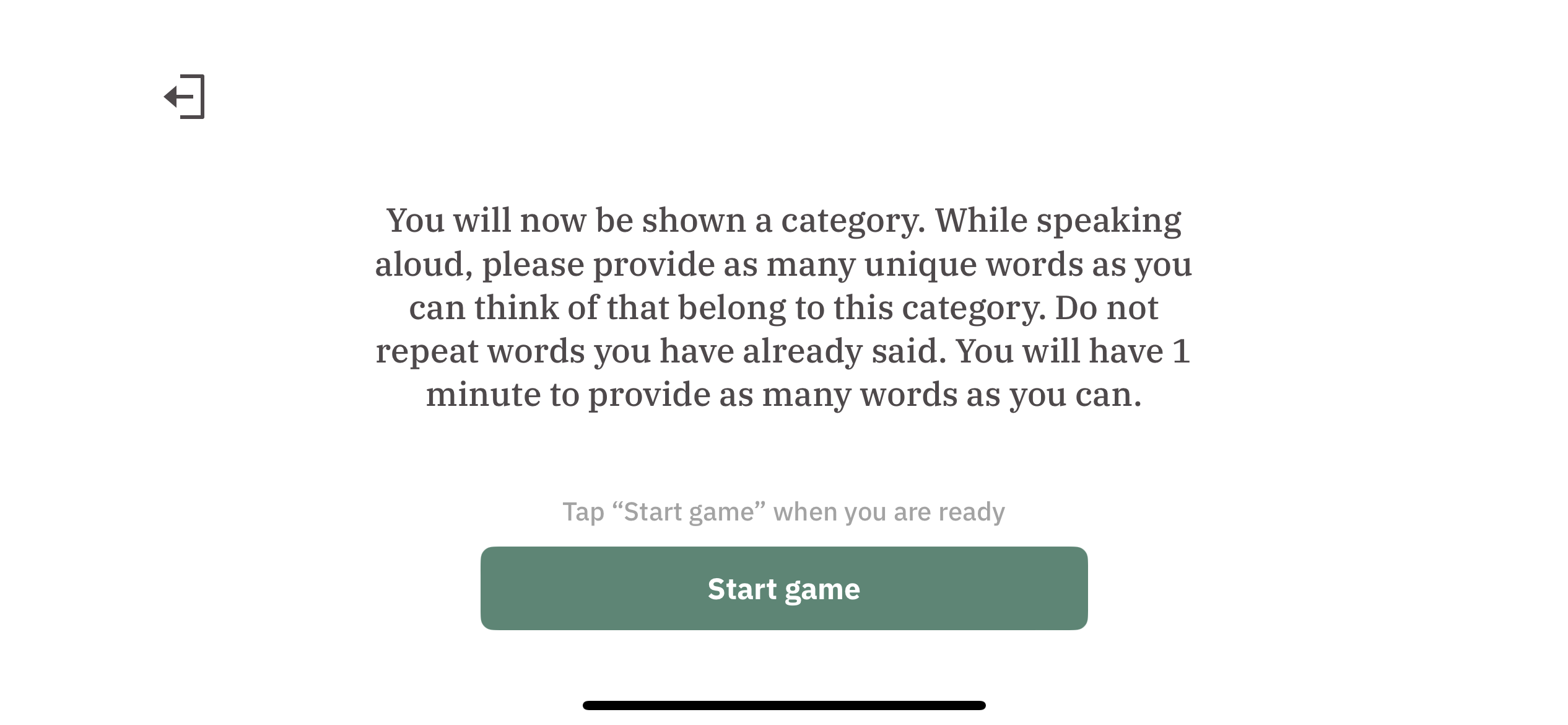
In this exercise assessing verbal fluency, participants asked to say as many unique words as possible for a given category within a 1-minute time limit.

The exercise process is outlined as follows:

  1. Exercise instructions are displayed. Participants can click “Start game” to start the exercise. 
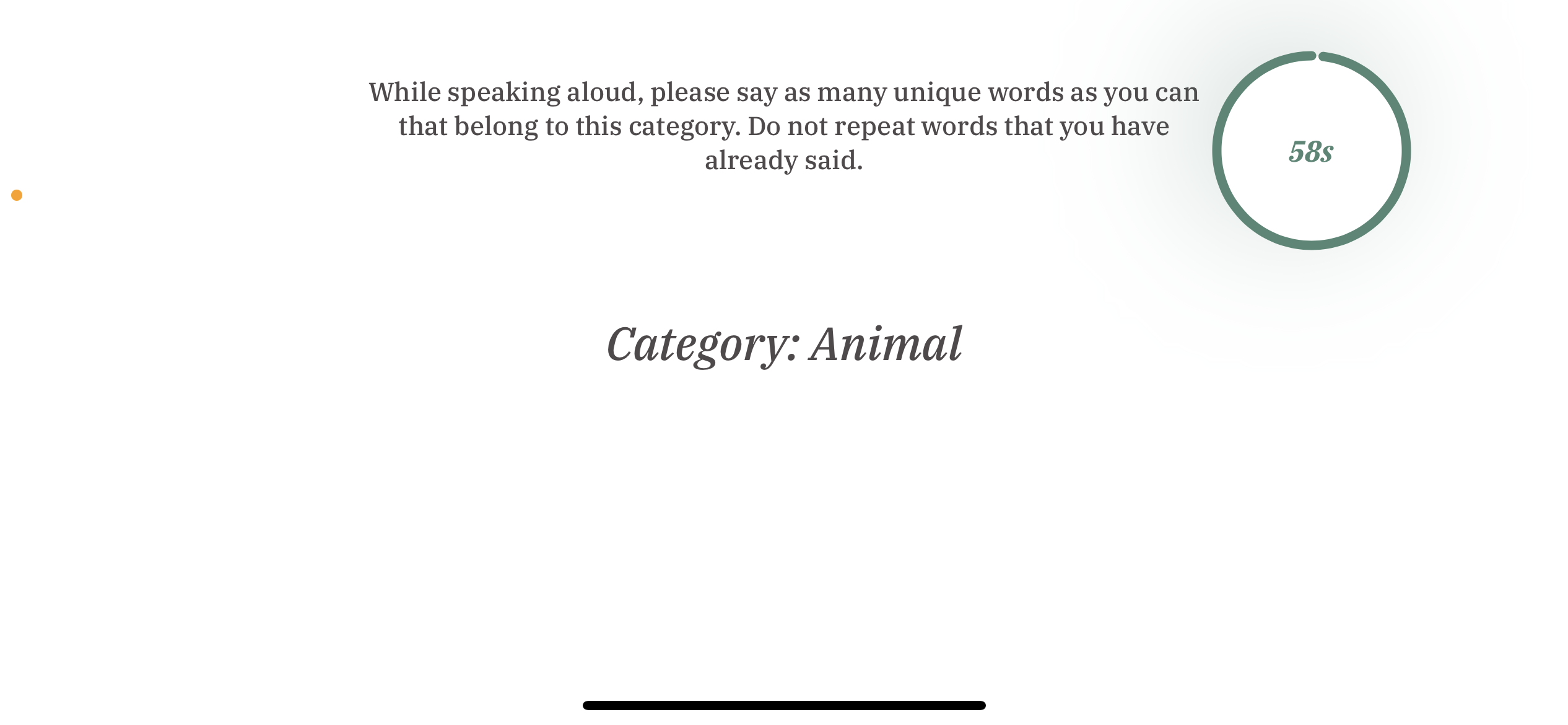
  2. Participants are presented with a category and asked to say as many unique words as possible for the given category. The timer in the top right corner of the screen displays the remaining time. 
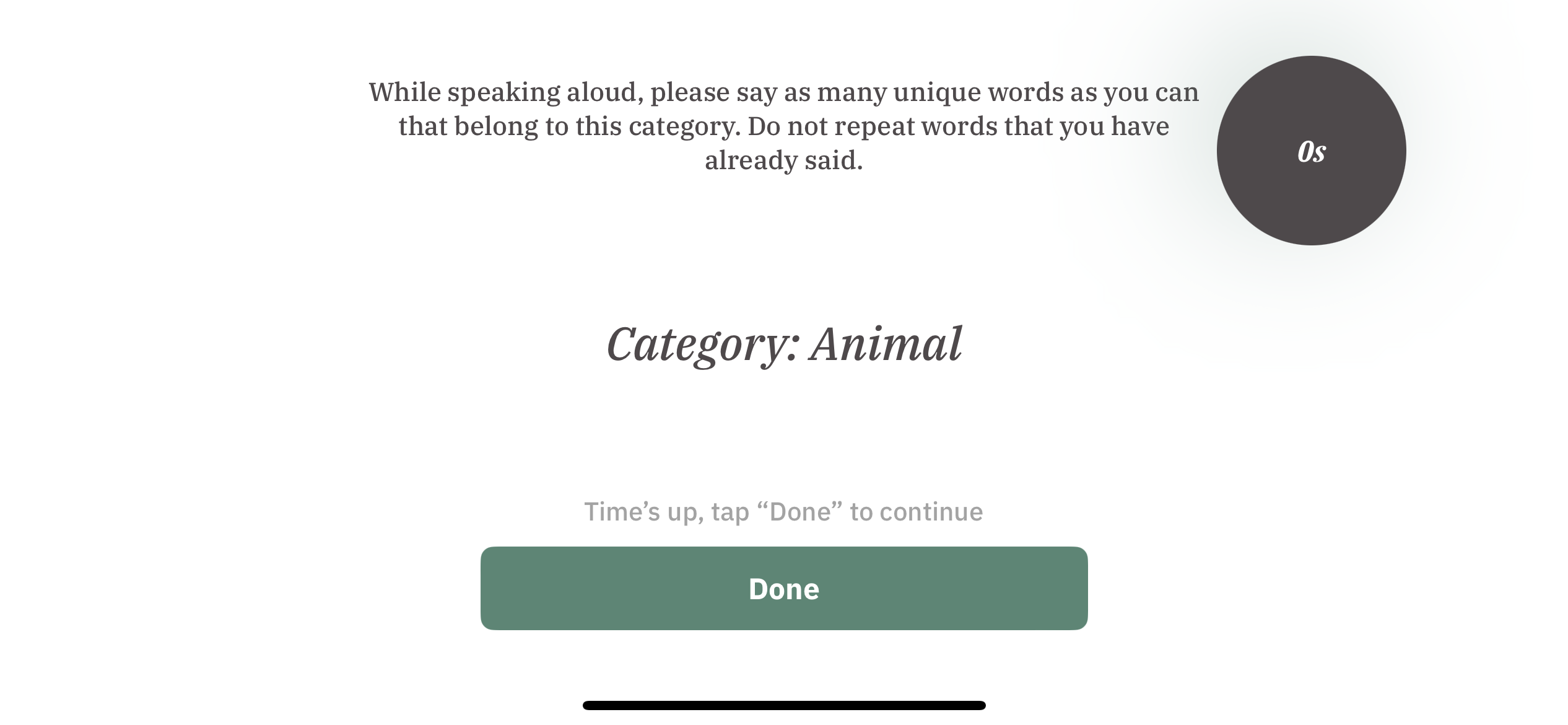
  3. After the 1-minute time limit, participants can click “Done” to go to the next activity. 

Response data

The speech response is recorded using a single 32-bit, mono, .wav audio file with 22050Hz sample rate.

Exercise Result

The following example shows the JSON object structure used for this exercise result:

{
  "exercise_id": "exercise09",
  "exercise_metadata": {
    "question_category": "sample_category_name"
  },
  "exercise_result": {
    "file_path": "path/to/the/audio/file"
  }
}

Let’s try to understand the results recorded for this exercise using the fields of this JSON object.

exercise_id (string)

The default exercise_id value for exercise 9 is exercise09.

exercise_metadata (object)

This object contains some additional information about the exercise results using the following fields:

  • question_category (string): The category for the question
exercise_result (object)

This object contains the result using the following fields:

  • file_path (string): Path to the location of the audio file with speech response

Response Data

Payloads in this version utilize the shared response format, which documents top-level fields, metadata shapes, and the event catalog, including the deprecation of exercise_result. Exercise-specific details are documented below.


Top-level values

Field Type Description
schema_version number 1
exercise_version number Exercise version (changes with each configuration update from the admin portal).
exercise_id string "exercise09"
exercise_metadata object See below
exercise_response object The participant’s response, recorded as a timestamped list of events (details below).
exercise_result object (Deprecated) Same as schema version 0.


exercise_metadata
Field Type Description
device_display object Shared shape (see the shared response format).
time_limit object { "min_ms": 60000, "max_ms": 60000 }: A fixed 60-second task.
stimuli object The category prompt shown during the exercise, keyed by stimulus_id. Entry fields below.

stimuli
Field Type Description
coord_bounds object Where the prompt sits on screen (shared shape).
category string The category the participant must produce words for, e.g. "Animal".

Note: Under schema version 0 this value was stored at metadata level as question_category; it now lives on the stimulus as category.


exercise_response

Verbal Fluency emits the following event types (see the shared event catalog for their meanings): exercise_started / exercise_completed, screen_displayed, response_session_started / response_session_completed, timer_started / timer_expired, alert_displayed / alert_closed, stimulus_displayed, tap, and response.

Recording, the 60-second timer, and the stimulus all begin only when the participant taps “Start Recording” — response_session_started is recorded at that point, not when the response screen is first shown. Taps on the response-session screen before recording starts are still recorded.

Each response event carries:

Field Type Description
category string The category the words were produced for (matches the stimulus’s category).
audio_url string Link to the speech recording (e.g. a .flac file).
recording_time_ms number Duration of the recording in milliseconds.
audio_input_source string (Optional) The audio input device, e.g. "iPhone Microphone".


exercise_result (deprecated)
Field Type Description
exercise_result object (Deprecated) Same as schema version 0.

Exercise 10: Orientation Questions

Overview

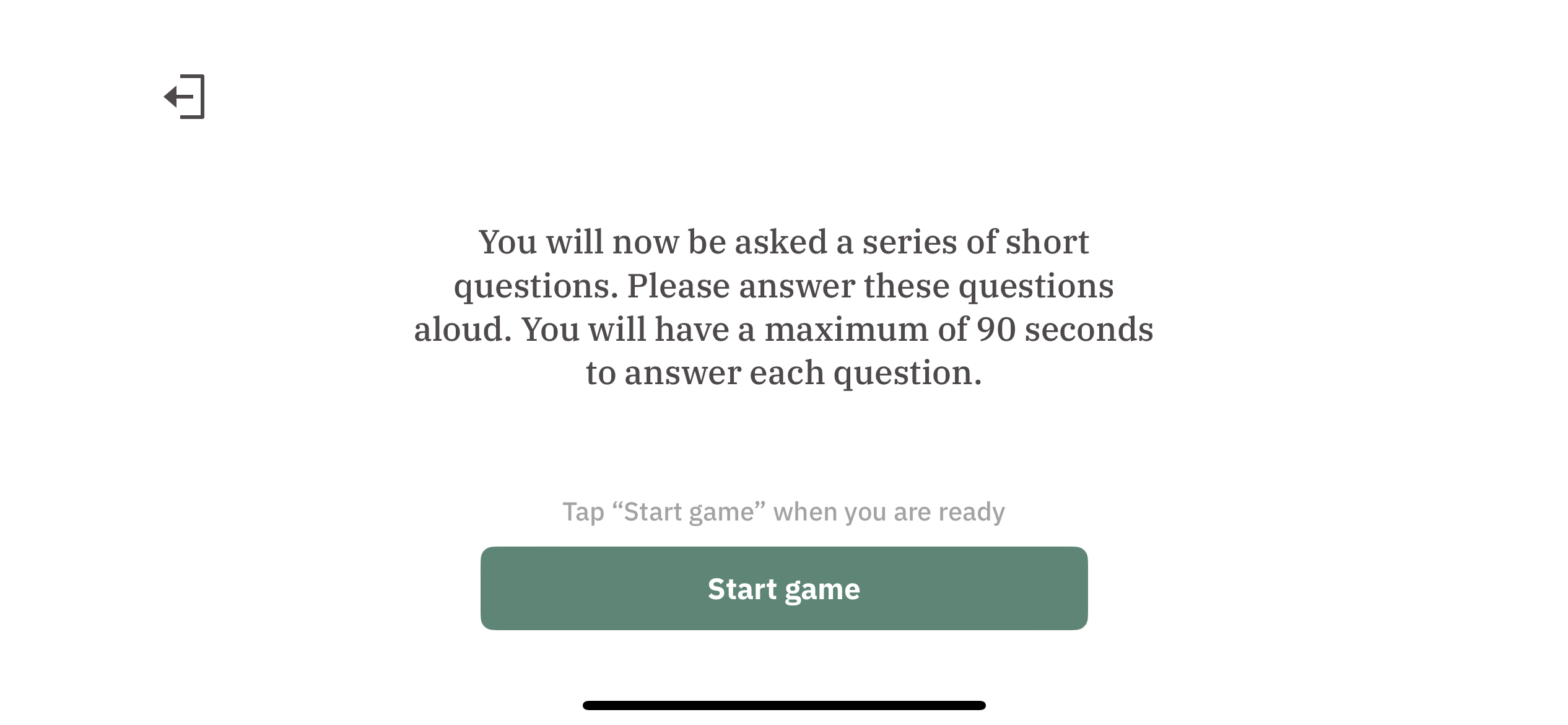
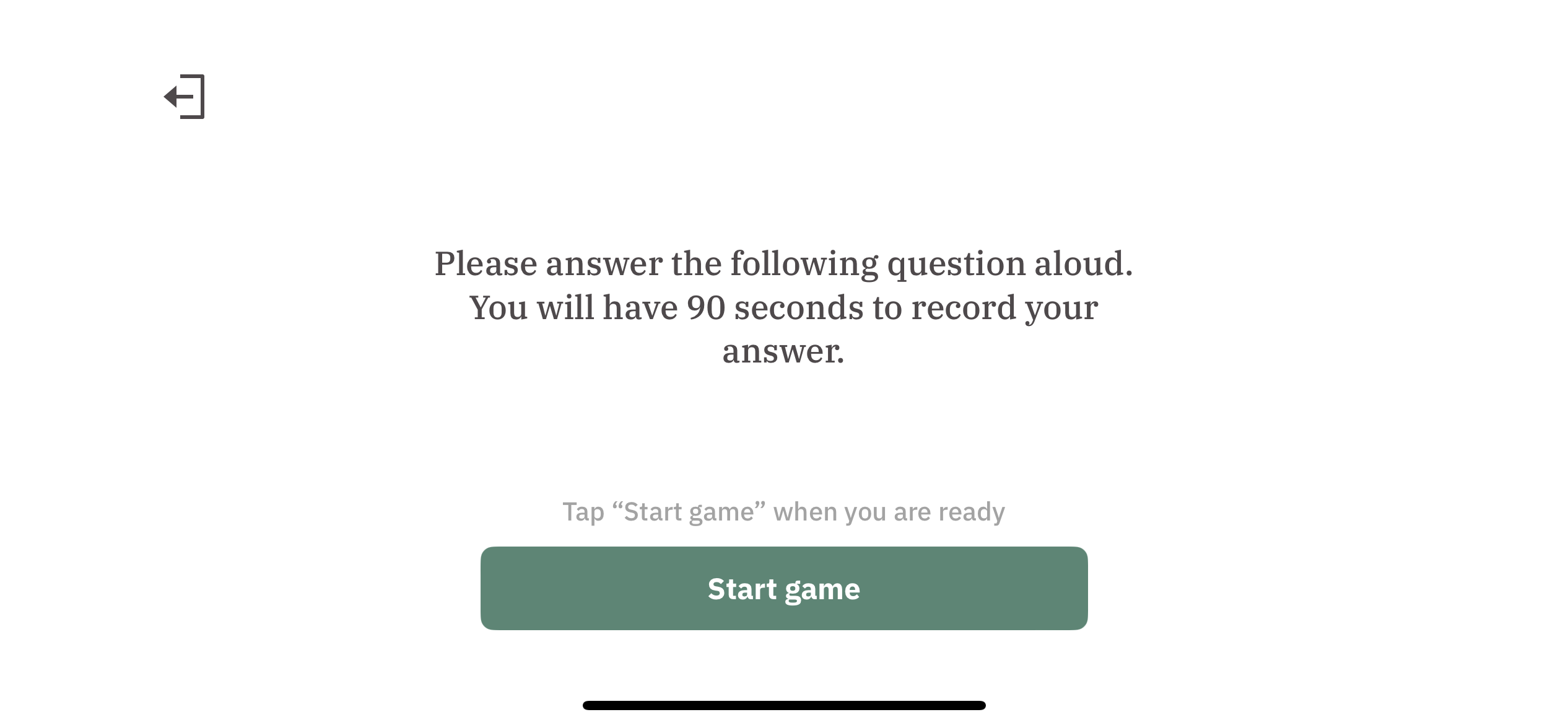
In this exercise, participants are asked to answer a series of questions that elicit brief speech responses. Participants have 90 seconds to answer each question.

The exercise process is outlined as follows:

  1. Exercise instructions are displayed. Participants can click “Start game” to start the exercise. 
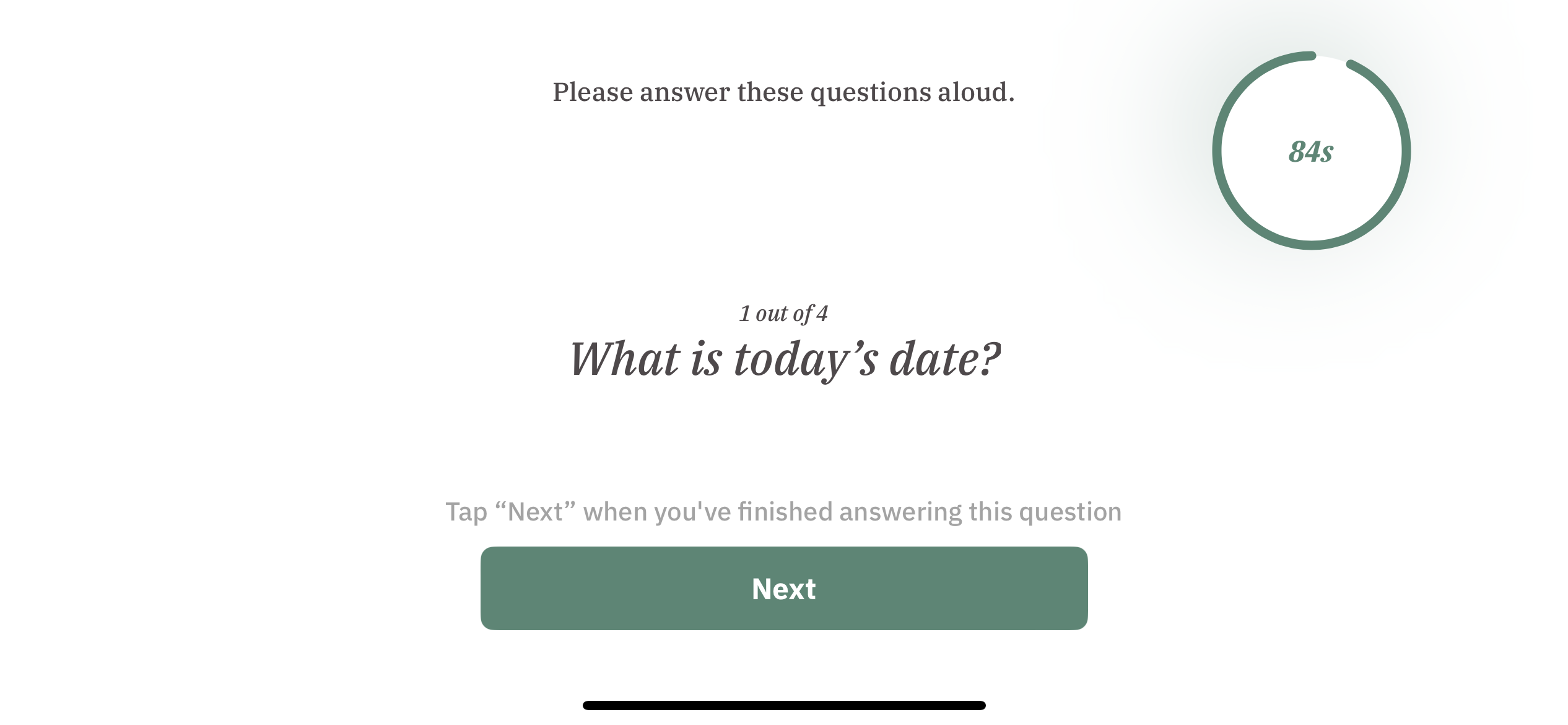
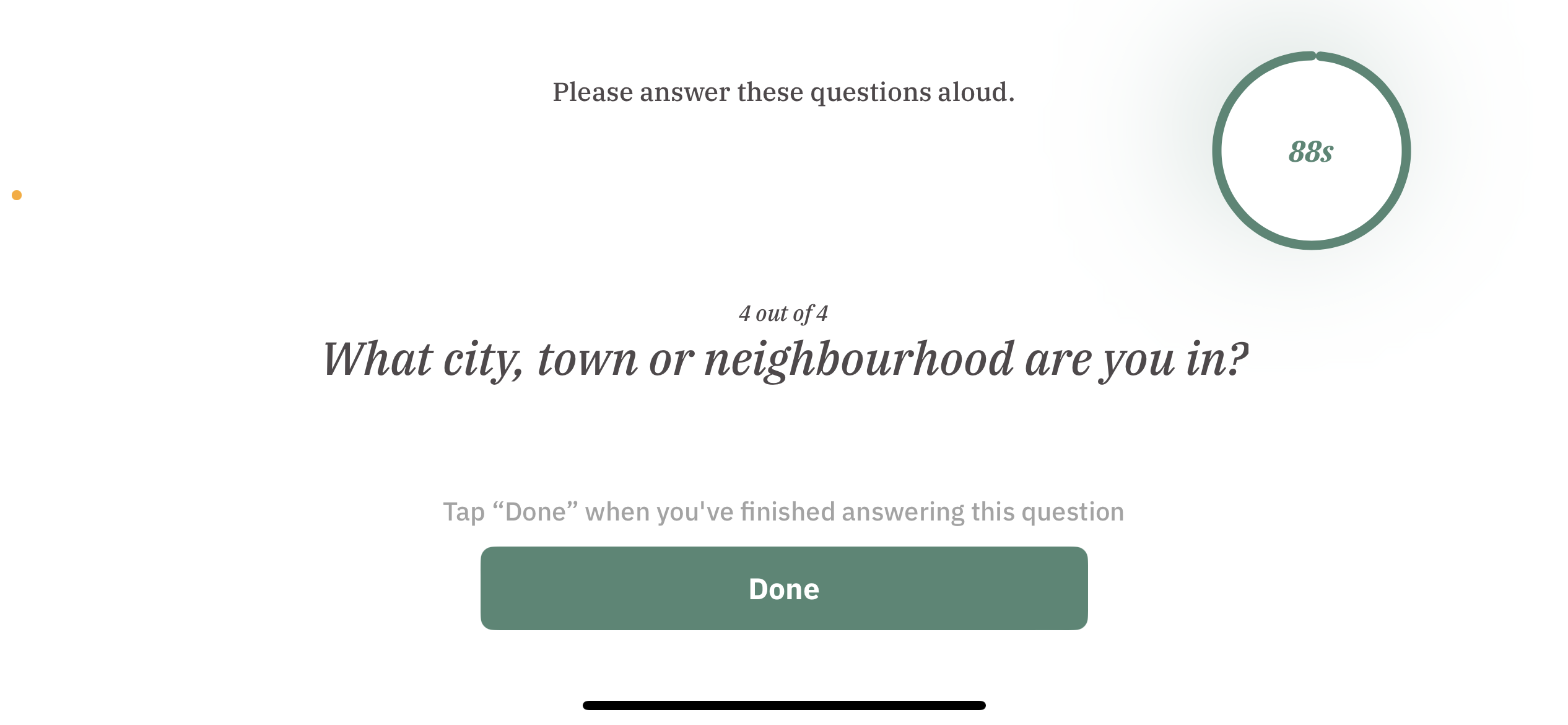
  2. Exercise questions are displayed sequentially. The timer in the top right corner displays the time remaining to record the response for a question. Participants can click “Next” to go to the next question. 
  3. After completing the last question, participants can click “Done” for the next activity. 

Response data

The speech response is recorded using a single 32-bit, mono, .wav audio file with 22050Hz sample rate. Along with the speech response, timestamps separating different answers in the speech response are also recorded. Timestamps are measured in milliseconds and starting from 0.

Exercise Result

The following example shows the JSON object structure used for this exercise result:

{
  "exercise_id": "exercise10",
  "exercise_metadata": {
    "questions": ["sample_question1", "sample_question_2", "sample_question_3", "sample_question_4"]
  },
  "exercise_result": {
    "file_path": "path/to/the/audio/file",
    "answers_timestamps": [3527, 6222, 9978, 13504]
  }
}

Let’s try to understand the results recorded for this exercise using the fields of this JSON object.

exercise_id (string)

The default exercise_id value for exercise 10 is exercise10.

exercise_metadata (object)

This object contains some additional information about the exercise results using the following fields:

  • questions (list): List of questions used for the exercise
exercise_result (object)

This object contains the result using the following fields:

  • file_path (string): Path to the location of the audio file with speech response
  • answers_timestamps (list): List of timestamps for the different answers in the recorded speech response

Exercise 11: Unstructured Voice Tasks (Open-Ended Questions)

Overview

In this exercise, participants are asked an open-ended question about their daily routine or a general activity. A random question is selected from a set of questions each time. A short speech recording is expected in response. Participants have a 90-second time limit to record their response.

The exercise process is outlined as follows:

  1. Exercise instructions are displayed. Participants can click “Start game” to start the exercise. 
  2. The exercise question is displayed on the screen. Participants have 90 seconds to record their answer. The timer in the top right corner of the screen displays the remaining time. Participants can click “Done” when they have finished responding. 

Response data

The speech response is recorded using a single 32-bit, mono, .wav audio file with 22050Hz sample rate.

Exercise Result

The following example shows the JSON object structure used for this exercise result:

{
  "exercise_id": "exercise11",
  "exercise_metadata": {
    "question": "sample_question"
  },
  "exercise_result": {
    "file_path": "path/to/the/audio/file"
  }
}

Let’s try to understand the results recorded for this exercise using the fields of this JSON object.

exercise_id (string)

The default exercise_id value for exercise 11 is exercise11.

exercise_metadata (object)

This object contains some additional information about the exercise results using the following fields:

  • question (list): The question used
exercise_result (object)

This object contains the result using the following fields:

  • file_path (string): Path to the location of the audio file with speech response

Exercise 12: Reaction Time Exercise

Overview

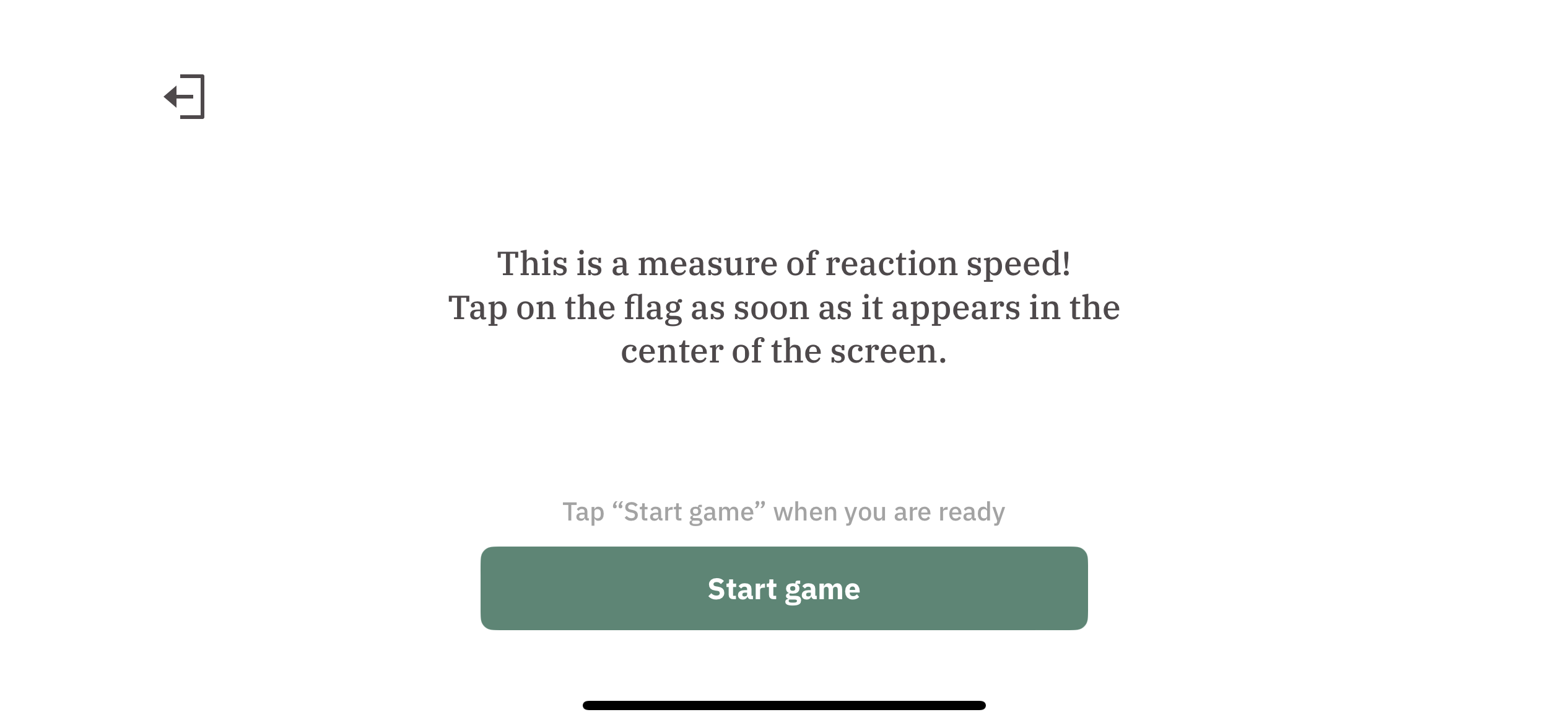
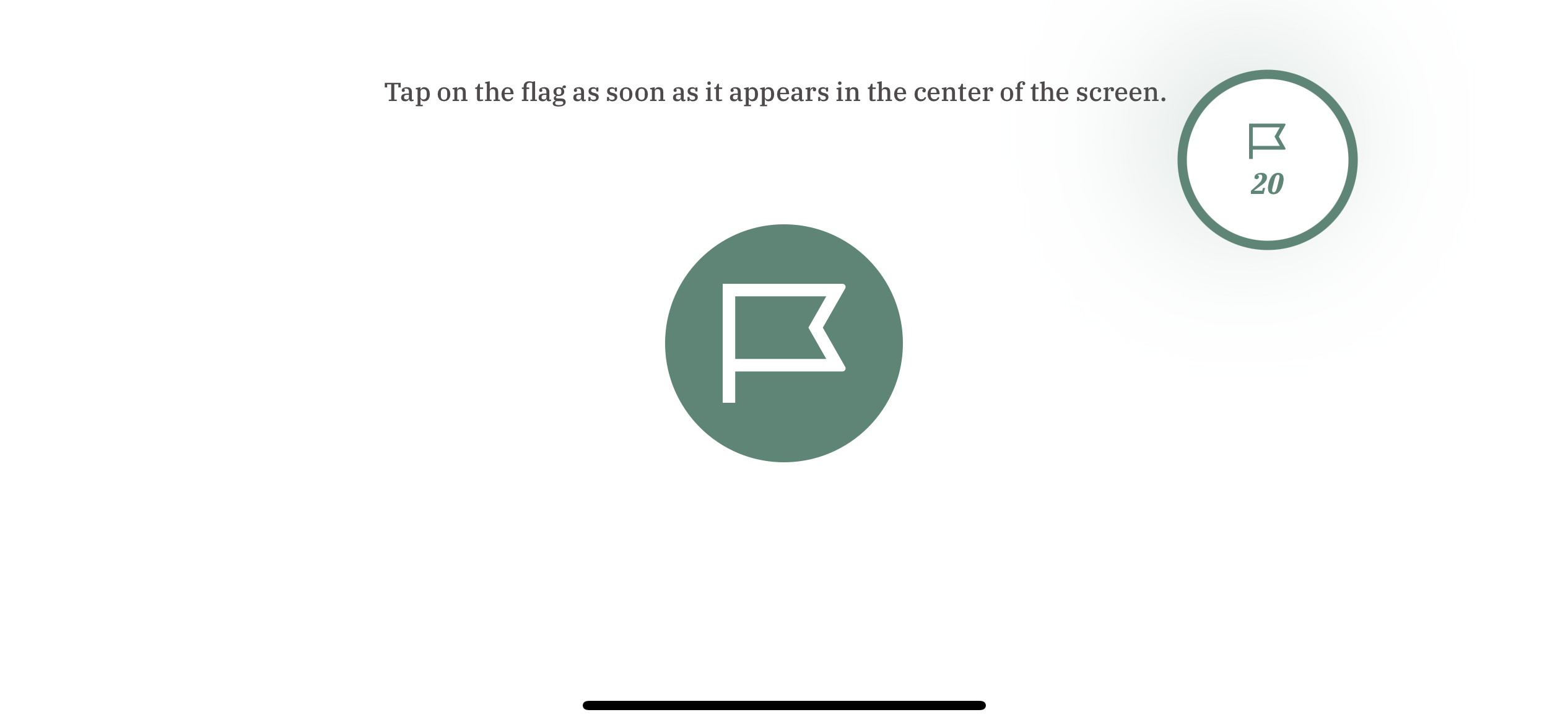
This exercise requires participants to tap a flag as soon as it appears on the screen, and this flag-based task is repeated 20 times.

The exercise process is outlined as follows:

  1. Exercise instructions are displayed. Participants can click “Start game” to start the exercise. 
  2. During the exercise, a flag randomly appears on the screen. Participants have a 5-second time limit to tap the flag, after which it disappears, and a new flag takes its place after a brief interval. 
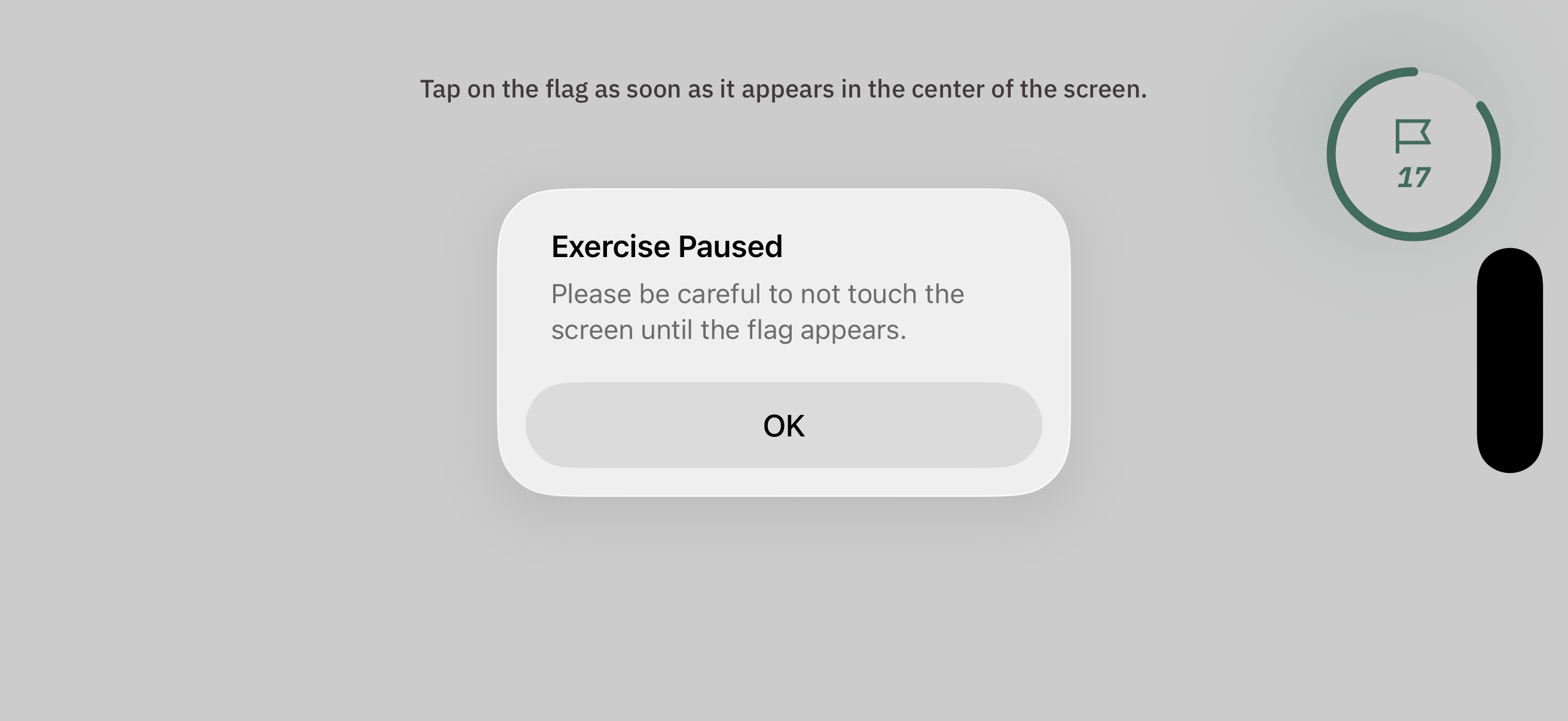
  3. If participants tap the screen three times when there is no flag on the screen, the exercise becomes paused. A popup warning is shown to the user to ask them to not touch the screen until the flag has appeared. The timer for the next flag restarts when the exercise resumes. 
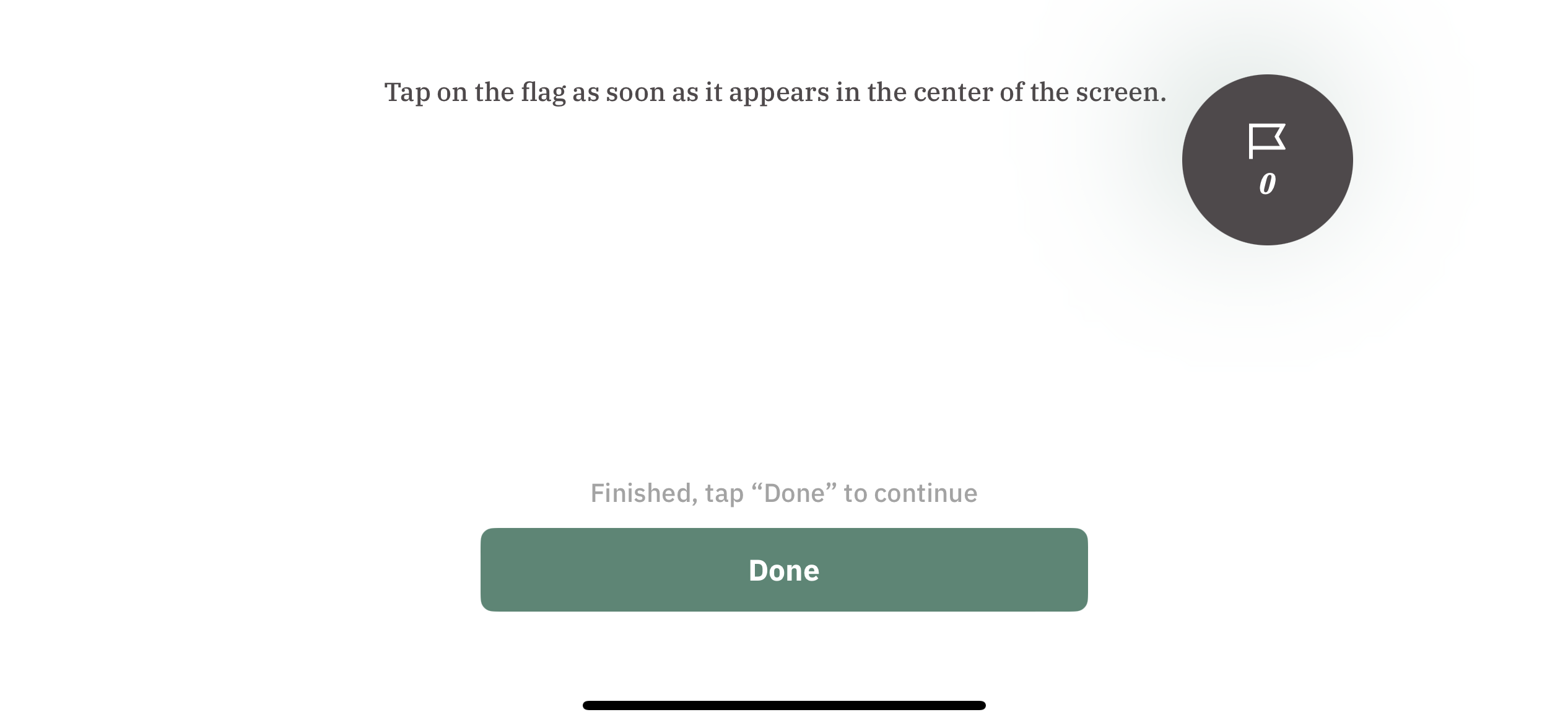
  4. After finishing the exercise, participants can click “Done” to exit the exercise. 

Response data

For each flag task, the following information is recorded

  • Whether there was a tap or not. No tap in this exercise is equivalent to a timeout. The answer values recorded are:
    • If there was a tap = 1
    • If there was a timeout/no tap = -1
  • Reaction time measured in milliseconds starting from 0
    • In case of a timeout, the reaction time value will be 5000 because the time limit for each flag is 5 seconds

Exercise Result

The following example shows the JSON object structure used for this exercise result:

{
  "exercise_id": "exercise12",
  "exercise_metadata": {},
  "exercise_result": [
    {"answer": 1, "reaction_time": 531},
    {"answer": 1, "reaction_time": 627},
    {"answer": 1, "reaction_time": 655},
    {"answer": 1, "reaction_time": 673},
    {"answer": 1, "reaction_time": 537},
    {"answer": 1, "reaction_time": 711},
    {"answer": 1, "reaction_time": 503},
    {"answer": 1, "reaction_time": 537},
    {"answer": 1, "reaction_time": 603},
    {"answer": 1, "reaction_time": 570},
    {"answer": 1, "reaction_time": 5000},
    {"answer": -1, "reaction_time": 5000},
    {"answer": -1, "reaction_time": 5000},
    {"answer": -1, "reaction_time": 5000},
    {"answer": -1, "reaction_time": 5000},
    {"answer": -1, "reaction_time": 5000},
    {"answer": -1, "reaction_time": 5000},
    {"answer": -1, "reaction_time": 5000},
    {"answer": -1, "reaction_time": 5000},
    {"answer": -1, "reaction_time": 5000}
  ]
}

Let’s try to understand the results recorded for this exercise using the fields of this JSON object.

exercise_id (string)

The default exercise_id value for exercise 12 is exercise12.

exercise_metadata (object)

Currently, there is no additional information required to process the recorded results for this exercise. Thus, an empty object is present here.

exercise_result (list)

This list contains responses for each question using objects with the following fields:

  • answer (int): Answer value for a question (values: 1 = tap, -1 = timeout/no tap)
  • reaction_time (int): Reaction time for the question, measured in milliseconds and starting from 0

Response Data

Payloads in this version utilize the shared response format, which documents top-level fields, metadata shapes, and the event catalog, including the deprecation of exercise_result. Exercise-specific details are documented below.


Top-level values

Field Type Description
schema_version number 1
exercise_version number Exercise version (changes with each configuration update from the admin portal).
exercise_id string "exercise12"
exercise_metadata object See below
exercise_response object The participant’s response, recorded as a timestamped list of events (details below).
exercise_result array (Deprecated) Same as schema version 0.


exercise_metadata

Field Type Description
device_display object Shared shape (see the shared response format).
stimuli object The flag, keyed by stimulus_id. Each entry carries coord_bounds only (where on screen the flag appears).
trial object The trial configuration. Entry fields below.

trial
Field Type Description
count number The number of flag tasks, e.g. 20.
timeout_ms number The per-flag response window in milliseconds, e.g. 5000.
random_delay_range_ms array The [min, max] random delay in milliseconds before each flag appears.
early_tap_limit number The number of taps with no flag showing that triggers the “Exercise Paused” warning, e.g. 3.


exercise_response

Reaction Time emits the following event types (see the shared event catalog for their meanings): exercise_started / exercise_completed, screen_displayed, response_session_started / response_session_completed, alert_displayed / alert_closed, stimulus_displayed, tap, and response.

The exercise is trial-based: A normal trial is a stimulus_displayed, the tap on the flag (tagged [stimulus]: 1), and a response. A missed trial produces a response with timeout: true and no preceding flag tap. Taps made while no flag is showing are recorded with the tag early_tap; reaching the early-tap limit raises the “Exercise Paused” alert (alert_displayed / alert_closed), and the trial restarts after it is dismissed.

Each response event carries:

Field Type Description
reaction_time_ms number Time (milliseconds) from the flag appearing to the tap; equals timeout_ms on a timeout.
timeout boolean true when no tap occurred within the per-flag response window.


exercise_result (deprecated)

Field Type Description
exercise_result array (Deprecated) Same as schema version 0.

Exercise 13: Smiles and Surprises

Overview

This exercise requires participants to record themselves while holding a specified facial expression. There are two tasks and both of them are repeated 3 times. Task one requires the participant to hold a smile for 3 seconds. Task two requires the participant to hold a surprised face (raised eyebrows and mouth open as if surprised) for 3 seconds.

The exercise process is outlined as follows:

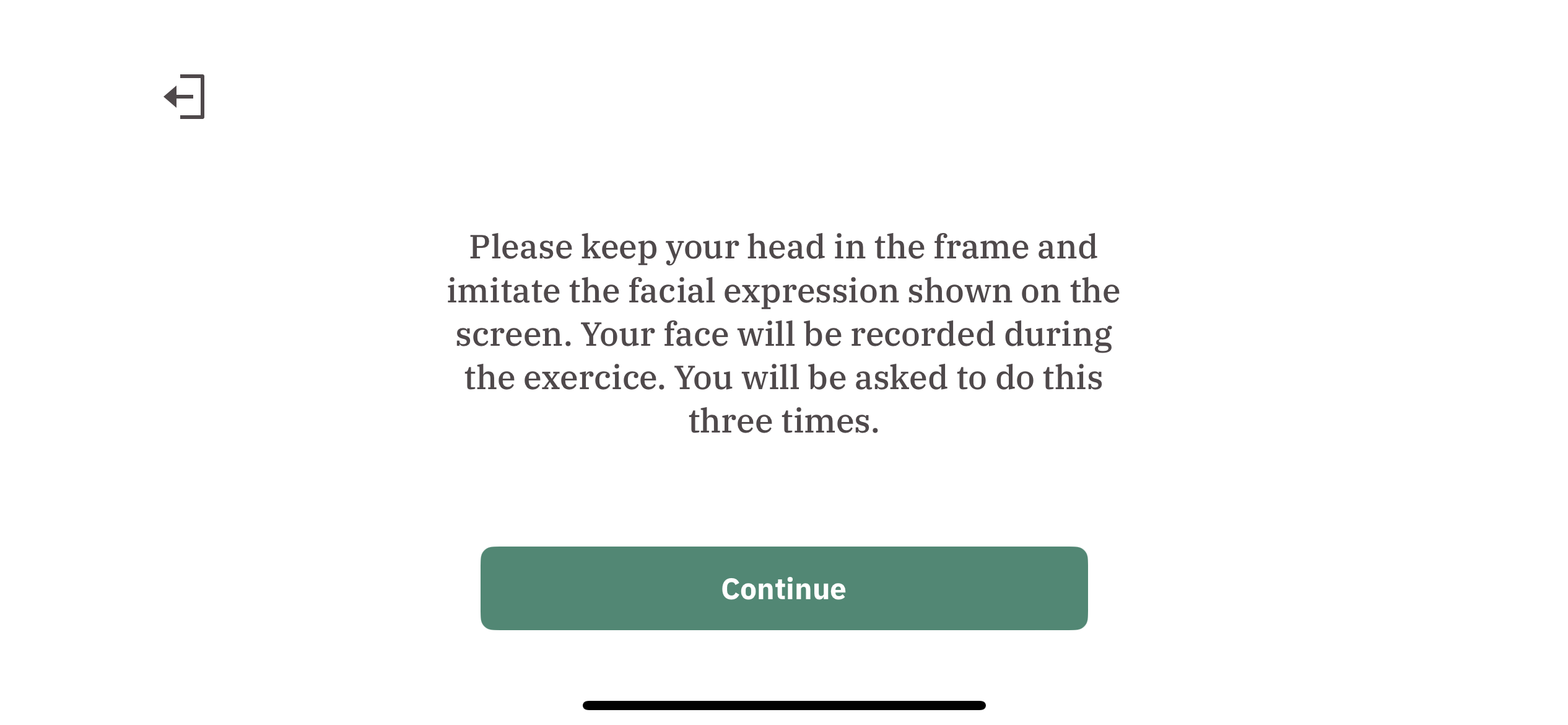
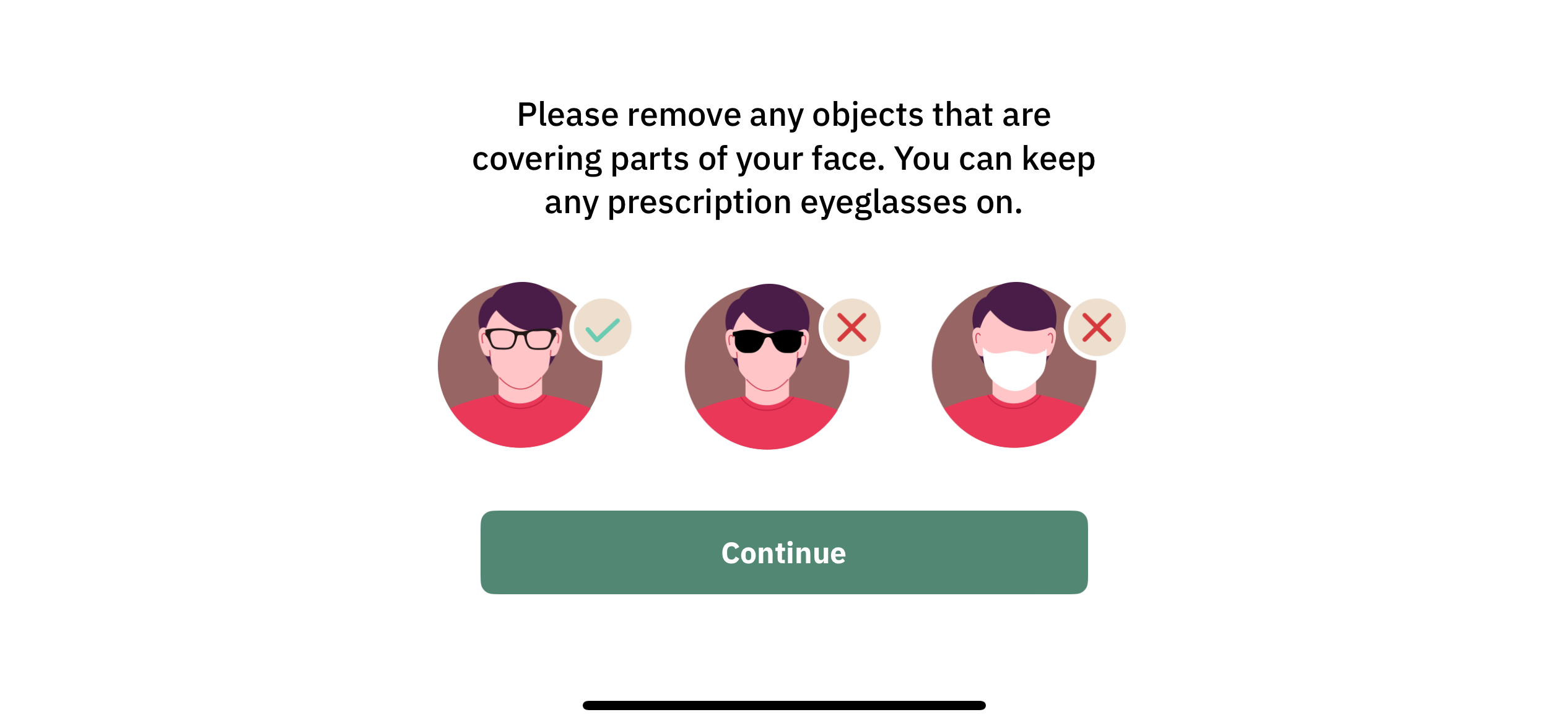
  1. Exercise instructions are displayed. Participants can click “Continue” to start the exercise.


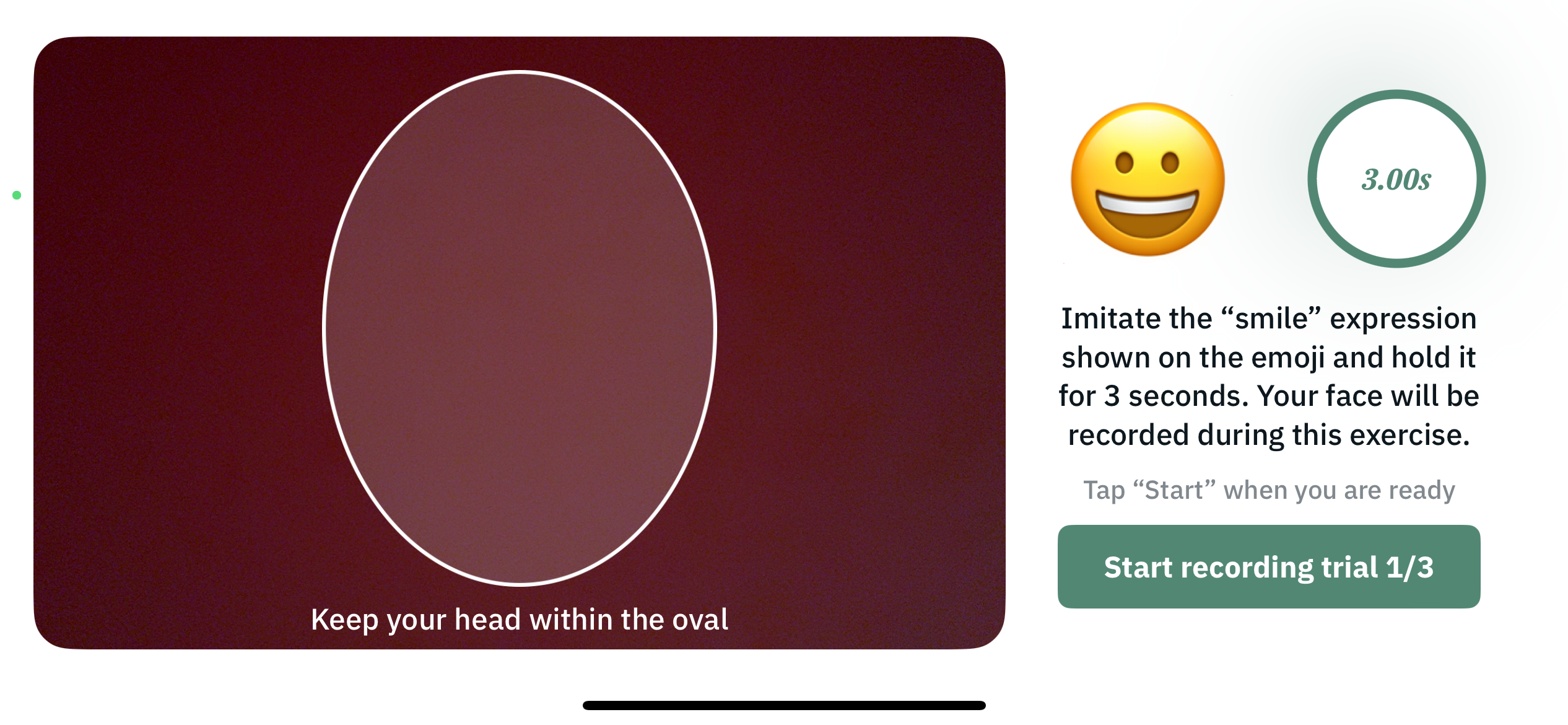
  2. On the task 1 screen, participants are shown the following screen and asked to hold the “smile” expression shown using the emoji for 3 seconds. Participants can click the “Start recording trial” button to record their responses.
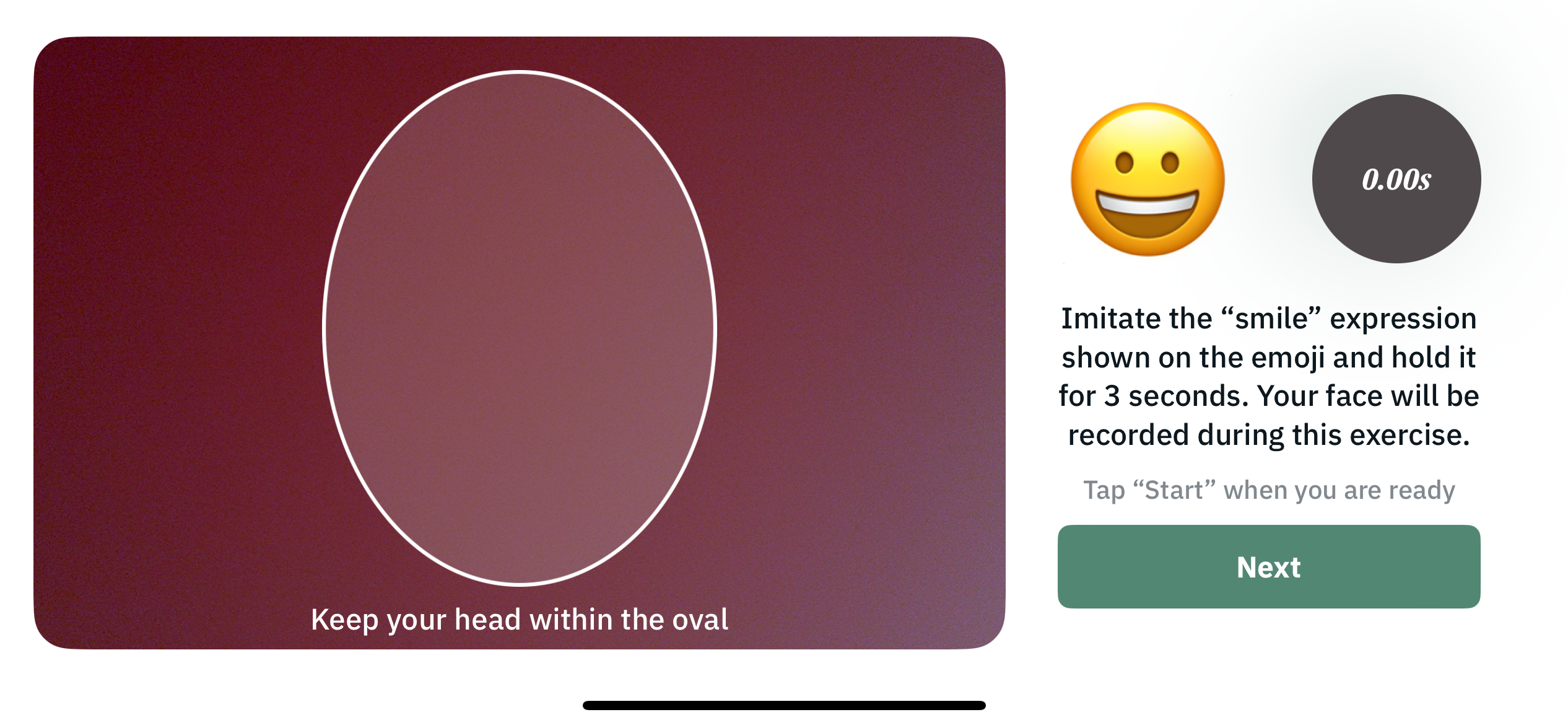
  3. When the recording is completed after 3 seconds, participants can click “Next” to continue.
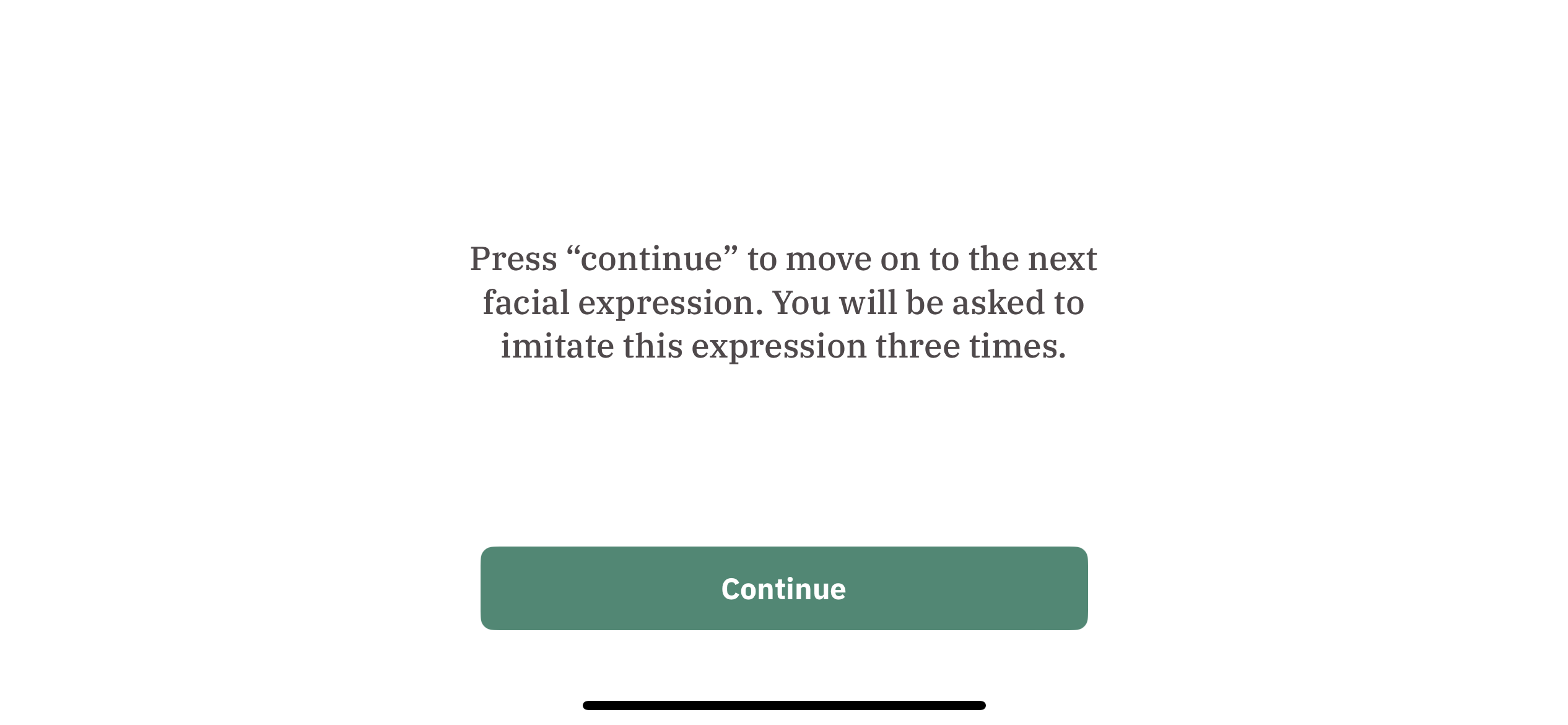
  4. Once the three repetitions of task 1 are completed, the following screen is displayed, where participants are informed that they can click “Continue” to move on to the next facial expression (task 2).
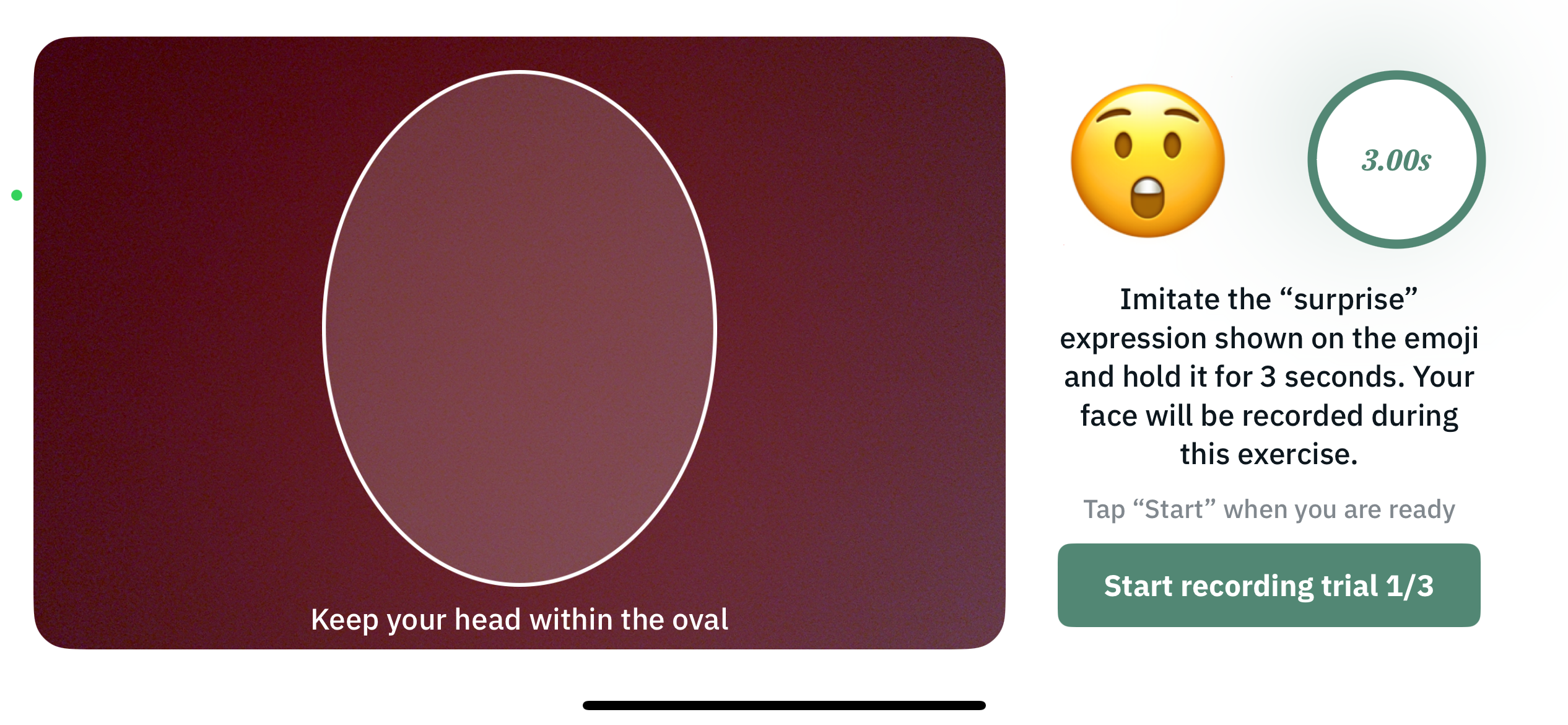
  5. On the task 2 screen, participants are shown the following screen and asked to hold the “surprise” expression shown using the emoji for 3 seconds. Participants can click the “Start recording trial” button to record their responses. Participants have to complete this task three times, similar to task 1.

Response data

A .mp4 video file is recorded for each response. Total 6 files are recorded.

Exercise Result

The following example shows the JSON object structure used for this exercise result:

{
  "exercise_id": "exercise13",
  "exercise_metadata": {},
  "exercise_result": {
    "smile_videos": [
      "path/to/the/video/file/1",
      "path/to/the/video/file/2",
      "path/to/the/video/file/3"
    ],
    "surprise_face_videos": [
      "path/to/the/video/file/1",
      "path/to/the/video/file/2",
      "path/to/the/video/file/3"
    ]
  }
}

Let’s try to understand the results recorded for this exercise using the fields of this JSON object.

exercise_id (string)

The default exercise_id value for exercise 13 is exercise13.

exercise_metadata (object)

Currently, there is no additional information required to process the recorded results for this exercise. Thus, an empty object is present here.

exercise_result (list)

This list contains responses for each question using objects with the following fields:

  • smile_videos (list): List of file paths for the recorded video responses for task 1 (“smile” expression)
  • surprise_face_videos (list): List of file paths for the recorded video responses for task 2 (“surprise” expression)

Exercise 14: Picture Description with Facial Recording

Overview

In this exercise, participants are presented with a picture and asked to describe what is happening in the picture in detail within a 5-minute time limit. The picture used will be a randomly selected one from a set of pictures determined by the program admin. Admins can also import their own custom images to be included within the pool of random images. Picture description tasks can be used to analyze both the acoustic and linguistic features of speech, providing insight into one’s cognitive health.

The only difference between this exercise and exercise 8 is that this exercise records the participant’s video as they complete the exercise.

The following is a subset of images from the default image set:
1. Beach Scene:


2. Candy Theft:


3. Park Scene:


4. Urban Scene:

5. Farm Scene

6. Candy Theft 2

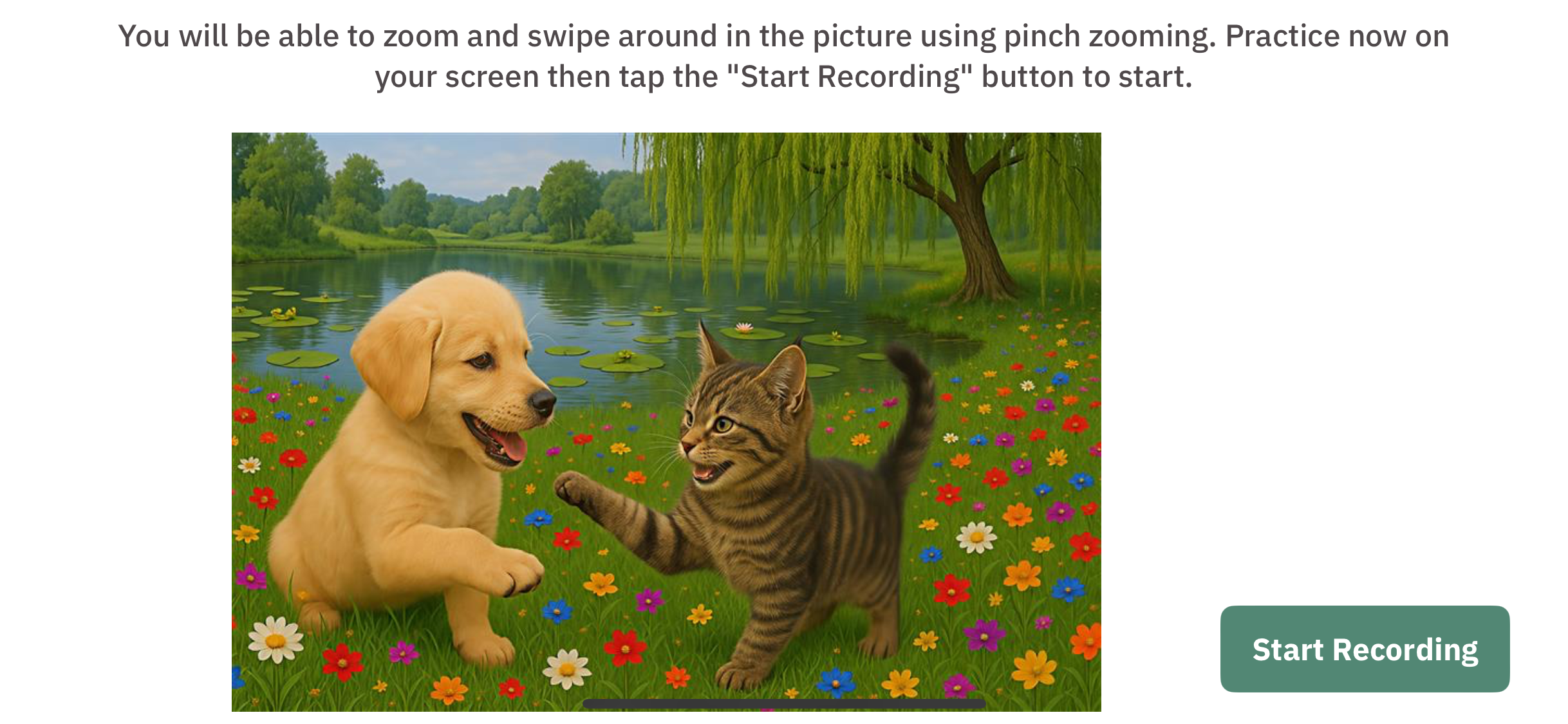
The example image used for testing the zooming feature is the following image:

The exercise process is outlined as follows:

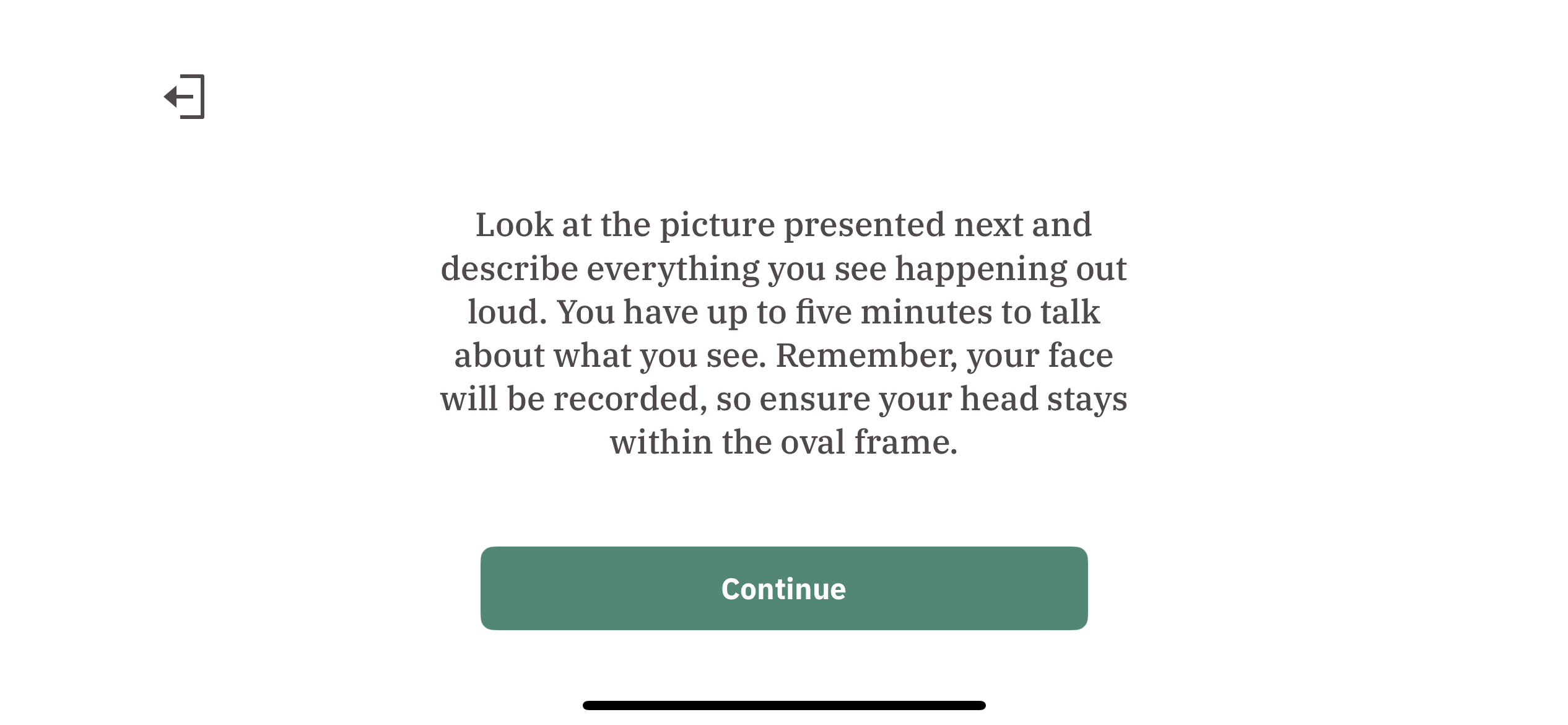
  1. Exercise instructions are displayed. Participants can click “Continue” to start the exercise. 


  2. Participants are first presented with an example image that they can use to practice zooming into the image. Participants can pinch the image with their fingers to zoom into the image up to 400% zoom into the image. Participants can click “Start recording” to start the exercise. 
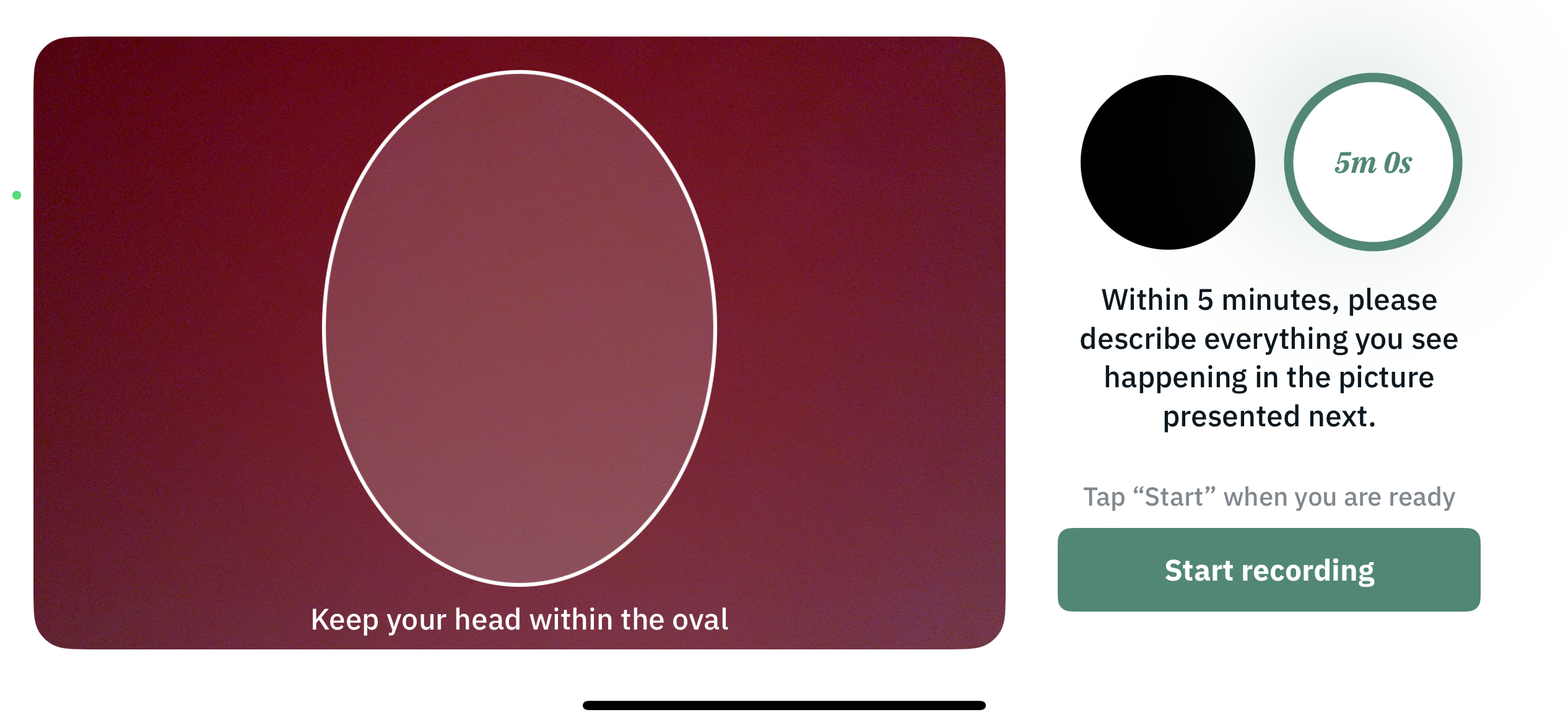
  3. The following screen is displayed for the participants to ensure that their face is in the frame. Participants can click “Start recording” when they are ready.
  4. Participants are presented with a picture and asked to describe the picture out loud. The timer in the top right corner of the screen displays the remaining time. Participants can record their response here and click “Done” to proceed to the next screen. 
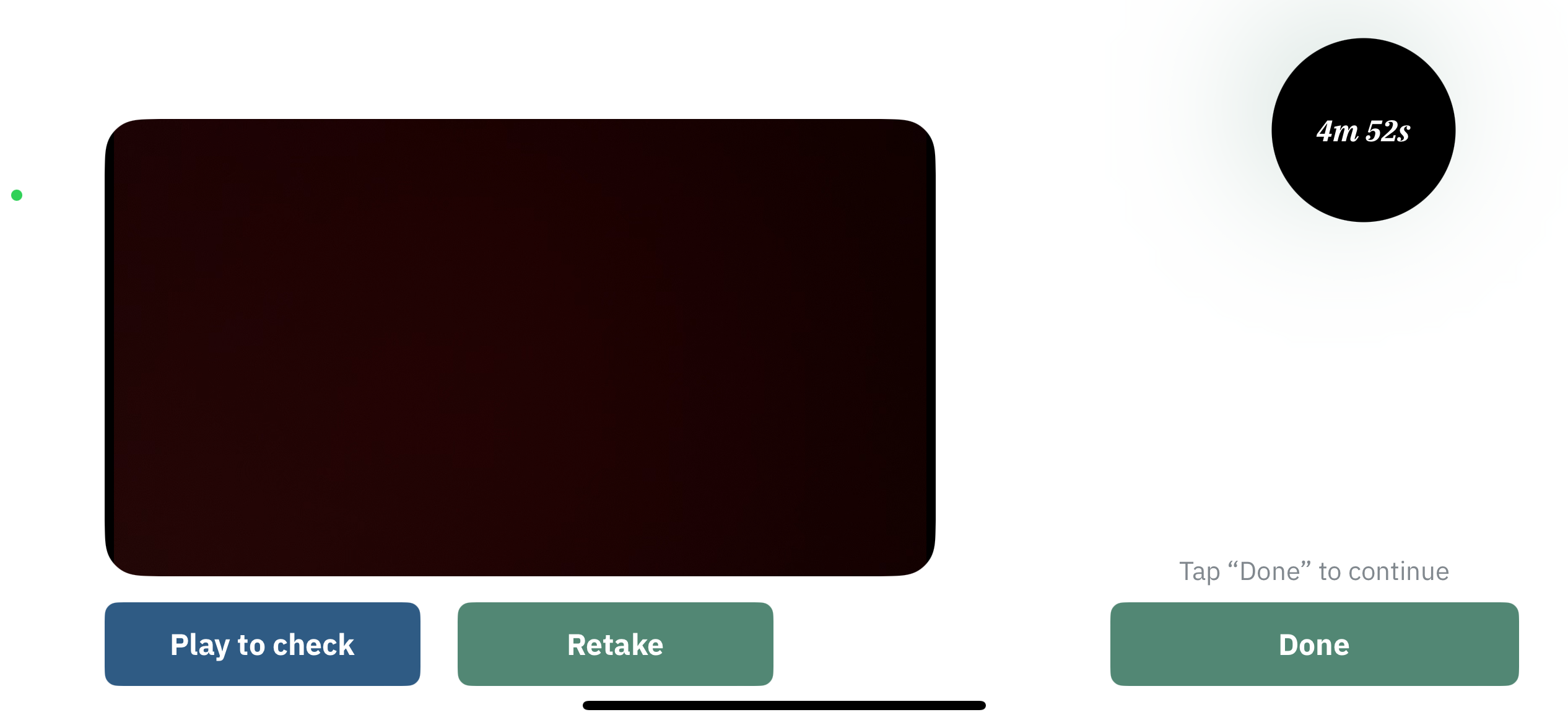
  5. The final screen allows the participant to play the video to check their response, retake it, or click “Done” to submit their response.

Response data

The video is captured using a .mp4 file. The speech response is recorded using a single 32-bit, mono, .wav audio file with a 22050Hz sample rate.

The zooming activity that the participant performed during the recording of the exercise is also recorded. This includes what kind of zooming action was performed, how much the image was zoomed to, where it was performed on the screen and the timestamp. 

Exercise Result

The following example shows the JSON object structure used for this exercise result:

{
  "exercise_id": "exercise14",
  "exercise_metadata": {
    "reference_picture_path": "path/to/the/reference/picture"
  },
  "exercise_result": {
    "audio": "path/to/the/audio/file",
    "video": "path/to/the/video/file",
"zooming_activity":[{
"action":"in",
"method":"pinch",
"area":{
"width":1,
"height":1,
"center_point":[0.5, 0.5]
},
"zoom_level":"100",
"timestamp":"2025-12-12T00:00:00.000Z",
"event_type":"start" }, {
"action":"in",
"method":"button",
"area":{
"width":0.8,
"height":0.8,
"center_point":[0.5, 0.5]
},
"zoom_level":"125",
"timestamp":"2025-12-12T00:00:00.000Z",
"event_type":"start"
}] } }

Let’s try to understand the results recorded for this exercise using the fields of this JSON object.

exercise_id (string)

The default exercise_id value for exercise 14 is exercise14.

exercise_metadata (object)

This object contains some additional information about the exercise results using the following fields:

  • reference_picture_path (string): Path to the picture used for the question
exercise_result (object)

This object contains the result using the following fields:

  • audio (string): Path to the location of the recorded audio file
  • video (string): Path to the location of the recorded video file
  • zooming_activity (list): A list of objects tracking the participant’s zooming activity history. Each object represents the participant’s zooming activity at a particular moment using the following fields:
    • event_type (string): A string value from the following: [“start”, “in-progress”, “end”]
    • method (string): A string value from one of the following methods used: [“pinch”, “button”]
    • action (string): A string value from the following: [“in”, “out”, “pan”] (Note: “pan” indicates swiping activity)
    • zoom_level (float number): A number representing the zoom level in percentage after the zoom action is complete
    • timestamp (timestamp): Zoom action timestamp (ISO 8601)
    • area (list): This field represents the portion of the image currently visible to the participant.
      • width (float number): A number indicating the fraction of the picture width being displayed. Example: 0.5 means 50% of the picture width is visible.
      • height (float number): A number indicating the fraction of the picture height being displayed. Example: 0.5 means 50% of the picture height is visible.
      • center_point (list): (x, y) values representing which point of the picture is currently in the center point of the image pane/viewport. Example: (0.45, 0.50) means the picture point currently in the center of the image pane is located at 45% of the picture width and 50% of the height, starting from the bottom-left corner of the picture

Exercise 15: Go/No-Go

Overview

This exercise introduces a cognitive testing method that assesses impulse control and response inhibition. It is commonly used to measure executive function.

In its simplest form, it asks the participant to do something when shown one thing, and not to do something when shown another. Specifically, the exercise presents a 3×3 grid where images appear randomly in different locations. Participants are instructed to tap the screen when a “go” image appears and to refrain from tapping when a “no-go” image is shown.

The exercise process is outlined as follows:

  1. Exercise instructions are displayed. Participants can watch a demo with the “Watch Demo” button or click the “Start” button to begin the exercise.
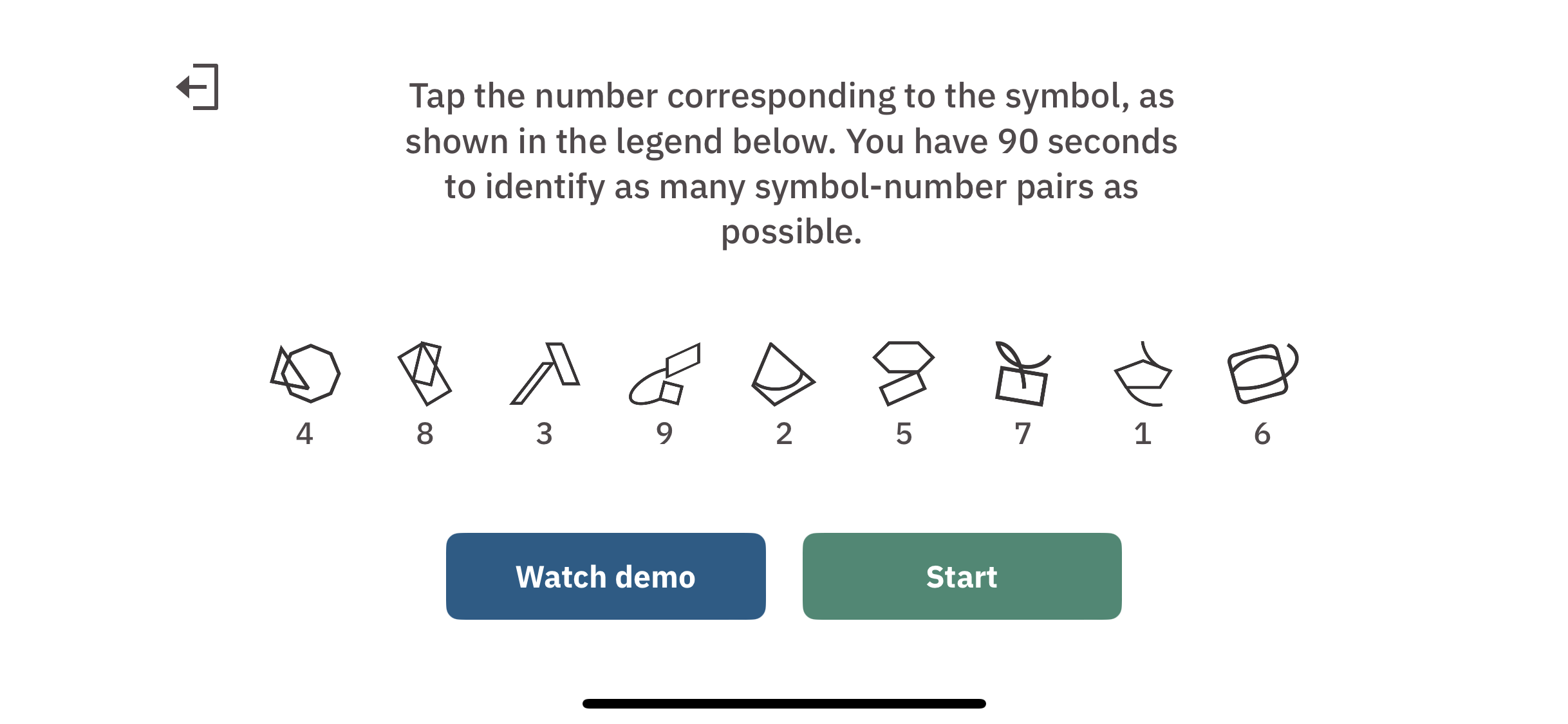
  2. Currently, the grey and yellow bananas are the only available stimulus images being used for this exercise, where the grey bananas are the ‘go image’ and the yellow bananas are the ‘no-go image.’ In the image below, a yellow banana is shown and thus should not be tapped on. If an image is not tapped on, then the image will disappear after a few seconds and a new trial will begin. 
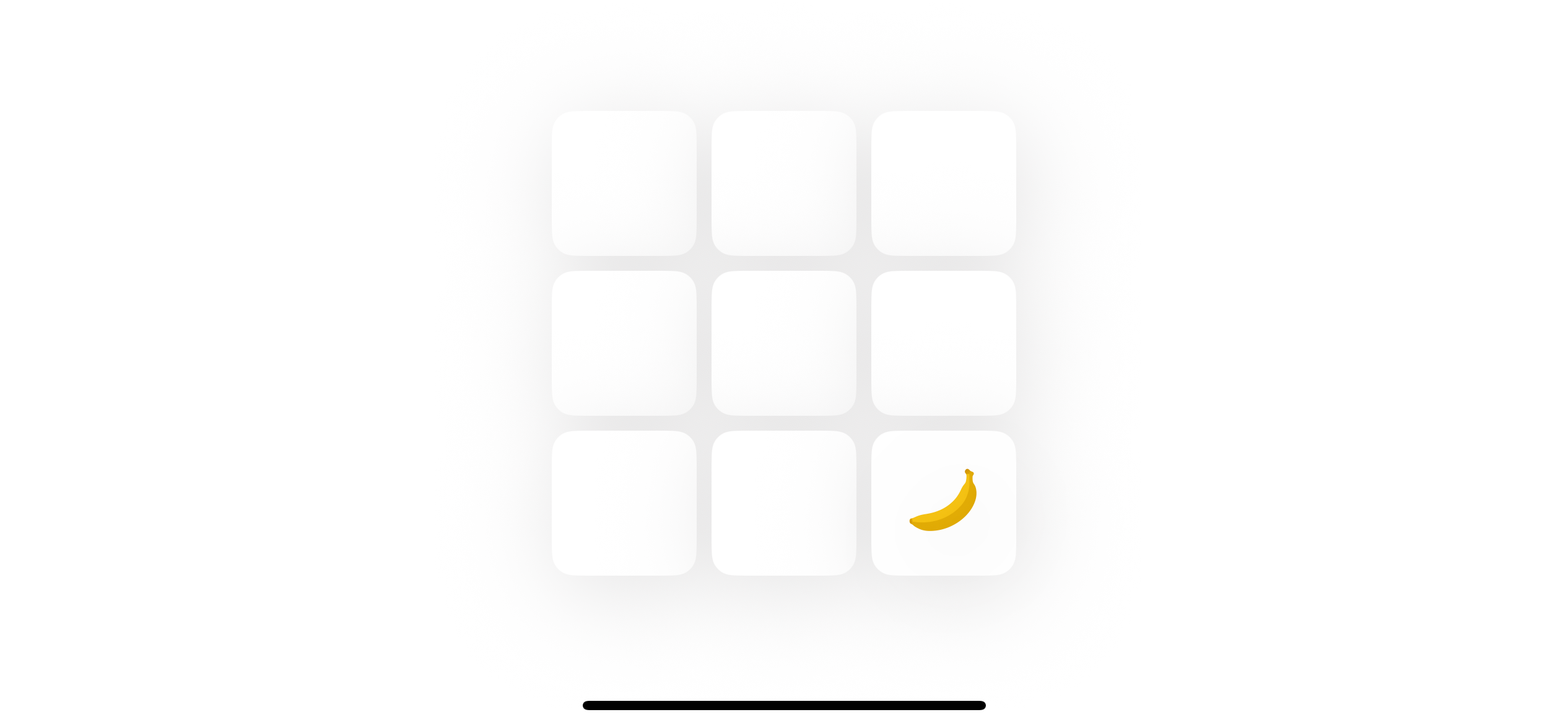
  3. In the next trial shown below, a grey banana is shown and should be tapped on as quickly as possible. The image is placed in a random location, but the tapping can be recorded by tapping on any part of the screen. Once the image is tapped, it disappears and there is a short delay before the next trial image appears. 

  4. There are 20 trials in total = 5 no-go + 15 go. These trials occur in random order. For each trial, all taps (answer tap and any extra taps) provided by the participant should be recorded. 

Response data

The response data for this exercise includes the following: 

For each trial:

  • Type of stimulus:
    • Either “no-go” or “go”
  • Answer:
    • 1 = Correct response: participant tapped for go, or did not tap for no-go
    • 0 = Incorrect response: participant did not tap for go, or tapped for no-go
  • The display time that the image of this trial appeared from the start of the entire exercise in milliseconds. 
  • The number of the current trial
  • A list of this trial’s tap history since each tap is recorded. For teach tap:
    • Whether this tap contributed to the trial answer, regardless of whether the participant was meant to tap or not.
    • The (x, y) coordinate of where the tap occurred on the screen. 
    • The timestamp of when the tap occurred from the start of the entire exercise in milliseconds. 
  •  The display location of the image within the grid using a two character code. This code is equal to a combination of two of the following positions: 
    • T = Top, B = Bottom, R = Right, L = Left, C = center (Horizontal),  M = Middle (vertical)
    • These are the 9 valid display locations: 
TL TC TR
ML MC MR
BL BC BR

As well as timestamps to detail the time from the start of the exercise to the end: 

  • When the participant entered the assessment and was able to read the instructions
  • When the participant starts the first trial
  • When the participant finishes the last trial

Exercise Result

The following example shows the JSON object structure used for this exercise result:

{
  "exercise_id": "exercise15",
  "exercise_metadata": {
    "device_display": {
"width": 400,
"height": 870
},
"grid_specs": {
"width": 250,
"height": 250,
"top_left_coords": [312, 66]
},
"stim_info": {
"go_stim": {
"name": "grayBanana",
"file_path": "path/to/the/image/file"
},
"no_go_stim":{
"name": "yellowBanana",
"file_path": "path/to/the/image/file"
},
exercise_number: 1
} }, "exercise_result": { "trials": [ {
"tap_history": [ {
"answer_tap": true,
"tap_timestamp": 2863,
"tap_coords": [402, 220]
}, ... ]
"stimulus_type": "go",
"answer": 1,
"display_location": "ML,
"displayed_at": 1995,
"trial_number": 1 }, ... ]
"instructed_at": "2025-12-31T01:14:36.649Z",
"started_at": "2025-12-31T01:14:40.649Z",
"completed_at":"2025-12-31T01:14:42.649Z" } }

Let’s try to understand the results recorded for this exercise using the fields of this JSON object.

exercise_id (string)

The default exercise_id value for exercise 15 is exercise15.

exercise_metadata (object)

This object contains some additional information about the exercise results using the following fields:

  • device_display (string): An object containing information about the display size
    • width (int): Display width, measured in Points (pt)
    • height (int): Display height, measured in Points (pt)
  • exercise_number (int): Represents the index of the exercise within the assessment
  • grid_specs (object): An object containing information about the displayed grid
    • width (int): Display width, measured in Points (pt)
    • height (int): Display height, measured in Points (pt)
    • top_left_coords (list): Coordinates of the top left grid corner on the device display, in (x, y) format
  • stim_info (object): Information on the stimulus images used 
    • go_stim (object): Information on the go-stim
      • name (string): Name of the go-stim
      • file_path (string): Path to the image used for the go-stim
    • no_go_stim (object): Information on the no-go-stim
      • name (string): Name of the no-go-stim
      • file_path (string): Path to the image used for the no-go-stim
exercise_result (object)

This object contains the result using the following fields:

  • trials (list<object>): A list of objects, with each objectcontaining the following properties for a trial 
    • stimulus_type (string): A string value from the following, representing the trial type:“go” or “no-go”
    • answer (int): Participant response values (0 | 1)
      • 1 = Correct response: tap for go, no tap for no-go
      • 0 = Incorrect response: no tap for go, tap for no-go
    • display_location (string): Stimulus display location on the grid
      • “TL”, “TC”, “TR”, “ML”, “MC”, “MR”, “BL”, “BC”, “BR”
      • The letters stand for Top, Middle, Bottom, Left, Center, and Right
    • trial_number (int): The trial number
    • tap_history (list <object>): A list of objects containing the following information for all participant taps for the displayed stimulus 
      • answer_tap (bool): Boolean value (true | false) indicating if this tap contributed to the trial answer (e.g., If the participant taps for a “no-go” stimulus, it defines the trial answer as incorrect)
      • tap_timestamp (int): Tap timestamp (ms)
      • tap_coords (list): (x, y) coordinates for the tap location with respect to the device display
  • instructed_at (date): The timestamp (ISO 8601) indicating when the participant chooses to begin the exercise session, i.e., when instructions are first shown
  • started_at (date): The timestamp (ISO 8601) indicating when the participant starts recording their response, i.e., when the first trial begins
  • completed_at (date): The timestamp (ISO 8601) indicating when the participant finishes recording their response, i.e., clicks the last ‘Done’ button


Response Data

Payloads in this version utilize the shared response format, which documents top-level fields, metadata shapes, and the event catalog, including the deprecation of exercise_result. Exercise-specific details are documented below.


Top-level values

Field Type Description
schema_version number 1
exercise_version number Exercise version (changes with each configuration update from the admin portal).
exercise_id string "exercise15"
exercise_metadata object See below
exercise_response object The participant’s response, recorded as a timestamped list of events (details below).
exercise_result object (Deprecated) Same as schema version 0.


exercise_metadata
Field Type Description
device_display object Shared shape (see the shared response format).
trial object The trial configuration. Entry fields below.
controls object The 3×3 grid cells, keyed by control_id "1""9". Each entry carries coord_bounds and grid_position (row / col, 1-indexed). Replaces the grid_specs object of schema version 0.
stimuli object The stimulus images, keyed by stimulus_id. Replaces the stim_info object of schema version 0; go/no-go is now carried by is_go rather than by the key name. Entry fields below.

trial
Field Type Description
count number The total number of trials, e.g. 30.
go_count number The number of go trials, e.g. 21.
no_go_count number The number of no-go trials, e.g. 9.
timeout_ms number The per-trial window in milliseconds before a no-tap is recorded, e.g. 1500.
random_delay_range_ms array The [min, max] random delay in milliseconds before each stimulus appears.

stimuli
Field Type Description
is_go boolean Whether this is the go image (true) or the no-go image (false).
url string Link to the stimulus image.


exercise_response

Go/No-Go emits the following event types (see the shared event catalog for their meanings): exercise_started / exercise_completed, screen_displayed, demo_started / demo_completed, response_session_started / response_session_completed, alert_displayed / alert_closed, stimulus_displayed, tap, and response.

The exercise is trial-based: Each trial is a stimulus_displayed carrying the control_id of the grid cell the stimulus appeared in, the participant’s tap(s) if any, and a response, sharing a trial_index. Taps made before a stimulus appears carry only the trial_index (no stimulus_id / control_id yet).

Each response event carries:

Field Type Description
is_correct boolean Whether the trial was answered correctly: a tap for a go stimulus, or no tap for a no-go stimulus.
timeout boolean true when no tap occurred within the trial window. For a no-go stimulus, timing out is the correct answer (timeout: true, is_correct: true).
reaction_time_ms number Time (milliseconds) from the stimulus appearing to the tap; equals timeout_ms on a timeout.


exercise_result (deprecated)
Field Type Description
exercise_result object (Deprecated) Same as schema version 0.

Exercise 16: Picture Recall

Overview

This exercise is a follow-up to the picture description exercise, asking a participant to recall as much detail as they can for the picture they just described earlier, but this time without being able to see the picture. The participant has a maximum of 5 minutes to answer. 

This exercise has a prerequisite: the picture description task must be completed before starting this exercise. Whether this exercise is included in an assessment or not will be controlled from the NeuroLup admin portal.

The exercise process is outlined as follows:

  1. Exercise instructions are displayed. Participants can click “Start Recording” to start the exercise.
     
  2. The participant will only see the a blank recording screen as they will need to remember and describe the picture that was used during the picture description task that they performed beforehand. The participant will have a maximum of 5 minutes to answer. 
  3. The participant must record for at least 20 seconds. If the participant tries to end before, a message is displayed notifying the participant: “Please continue to describe more details.” After 20 seconds, the participant can press the end button to finish the assessment. 
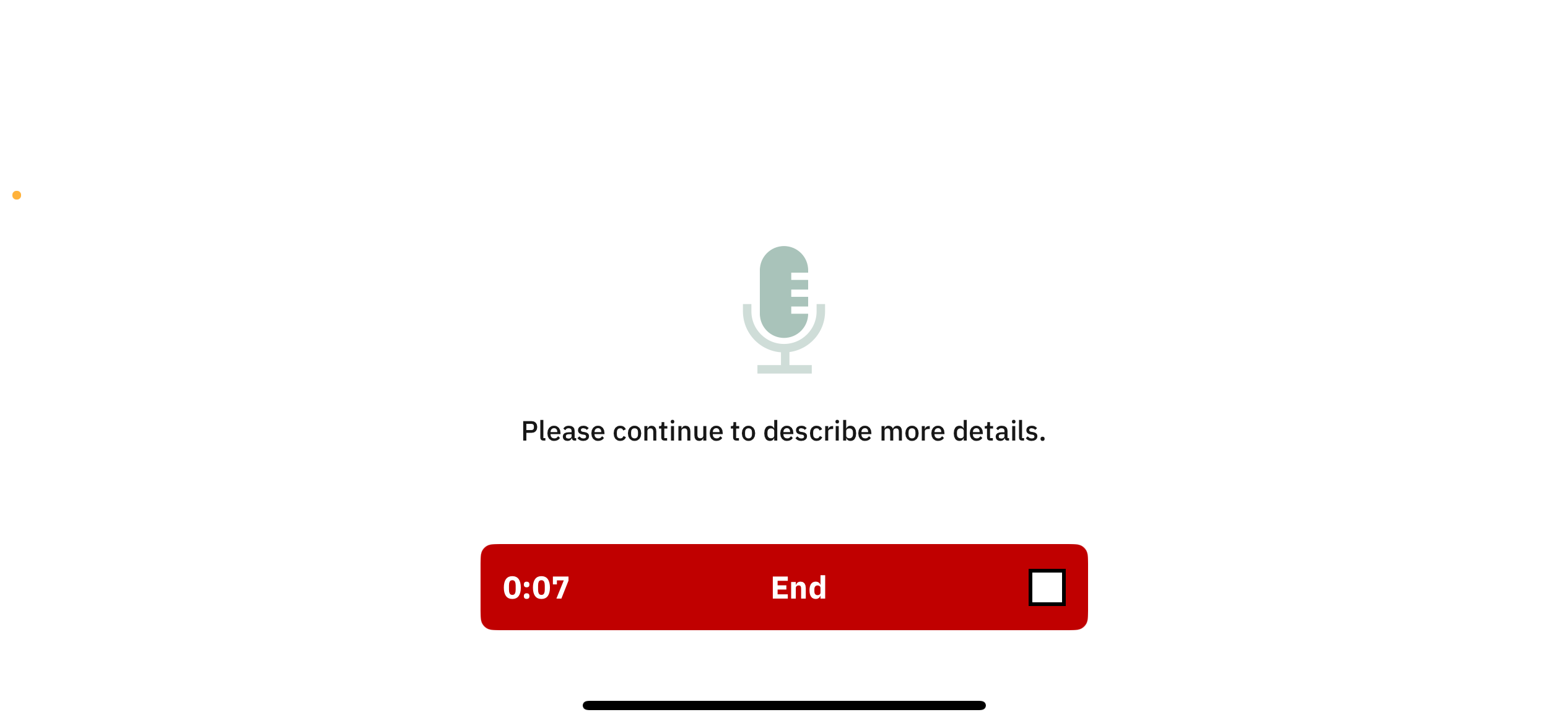
Response data

The speech response is recorded using a single 32-bit, mono, .wav audio file with 22050Hz sample rate.

Three dates are recorded at certain times during this exercise:

  • When the participant entered the assessment and was able to read the instructions
  • When the participant starts recording
  • When the participant finishes recording

Exercise Result

The following example shows the JSON object structure used for this exercise result:

{
  "exercise_id": "exercise16",
  "exercise_metadata": {},
  "exercise_result": {
    "file_path": "path/to/the/audio/file",
"instructed_at": "2025-12-31T01:14:36.649Z",
"started_at": "2025-12-31T01:14:40.649Z",
"completed_at":"2025-12-31T01:14:42.649Z" } }

Let’s try to understand the results recorded for this exercise using the fields of this JSON object. 

exercise_id (string)

The default exercise_id value for exercise 16 is exercise16.

exercise_metadata (object)

Currently, there is no additional information required to process the recorded results for this exercise. Thus, an empty object is present here.

    exercise_result (object)

    This object contains the result using the following fields:

    • file_path (string): Path to the location of the audio file with speech response
    • instructed_at (date): The timestamp (ISO 8601) indicating when the participant chooses to begin the exercise session, i.e., when instructions are first shown
    • started_at (date): The timestamp (ISO 8601) indicating when the participant starts recording their response, i.e., when the timer starts
    • completed_at (date): The timestamp (ISO 8601) indicating when the participant finishes recording their response, i.e., when the ‘End’ button was pressed

    Response Data

    Payloads in this version utilize the shared response format, which documents top-level fields, metadata shapes, and the event catalog, including the deprecation of exercise_result. Exercise-specific details are documented below.


    Top-level values

    Field Type Description
    schema_version number 1
    exercise_version number Exercise version (changes with each configuration update from the admin portal).
    exercise_id string "exercise16"
    exercise_metadata object See below
    exercise_response object The participant’s response, recorded as a timestamped list of events (details below).
    exercise_result object (Deprecated) Same as schema version 0.


    exercise_metadata

    Field Type Description
    device_display object Shared shape (see the shared response format).
    time_limit object { "min_ms": 20000, "max_ms": 300000 }: A flexible window — the participant must record for at least 20 seconds and may record up to 5 minutes.

    Note: There is no stimuli or controls field — no picture is displayed during this exercise, since the participant recalls the image (shown during Picture Description) from memory.


    exercise_response

    Picture Recall emits the following event types (see the shared event catalog for their meanings): exercise_started / exercise_completed, screen_displayed, response_session_started / response_session_completed, alert_displayed / alert_closed, message_displayed, tap, and response.

    Recording begins when the participant taps “Start Recording” (response_session_started). Tapping “End” before the 20-second minimum triggers the “Please continue to describe more details.” prompt (message_displayed); once past the minimum, the End tap finishes the recording. There are no stimulus_displayed events.

    Each response event carries:

    Field Type Description
    audio_url string Link to the speech recording (e.g. a .flac file).
    recording_time_ms number Duration of the recording in milliseconds.
    timeout boolean Whether the maximum recording time was reached.
    audio_input_source string (Optional) The audio input device, e.g. "iPhone Microphone".


    exercise_result (deprecated)

    Field Type Description
    exercise_result object (Deprecated) Same as schema version 0.

    Assessment Response Data (deprecated)

    Introduction

    This document is a guide to understanding the battery results recorded using NeuroLup.

    NeuroLup offers various cognitive assessments, known colloquially as “brain games” or “cognitive exercises”. NeuroLup also provides the flexibility to create custom test batteries by selecting any combination of these exercises. When a participant successfully finishes a battery, the system generates a comprehensive battery result. This battery result is a collection of results for exercises available within that specific battery.

    A battery result is represented using a JSON object. Here is an example of a battery result:

    {
      "battery_metadata": {
        "participant_id": "email_or_username",
        "mode": "program",
        "program_name": "sample_program_name",
        "battery_name": "sample_battery_name",
        "admin": "admin_email",
        "created_at": "creation_date_and_time",
        "updated_at": "updation_date_and_time",
        "device_info":  {
          "manufacturer":"Apple",
          "model_name":"iPhone",
          "system_name":"iOS",
          "system_version":"17.1.1",
          "type":"iPhone",
    "app_info":{
    "id":"com.dev.relup",
    "version":"1.0.0",
    "language":"en-US"
    } } }, "battery_result": { "exercise02": { "exercise_id": "exercise02", "exercise_metadata": {}, "exercise_result": { "file_path": "path/to/the/audio/file" } }, "exercise04": { "exercise_id": "exercise04", "exercise_metadata": {}, "exercise_result": { "right_index_finger_taps": [17, 38, 58, 81, 102, 127, 147, 169, 192, 212], "left_index_finger_taps": [15, 35, 55, 75, 93, 115, 132, 152, 170, 188, 2062] } } } }

    The rest of this document explains the different fields used here and their values.

    Battery Result Explanation

    Let’s try to understand the battery results recorded for NeuroLup by examining the fields of the JSON object example presented above.

    A battery result JSON object contains the battery results and certain information about the battery, including the participant identifier, program name, and battery name. It consists of two fields:

    battery_metadata (object)

    This object contains information about the battery results using the following fields:

    • participant_id (string): Participant identifier
    • mode (string): Indicates the NeuroLup mode used to collect the battery results (values: program, on-demand)
    • program_name (string): Program name (optional, applicable for the program mode)
    • battery_name (string): Battery name
    • product_code (string): Product code (optional, applicable for the on-demand mode)
    • admin (string): Email address identifying the admin (optional, applicable for the program mode)
    • assistant (string): Email address identifying the assistant (optional, applicable for the on-demand mode)
    • created_at (string): Creation time for the battery results
    • updated_at (string): Updation time for the battery results (if applicable)
    • device_info (object): Available information about the device used to complete the battery exercises in a key:value format

    battery_result (object)

    This object contains the results for the exercises available with the battery in a key:value format. Each key refers to an exercise, and each value is an object representing the exercise response data.

    key (string):

    Each exercise is identified with a key in the format exerciseXX, where XX represents the exercise number. For example, the JSON object above shows that the battery_result object contains results for exercises 2 and 4, identified by the keys exercise02 and exercise04.

    value (object):

    This object represents exercise results using the following nested fields:

    • exercise_id (string): Exercise ID (same as the key)
    • exercise_metadata (object): Additional information required for the exercise results, which is exercise-specific (for more details, please refer to the Exercises documentation)
    • exercise_result (object): Exercise-specific results (for more details, please refer to the Exercises documentation)

    Form Response Data (deprecated)

    Introduction

    This document is a guide to understanding the form results recorded using NeuroLup.

    NeuroLup offers various cognitive assessments, known colloquially as “brain games” or “cognitive exercises”. NeuroLup also provides the flexibility to create custom forms by selecting any combination of questions and sections. When a participant successfully finishes a form, the system generates a comprehensive form result. This form result is a collection of results for the questions available within that specific form.

    A form result is represented using a JSON object. Here is an example of a form result:

    {
      "form_metadata": {
        "participant_id": "email_or_username",
        "mode": "program",
        "program_name": "sample_program_name",
        "form_name": "sample_form_name",
        "admin": "admin_email",
        "created_at": "creation_date_and_time",
        "updated_at": "updation_date_and_time",
        "occurrence_number": "occurrence_number",
        "device_info":  {
          "manufacturer":"Apple",
          "model_name":"iPhone",
          "system_name":"iOS",
          "system_version":"17.1.1",
          "type":"iPhone"
        }
      }
      "form_response": [
        {
          "index":0,
          "fieldType":"question",
          "question_type":"singleSelectMCQ",
          "answer":"My single selection"
        },
        {
          "index":1,
          "fieldType":"section",
          "questions_idx":[2]
        },
        {
          "index":2,
          "field_type":"question",
          "question_type":"multipleSelectMCQ",
          "answer":["Selected Multiple", "This is an other answer"],
          "is_other_answer": true
        }
      ]
    }

    The rest of this document explains the different fields used here and their values.

    Form Result Explanation

    Let’s try to understand the battery results recorded for NeuroLup by examining the fields of the JSON object example presented above.

    A form result JSON object contains the form responses and certain information about the form, including the participant identifier, program name, and form name. It consists of two fields:

    form_metadata (object)

    This object contains information about the form results using the following fields:

    • participant_id (string): Participant identifier

    • mode(string): Indicates the mode used to collect the form results (currently program mode only)

    • program_name (string): Program name

    • form_name (string): Form name

    • admin (string): Email address identifying the admin

    • created_at (string): Creation time for the form results

    • updated_at (string): Updation time for the form results (if applicable)

    • occurrence_number(integer): The specific occurrence number of this form result

    • device_info (object): Available information about the device used to complete the form in a key:value format

    form_response (array)

    form_response is an array of form fields in display order. Each form field is a section header or a question. Object representation of a form field:

    Field Type Description
    index number Position of the field in the form.
    fieldType string Denotes the field type: section or question.
    questionsIdx array Available if field_type: section. Lists index positions for questions belonging to the section.
    questionType string Available if field_type: question. One of the types noted in Form Question Responses.
    answer union of types mentioned in Form Question Responses Available if field_type: question. The participant’s answer. See Form Question Responses for details.
    isOtherAnswer boolean Available if field_type: question and questionType is singleSelectMCQ or multipleSelectMCQ. This flag indicates whether the user selected to enter a free-text (other) answer.


    Form Question Responses

    Answer format by question type:

    questionType Answer Field Type Description
    singleSelectMCQ string Single-select multiple-choice question. The answer is the selected option’s text. When the participant chooses the free-text “Other” option, isOtherAnswer is true and the answer is the text they entered.
    multipleSelectMCQ array <string> Multiple-select multiple-choice question. The answer lists every selected option’s text; a free-text “Other” entry is included when isOtherAnswer is true.
    dropdown string Dropdown selection. The answer is the selected option’s text.
    textShort string Short free-text answer (single line).
    textLong string Long free-text answer (multi-line).
    email string Email address entered by the participant.
    number number Numeric answer.
    date date (ISO 8601 date) Calendar date selected by the participant.
    time string (HH:MM:SS) Time of day in 24-hour format, e.g. 13:35:53.
    duration string (HH:MM:SS) Elapsed-time answer between 00:00:00 and 24:00:00.
    dateRange object { "start": date, "end": date } A date range with ISO 8601 start and end dates.